> ## Documentation Index
> Fetch the complete documentation index at: https://www.tella.com/docs/llms.txt
> Use this file to discover all available pages before exploring further.
# Auto layouts
> Generate edited layouts automatically across landscape, portrait, and square videos with optional AI-generated image B-roll.
*This feature is currently in beta. If you have questions or run into an issue, please contact support.*
Auto layouts analyzes your clip's transcript and video and produces a sequence of layouts — camera bubbles, screen-only beats, camera cutaways, side-by-side splits, TV-presenter compositions, and optional image B-roll — tuned to your chosen editing style.
## How to generate auto layouts
1. Open a clip in the editor and go to the **Layout** section.
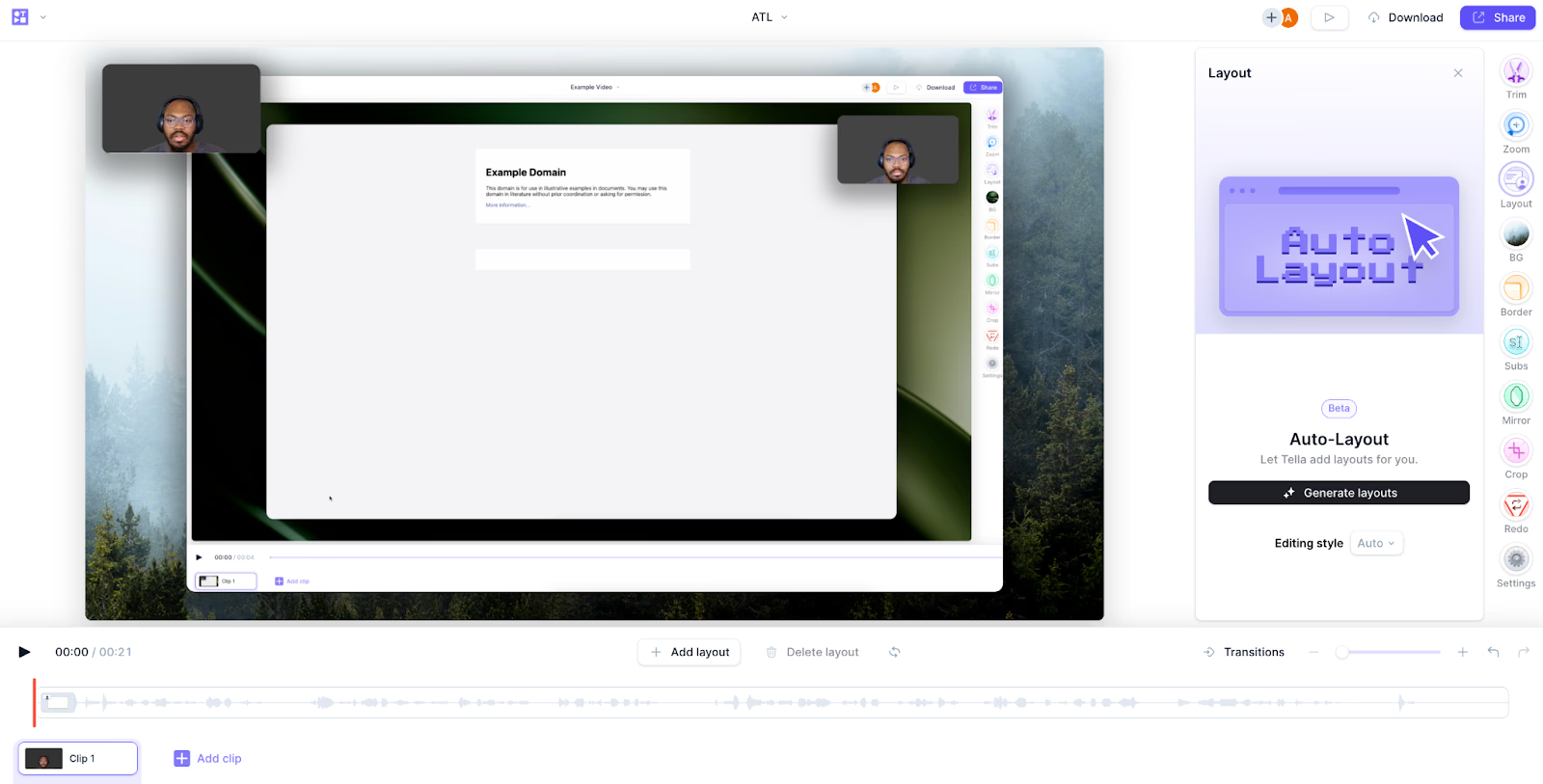 2. Choose your editing style. **Auto** is selected by default and picks the right style based on the content of your clip.
* Each style changes the pacing, composition, and edit vocabulary of your video
* Hover over a style to see a description
* Try **Auto** the first time you generate layouts
3. Click **Generate layouts**.
2. Choose your editing style. **Auto** is selected by default and picks the right style based on the content of your clip.
* Each style changes the pacing, composition, and edit vocabulary of your video
* Hover over a style to see a description
* Try **Auto** the first time you generate layouts
3. Click **Generate layouts**.
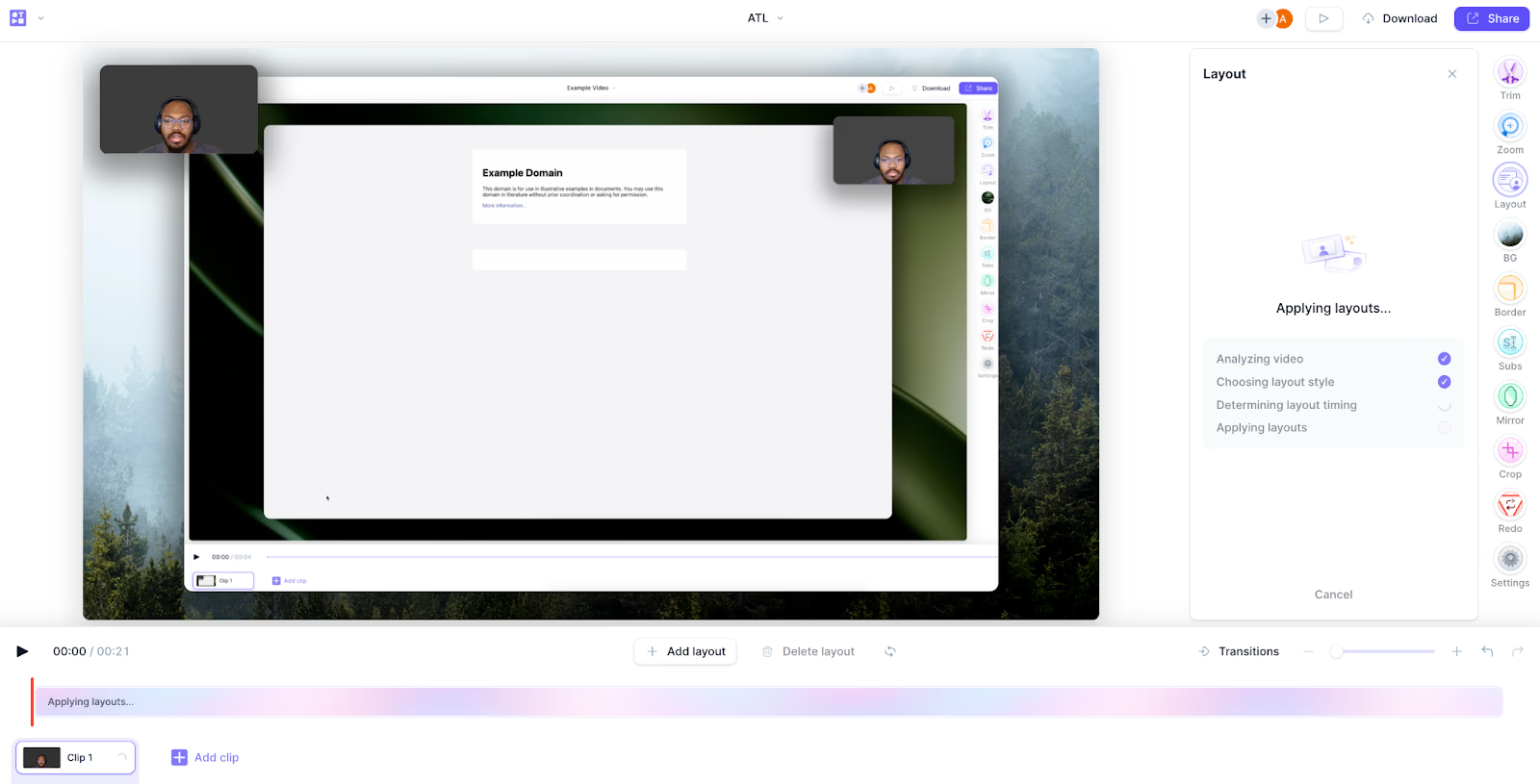 Layouts start streaming in and are applied to your clip as they generate.
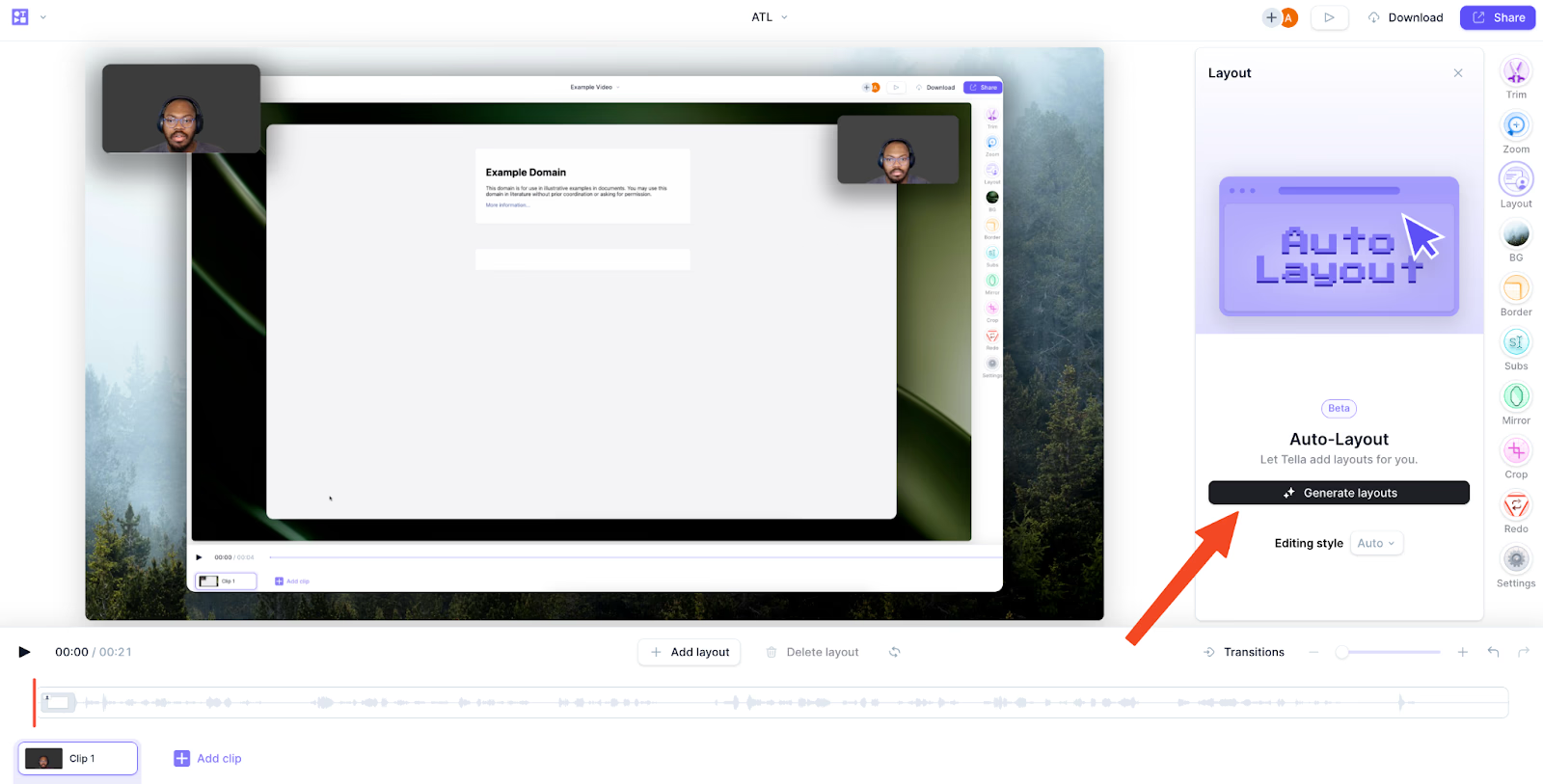 4. Wait for the generation to complete.
5. Review the result. Give a thumbs up or thumbs down to rate it — your feedback helps tune the model.
4. Wait for the generation to complete.
5. Review the result. Give a thumbs up or thumbs down to rate it — your feedback helps tune the model.
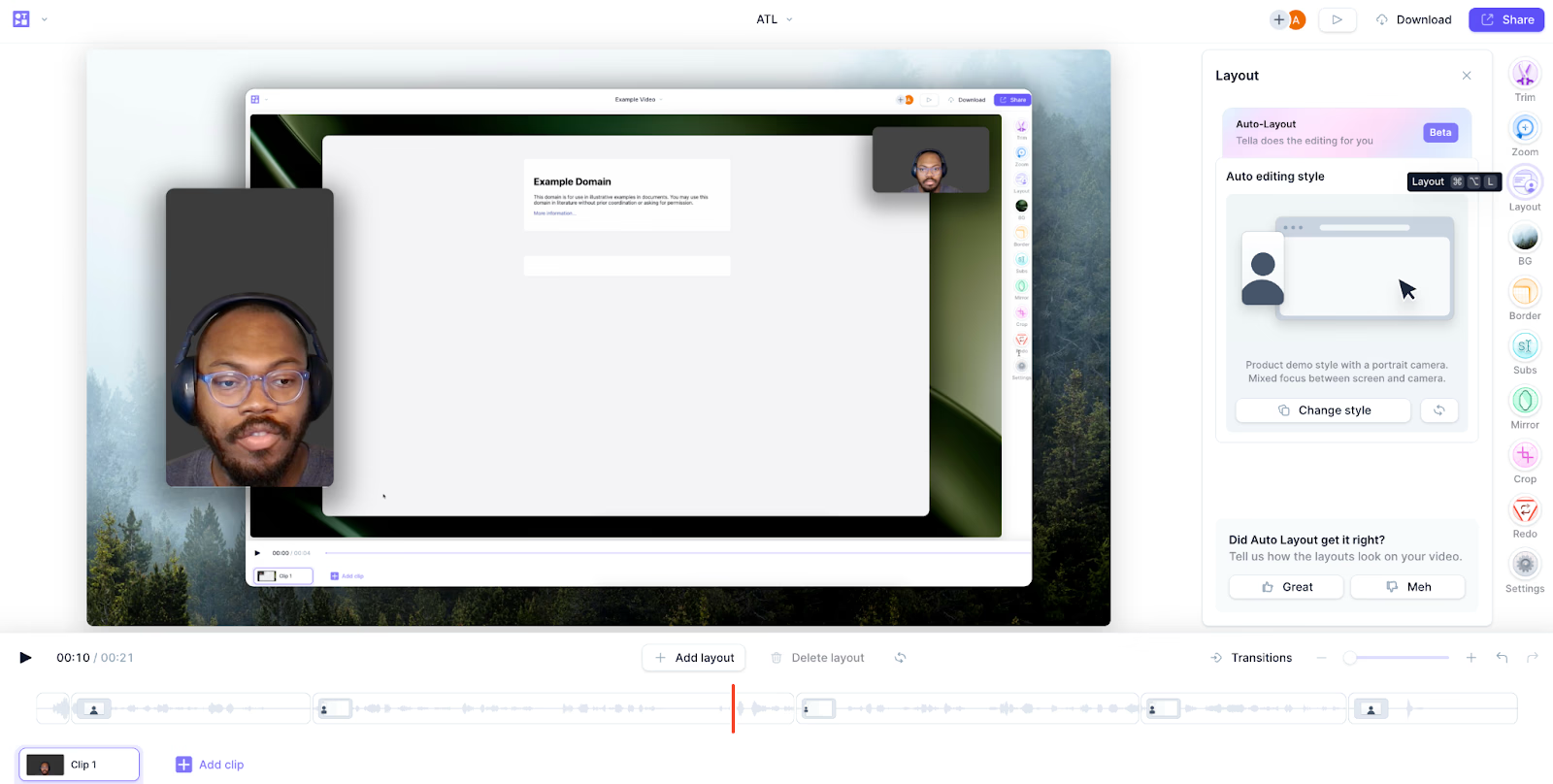 ## After generation
Once auto layouts finishes, you can:
* Change the editing style and regenerate for a different approach
* Regenerate with the same style for an alternative take
* Delete individual layouts while keeping the rest
* Adjust the start and end of any layout
* Undo or redo — you're never locked in
* Windows: `Ctrl + Z` to undo, `Ctrl + Y` to redo
* macOS: `Cmd + Z` to undo, `Cmd + Y` to redo
* Rate the result with the thumbs up/down buttons
## Editing styles
Each style is tuned for a different kind of content and a different canvas. The styles available to auto layouts depend on your clip's recording type and canvas size.
* **Auto** — picks the most appropriate style based on what you say and show
* **Product demo** — high-energy proof + commentary; mixes screen reveals, camera cutaways, punch-ins, and B-roll for product walkthroughs, page critiques, and feature launches
* **Tutorial** — procedural, step-by-step instruction where the viewer needs to follow exact clicks, typing, and configuration
* **Presentation** — speaker-led talks, pitches, recaps, and lessons; includes a hosted **TV show** variant on landscape canvases that frames the speaker like a presenter
* **Intro & outro** — only bookends the clip with a camera-led intro and outro and leaves the middle untouched
## Image B-roll
For product demo and presentation styles, auto layouts can insert AI-generated still images as B-roll over abstract concepts, benefits, customer situations, examples, and metaphors — places where there's nothing specific on screen to inspect.
* B-roll appears as a generated still image (never video) sized to your canvas
* Placeholders show the prompt while the image is generating
* B-roll is skipped during clicks, typing, cursor work, code edits, and dense slide reading
* The **Intro & outro** style doesn't add B-roll by default
### Turn B-roll on or off
Generated B-roll is off by default. To enable it for a generation:
1. Open the options menu next to **Generate layouts**.
2. Under **B-roll**, toggle **Generate B-roll** on.
3. Generate or regenerate layouts.
Your preference is remembered for future generations.
## Supported recordings and canvases
Auto layouts works with:
* **Landscape (16:9)** — two-track (camera + screen), screen-only, and camera-only recordings
* **Portrait (9:16)** — two-track, screen-only, and camera-only recordings
* **Square (1:1) and round** — two-track and camera-only recordings
The available editing styles and compositions adapt to the canvas — for example, portrait clips use a presenter-forward split, and landscape presentations can use the TV-presenter framing.
## Best practices
* **Start with a clean slate** — auto layouts works best on raw, unedited recordings
* **Crop first** — if you need to crop your screen, do it before running auto layouts
* **One clip at a time** — generate layouts per clip; layouts won't generate across an entire video in one pass
## What to expect
* **Variability** — each generation can produce slightly different results; regenerate to find the version you like
* **Pacing** — overrides are used as exceptions to the base layout, so most of the clip stays on the base composition with timed accents around important moments
* **Processing time** — longer clips take longer to generate
## Limitations
* Maximum clip length: 20 minutes
* Make all crop changes before running auto layouts — cropping afterwards affects every layout and can produce unexpected results
* After cropping, you can't update the generated layouts
## Actively improving
Auto layouts is still in beta. The team is fixing bugs, incorporating your feedback, and tuning the model continuously. Features and behavior may change as the feature evolves.
## After generation
Once auto layouts finishes, you can:
* Change the editing style and regenerate for a different approach
* Regenerate with the same style for an alternative take
* Delete individual layouts while keeping the rest
* Adjust the start and end of any layout
* Undo or redo — you're never locked in
* Windows: `Ctrl + Z` to undo, `Ctrl + Y` to redo
* macOS: `Cmd + Z` to undo, `Cmd + Y` to redo
* Rate the result with the thumbs up/down buttons
## Editing styles
Each style is tuned for a different kind of content and a different canvas. The styles available to auto layouts depend on your clip's recording type and canvas size.
* **Auto** — picks the most appropriate style based on what you say and show
* **Product demo** — high-energy proof + commentary; mixes screen reveals, camera cutaways, punch-ins, and B-roll for product walkthroughs, page critiques, and feature launches
* **Tutorial** — procedural, step-by-step instruction where the viewer needs to follow exact clicks, typing, and configuration
* **Presentation** — speaker-led talks, pitches, recaps, and lessons; includes a hosted **TV show** variant on landscape canvases that frames the speaker like a presenter
* **Intro & outro** — only bookends the clip with a camera-led intro and outro and leaves the middle untouched
## Image B-roll
For product demo and presentation styles, auto layouts can insert AI-generated still images as B-roll over abstract concepts, benefits, customer situations, examples, and metaphors — places where there's nothing specific on screen to inspect.
* B-roll appears as a generated still image (never video) sized to your canvas
* Placeholders show the prompt while the image is generating
* B-roll is skipped during clicks, typing, cursor work, code edits, and dense slide reading
* The **Intro & outro** style doesn't add B-roll by default
### Turn B-roll on or off
Generated B-roll is off by default. To enable it for a generation:
1. Open the options menu next to **Generate layouts**.
2. Under **B-roll**, toggle **Generate B-roll** on.
3. Generate or regenerate layouts.
Your preference is remembered for future generations.
## Supported recordings and canvases
Auto layouts works with:
* **Landscape (16:9)** — two-track (camera + screen), screen-only, and camera-only recordings
* **Portrait (9:16)** — two-track, screen-only, and camera-only recordings
* **Square (1:1) and round** — two-track and camera-only recordings
The available editing styles and compositions adapt to the canvas — for example, portrait clips use a presenter-forward split, and landscape presentations can use the TV-presenter framing.
## Best practices
* **Start with a clean slate** — auto layouts works best on raw, unedited recordings
* **Crop first** — if you need to crop your screen, do it before running auto layouts
* **One clip at a time** — generate layouts per clip; layouts won't generate across an entire video in one pass
## What to expect
* **Variability** — each generation can produce slightly different results; regenerate to find the version you like
* **Pacing** — overrides are used as exceptions to the base layout, so most of the clip stays on the base composition with timed accents around important moments
* **Processing time** — longer clips take longer to generate
## Limitations
* Maximum clip length: 20 minutes
* Make all crop changes before running auto layouts — cropping afterwards affects every layout and can produce unexpected results
* After cropping, you can't update the generated layouts
## Actively improving
Auto layouts is still in beta. The team is fixing bugs, incorporating your feedback, and tuning the model continuously. Features and behavior may change as the feature evolves.