> ## Documentation Index
> Fetch the complete documentation index at: https://www.tella.com/docs/llms.txt
> Use this file to discover all available pages before exploring further.
# Get logs from the Windows app
> Where Tella for Windows keeps its log files, how to open the logs folder with Show Logs, and how to zip the logs and send them to support.
When something goes wrong in Tella for Windows, such as a recording that didn't save, a camera or microphone that won't appear, an upload that's stuck, or the app closing unexpectedly, the app's log files show support what happened on your PC. This guide walks through finding those files and sending them to us.
## Open the logs folder
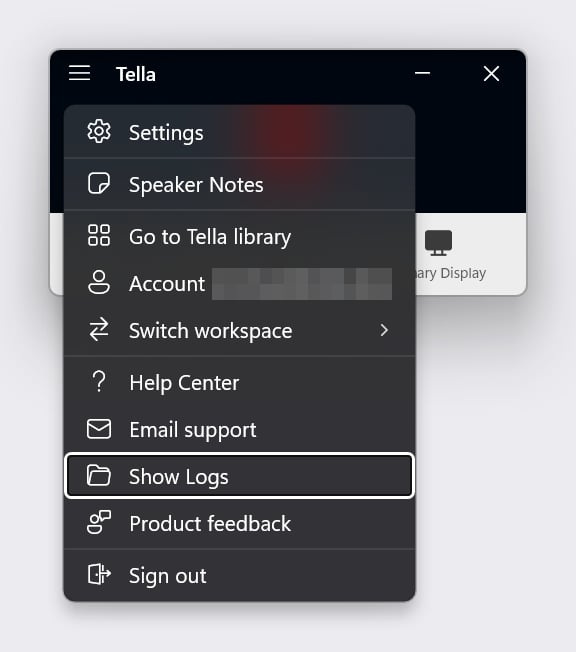
1. Open the Tella Windows app.
2. Click the **☰** menu button in the top-left corner of the window.
3. Click **Show Logs**.
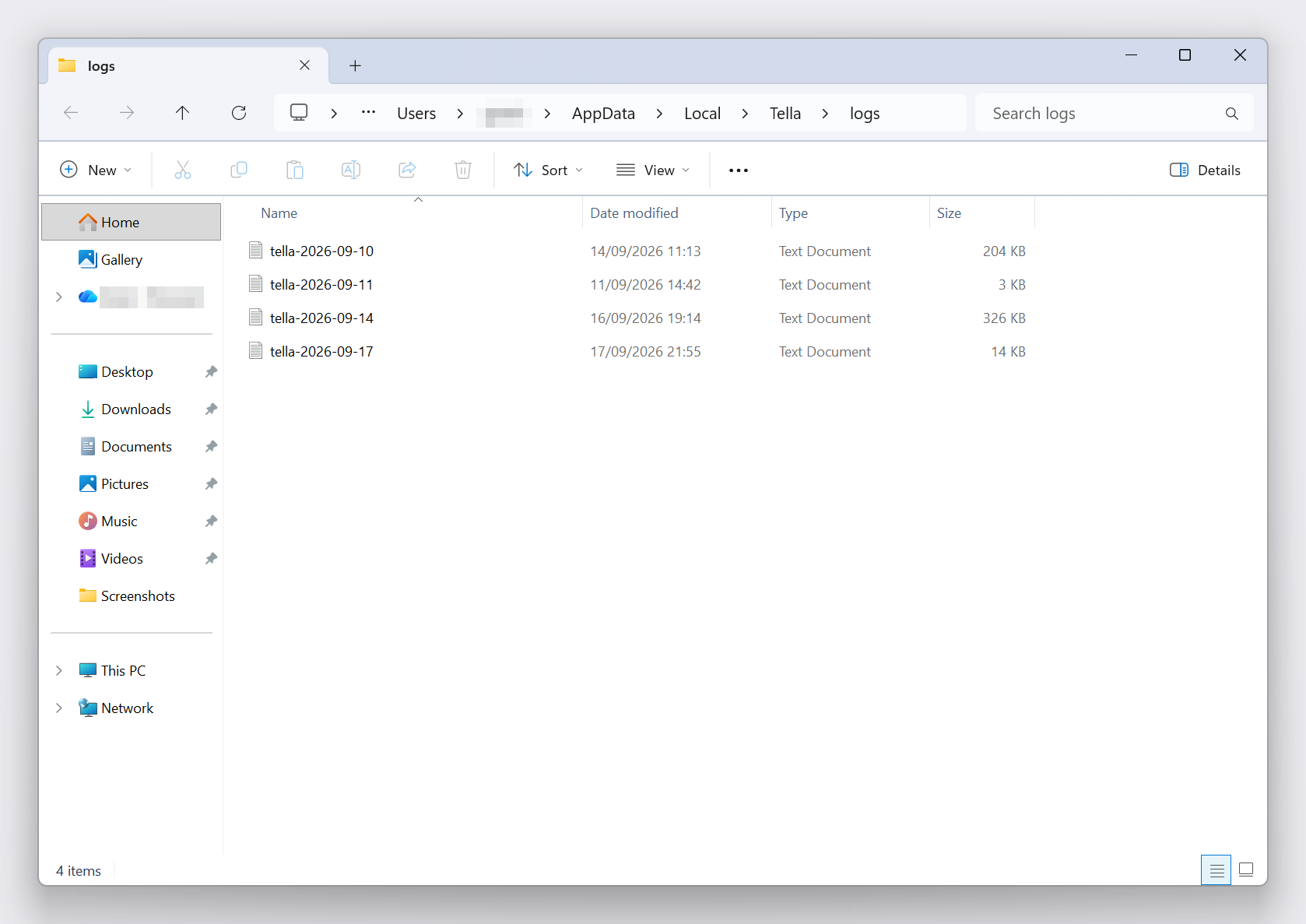
 File Explorer opens the Tella logs folder at `%LOCALAPPDATA%\Tella\logs`. The full path is usually `C:\Users\\AppData\Local\Tella\logs`.
 Click **Show Logs** right after the problem happens. The moment you click it, Tella writes a fresh snapshot of your PC (Windows version, app version, memory, and free disk space) into the log, so support sees the state of your machine at the time of the issue.
### If the app window won't open
You can still get to the logs without the main window:
* **From the system tray:** right-click the Tella icon in the notification area at the bottom-right of the taskbar (you may need to click the **^** arrow to show hidden icons) and choose **Show Logs**.
* **From File Explorer:** open File Explorer, paste `%LOCALAPPDATA%\Tella\logs` into the address bar, and press **Enter**.
## Zip the logs and send them to support
Tella writes one log file per day, named `tella-YYYY-MM-DD.log`.
1. In the logs folder, select the log file for the day the problem happened. If you're not sure which day, press **Ctrl + A** to select all of them. Log files are small, so sending a few extra days is fine.
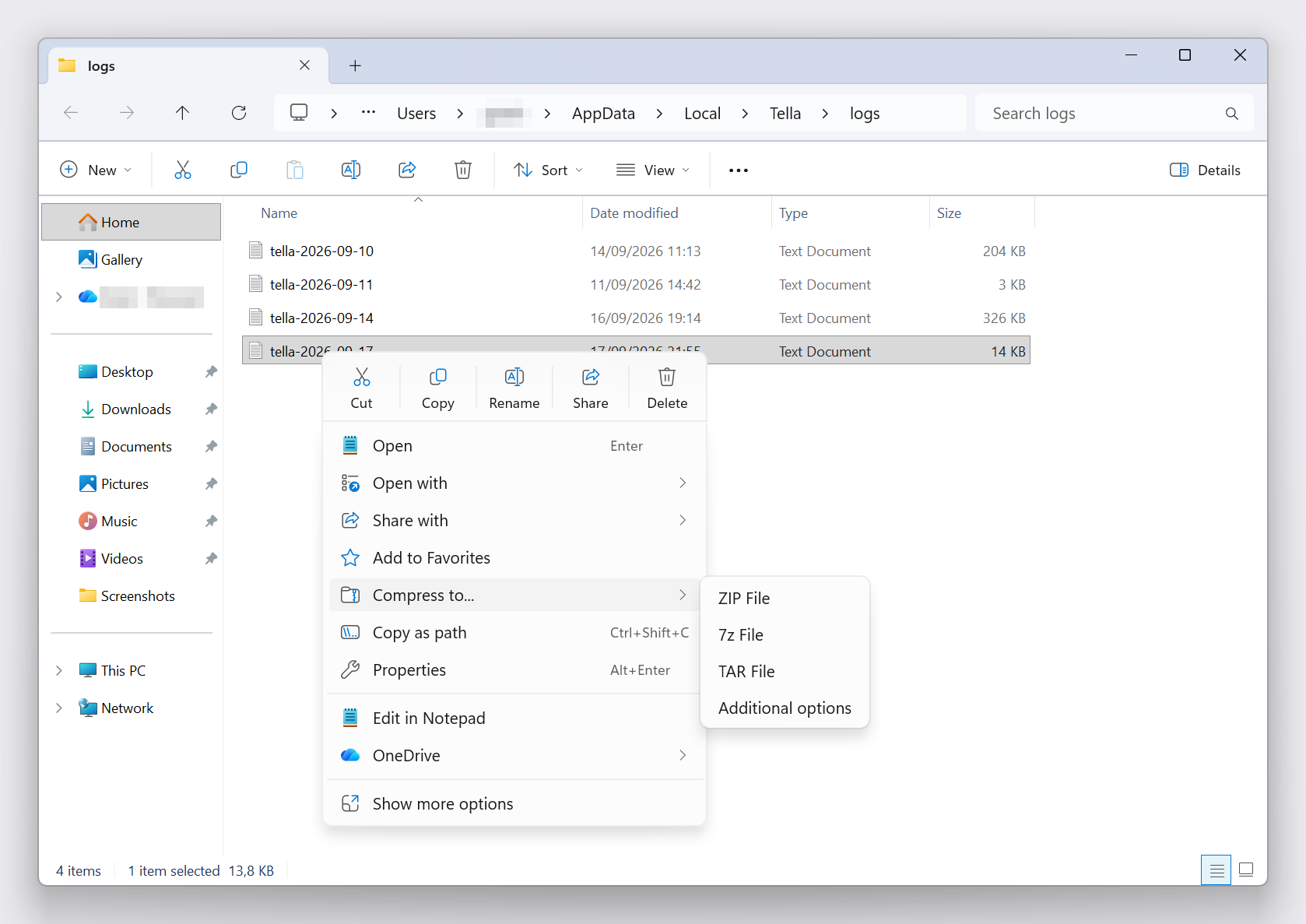
2. Right-click the selection and choose **Compress to… → ZIP File** (Windows 11) or **Send to → Compressed (zipped) folder** (Windows 10).
Click **Show Logs** right after the problem happens. The moment you click it, Tella writes a fresh snapshot of your PC (Windows version, app version, memory, and free disk space) into the log, so support sees the state of your machine at the time of the issue.
### If the app window won't open
You can still get to the logs without the main window:
* **From the system tray:** right-click the Tella icon in the notification area at the bottom-right of the taskbar (you may need to click the **^** arrow to show hidden icons) and choose **Show Logs**.
* **From File Explorer:** open File Explorer, paste `%LOCALAPPDATA%\Tella\logs` into the address bar, and press **Enter**.
## Zip the logs and send them to support
Tella writes one log file per day, named `tella-YYYY-MM-DD.log`.
1. In the logs folder, select the log file for the day the problem happened. If you're not sure which day, press **Ctrl + A** to select all of them. Log files are small, so sending a few extra days is fine.
2. Right-click the selection and choose **Compress to… → ZIP File** (Windows 11) or **Send to → Compressed (zipped) folder** (Windows 10).
 3. Attach the zip to your message to support. Reply on your existing support thread if you have one, otherwise use the in-app chat (the **?** Help button in Tella on the web) or email [support@tella.com](mailto:support@tella.com).
Along with the zip, tell us:
* What happened and what you expected instead
* The approximate **date and time** it happened
* A **share link** to the video, if one exists
See [support availability](/docs/help/support/support-availability) for response times.
## What the logs contain
The log files are plain text. They record the app's activity (recording start and stop, uploads, sign-in, updates), the names of the camera, microphone, and displays you used, and a snapshot of your system such as the Windows edition and build, app version, memory, and free disk space. They never contain your video or audio.
When a recording uploads successfully, Tella attaches a compressed copy of that session's log to the upload automatically, so support can often look into a finished video without you sending anything. **Show Logs** matters most when a recording never uploaded, the app closed unexpectedly, or the problem isn't tied to a specific video.
## Related
* [Recover a cancelled or errored recording](/docs/help/recording/recover-a-cancelled-recording)
* [Can't record on Windows? Check camera and microphone permissions](/docs/help/windows-app/cant-record-on-windows-check-camera-mic-permissions)
* [Low disk space in the Windows app](/docs/help/windows-app/windows-app-low-disk-space-warning)
## Related topics
- [Recover a cancelled or errored recording](/docs/help/recording/recover-a-cancelled-recording.md)
- [Windows App](/docs/changelog/windows-app.md)
- [Record with the Tella Windows app](/docs/help/recording/record-a-video-using-the-windows-app.md)
- [Browser storage isn't working](/docs/help/troubleshooting/browser-storage-not-working.md)
- [Mac App](/docs/changelog/mac-app.md)
3. Attach the zip to your message to support. Reply on your existing support thread if you have one, otherwise use the in-app chat (the **?** Help button in Tella on the web) or email [support@tella.com](mailto:support@tella.com).
Along with the zip, tell us:
* What happened and what you expected instead
* The approximate **date and time** it happened
* A **share link** to the video, if one exists
See [support availability](/docs/help/support/support-availability) for response times.
## What the logs contain
The log files are plain text. They record the app's activity (recording start and stop, uploads, sign-in, updates), the names of the camera, microphone, and displays you used, and a snapshot of your system such as the Windows edition and build, app version, memory, and free disk space. They never contain your video or audio.
When a recording uploads successfully, Tella attaches a compressed copy of that session's log to the upload automatically, so support can often look into a finished video without you sending anything. **Show Logs** matters most when a recording never uploaded, the app closed unexpectedly, or the problem isn't tied to a specific video.
## Related
* [Recover a cancelled or errored recording](/docs/help/recording/recover-a-cancelled-recording)
* [Can't record on Windows? Check camera and microphone permissions](/docs/help/windows-app/cant-record-on-windows-check-camera-mic-permissions)
* [Low disk space in the Windows app](/docs/help/windows-app/windows-app-low-disk-space-warning)
## Related topics
- [Recover a cancelled or errored recording](/docs/help/recording/recover-a-cancelled-recording.md)
- [Windows App](/docs/changelog/windows-app.md)
- [Record with the Tella Windows app](/docs/help/recording/record-a-video-using-the-windows-app.md)
- [Browser storage isn't working](/docs/help/troubleshooting/browser-storage-not-working.md)
- [Mac App](/docs/changelog/mac-app.md)