Tella warns you when it hears almost no sound from your microphone for about 5 seconds. Check that your mic isn’t muted, is connected, and is the one selected in Tella.
Tella shows the “no sound” warning when it hears almost nothing from your selected microphone for about 5 seconds. It usually means the mic is muted, disconnected, or not the one selected in Tella. If you have a very quiet, noise-isolating mic and can see sound on the mic icon when you speak, you can ignore it.
Web app: “We’re not detecting much sound from your mic.” appears in the recorder, with a Learn more link to this page.
Mac app: a No sound detected alert appears when you press record, saying “We’re not detecting any sound from your microphone. Make sure you have the correct mic selected.” Choose Record anyway or Go back. On a MacBook with the lid closed, the alert asks you to open the lid, because the built-in mic is off while the lid is closed.
Windows app: a No sound detected banner appears if the mic hasn’t picked up any sound in the first 5 seconds of recording.
If your mic or camera stops sending anything after you’ve started recording (for example, it’s muted, unplugged, or the mic is sending only silence), the web app and Chrome extension warn you while the recording keeps running:
Web app: a message stays on screen until the input is back: “Your mic stopped sending audio. Check that it’s connected and unmuted. The recording is still running.” For the camera, it says “Your camera stopped sending video.” The browser tab’s title also starts with ⚠, so you can spot it while you’re recording another tab.
Chrome extension: the recording controls show “Your mic stopped sending audio”, “Your camera stopped sending video”, or “Your mic and camera stopped working”, even if you’ve hidden the on-screen controls.
The warning goes away on its own once the mic or camera is sending again. Fix the connection or unmute, then keep recording. You may want to re-record the part that was lost.
Check that your microphone is selected in Tella and that it’s plugged in or paired properly. If you recently switched headphones or docks, Tella may still be pointing at the old device.
Good mics block out background noise and isolate your voice, so they’re very quiet when you’re not speaking. If that’s your setup, you can ignore the warning.
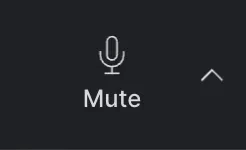
If you see sound moving on the mic icon while you speak, your mic is fine.If there’s no movement when you speak, work through the checks above.
Last modified on November 6, 2026
Was this page helpful?
{"docsConfig":{"theme":"mint","$schema":"https://mintlify.com/schema.json","name":"Tella","colors":{"primary":"#8278FA","light":"#B1AAFC","dark":"#5E51F8"},"logo":{"light":"https://mintcdn.com/tella/znRZoQ3e3rlGBTT2/logo-light.svg?fit=max\u0026auto=format\u0026n=znRZoQ3e3rlGBTT2\u0026q=85\u0026s=dd044b03efe593b53353a039bfb31fbf","dark":"https://mintcdn.com/tella/znRZoQ3e3rlGBTT2/logo-dark.svg?fit=max\u0026auto=format\u0026n=znRZoQ3e3rlGBTT2\u0026q=85\u0026s=88323f6b0165ce29c00e3a1d80c82fe3"},"favicon":"https://mintcdn.com/tella/munSRGpiNeMNXMvc/favicon.svg?fit=max\u0026auto=format\u0026n=munSRGpiNeMNXMvc\u0026q=85\u0026s=1b25a4dc5d9a41a1a9238eda432a0cb6","api":{"params":{"expanded":"all"},"playground":{"display":"interactive","proxy":true},"examples":{"defaults":"all","prefill":true},"url":"full","mdx":{"auth":{"method":"bearer"}}},"navbar":{"primary":{"type":"button","label":"Open Tella","href":"https://tella.com/videos"}},"footer":{"socials":{"github":"https://github.com/tellahq","x":"https://x.com/tellahq","linkedin":"https://linkedin.com/company/tellahq","youtube":"https://youtube.com/@tellahq","website":"https://tella.com","instagram":"https://instagram.com/tellahq"}},"seo":{"paths":[{"path":"help","metatags":{"canonical":"https://www.tella.com"}},{"path":"changelog","metatags":{"canonical":"https://www.tella.com"}}]},"styling":{"eyebrows":"breadcrumbs","codeblocks":"system","latex":false},"contextual":{"options":["copy","assistant","view","chatgpt","claude","perplexity","grok","mcp","add-mcp","cursor","vscode"],"display":"header"},"interaction":{"drilldown":true},"metadata":{"timestamp":true},"markdown":{"schema":true},"navigation":{"global":{"anchors":[{"anchor":"Changelog","icon":"clock-rotate-left","href":"/changelog"},{"anchor":"Community","icon":"users","href":"https://community.tella.tv"},{"anchor":"System Status","icon":"signal","href":"https://status.tella.com"},{"anchor":"Contact Support","icon":"envelope","href":"mailto:support@tella.com"},{"anchor":"Debug","icon":"bug","href":"/help/support/debug-camera-and-microphone-issues"}]},"pages":[]}},"deployment":{"deploymentMetadataValue":{"subdomain":"tella","hasAudioNarration":false,"actualSubdomain":"tella","customDomains":["www.tella.com"],"gitSource":{"type":"github","owner":"tellahq","repo":"tella-fusion","deployBranch":"main","contentDirectory":"packages/core/webapp/docs","isPrivate":true,"mountPath":"","label":""},"feedback":{"thumbs":true,"contextualFeedback":{"allowEmail":true},"agentFeedback":true},"entitlements":{"AI_CHAT":{"status":"ENABLED"},"WEB_MCP":{"status":"ENABLED"},"NARRATION":{"status":"ENABLED"}},"buildId":"6af0f510e61eac68d6d7b762","clientVersion":"0.0.4088","searchFilterCounts":[{"language":"default","tag":"Help Center","count":267},{"language":"default","tag":"Developers","count":208},{"language":"default","tag":"API Reference","count":157},{"language":"default","tag":"Edit","count":71},{"language":"default","tag":"Clips","count":63},{"language":"default","tag":"Share and embed","count":41},{"language":"default","tag":"Videos","count":37},{"language":"default","tag":"MCP Tools","count":34},{"language":"default","tag":"Troubleshooting and support","count":32},{"language":"default","tag":"Account and workspace","count":31}],"searchSettings":{"isFiltersEnabled":true,"maxResults":15,"showContentSnippets":true}},"assistantConfig":{"enableStarterQuestions":true,"enableContextualStarterQuestions":true,"deflection":{"enabled":true,"type":"email","email":"support@tella.com","showHelpButton":true}},"basePath":"/docs","hasChatPermissions":false,"hasWebMcpPermissions":true,"toggles":[{"name":"kill-isr","enabled":true,"variant":{"name":"disabled","enabled":false,"feature_enabled":true},"impressionData":false},{"name":"agent-mintlify-slack","enabled":true,"variant":{"name":"disabled","enabled":false,"feature_enabled":true},"impressionData":false},{"name":"agent-integrations-settings","enabled":true,"variant":{"name":"disabled","enabled":false,"feature_enabled":true},"impressionData":false},{"name":"rbac-expansion","enabled":true,"variant":{"name":"disabled","enabled":false,"feature_enabled":true},"impressionData":false},{"name":"automations-pr-grouping","enabled":true,"variant":{"name":"disabled","enabled":false,"feature_enabled":true},"impressionData":false},{"name":"custom-prefix","enabled":true,"variant":{"name":"disabled","enabled":false,"feature_enabled":true},"impressionData":false},{"name":"analytics-v7","enabled":true,"variant":{"name":"disabled","enabled":false,"feature_enabled":true},"impressionData":false},{"name":"user-flows-analytics","enabled":true,"variant":{"name":"disabled","enabled":false,"feature_enabled":true},"impressionData":false},{"name":"no-publish-flow","enabled":true,"variant":{"name":"disabled","enabled":false,"feature_enabled":true},"impressionData":false},{"name":"workos-onboarding","enabled":true,"variant":{"name":"disabled","enabled":false,"feature_enabled":true},"impressionData":false},{"name":"llms-txt-v2","enabled":true,"variant":{"name":"disabled","enabled":false,"feature_enabled":true},"impressionData":false},{"name":"snapshot-serving-live","enabled":true,"variant":{"name":"disabled","enabled":false,"feature_enabled":true},"impressionData":false},{"name":"stripTemperatureMiddleware","enabled":true,"variant":{"name":"disabled","enabled":false,"feature_enabled":true},"impressionData":false},{"name":"support-platform-pylon-zendesk","enabled":true,"variant":{"name":"disabled","enabled":false,"feature_enabled":true},"impressionData":false},{"name":"snapshot-serving","enabled":true,"variant":{"name":"disabled","enabled":false,"feature_enabled":true},"impressionData":false},{"name":"instant-rollback","enabled":true,"variant":{"name":"disabled","enabled":false,"feature_enabled":true},"impressionData":false},{"name":"granular-notifications-server","enabled":true,"variant":{"name":"disabled","enabled":false,"feature_enabled":true},"impressionData":false},{"name":"granular-notifications","enabled":true,"variant":{"name":"disabled","enabled":false,"feature_enabled":true},"impressionData":false},{"name":"automations-fable","enabled":true,"variant":{"name":"disabled","enabled":false,"feature_enabled":true},"impressionData":false},{"name":"fixed-ai-action-pricing","enabled":true,"variant":{"name":"disabled","enabled":false,"feature_enabled":true},"impressionData":false},{"name":"automation-resolve-merge-conflict","enabled":true,"variant":{"name":"disabled","enabled":false,"feature_enabled":true},"impressionData":false},{"name":"scoped-publishing","enabled":true,"variant":{"name":"disabled","enabled":false,"feature_enabled":true},"impressionData":false},{"name":"mintql","enabled":true,"variant":{"name":"disabled","enabled":false,"feature_enabled":true},"impressionData":false},{"name":"page-level-analytics","enabled":true,"variant":{"name":"disabled","enabled":false,"feature_enabled":true},"impressionData":false},{"name":"editor-version-history-v2","enabled":true,"variant":{"name":"disabled","enabled":false,"feature_enabled":true},"impressionData":false},{"name":"billing-page-v2","enabled":true,"variant":{"name":"disabled","enabled":false,"feature_enabled":true},"impressionData":false},{"name":"full-page-search","enabled":true,"variant":{"name":"disabled","enabled":false,"feature_enabled":true},"impressionData":false},{"name":"workspace-projects","enabled":true,"variant":{"name":"disabled","enabled":false,"feature_enabled":true},"impressionData":false},{"name":"assistant-v5","enabled":true,"variant":{"name":"disabled","enabled":false,"feature_enabled":true},"impressionData":false},{"name":"fork-pr-previews","enabled":true,"variant":{"name":"disabled","enabled":false,"feature_enabled":true},"impressionData":false},{"name":"revalidation-jwt","enabled":true,"variant":{"name":"disabled","enabled":false,"feature_enabled":true},"impressionData":false},{"name":"workos-sso-scim","enabled":true,"variant":{"name":"disabled","enabled":false,"feature_enabled":true},"impressionData":false},{"name":"hobby-abuse-scan","enabled":true,"variant":{"name":"disabled","enabled":false,"feature_enabled":true},"impressionData":false},{"name":"dashboard-inbox","enabled":true,"variant":{"name":"disabled","enabled":false,"feature_enabled":true},"impressionData":false},{"name":"workos-signup","enabled":true,"variant":{"name":"disabled","enabled":false,"feature_enabled":true},"impressionData":false},{"name":"turbopuffer-dual-write","enabled":true,"variant":{"name":"disabled","enabled":false,"feature_enabled":true},"impressionData":false},{"name":"workos-enabled","enabled":true,"variant":{"name":"disabled","enabled":false,"feature_enabled":true},"impressionData":false},{"name":"approve-review-flow","enabled":true,"variant":{"name":"disabled","enabled":false,"feature_enabled":true},"impressionData":false},{"name":"editor-metadata","enabled":true,"variant":{"name":"disabled","enabled":false,"feature_enabled":true},"impressionData":false},{"name":"sso-setup-deadline-banner","enabled":true,"variant":{"name":"disabled","enabled":false,"feature_enabled":true},"impressionData":false},{"name":"turbopuffer-serve","enabled":true,"variant":{"name":"disabled","enabled":false,"feature_enabled":true},"impressionData":false},{"name":"live-agents","enabled":true,"variant":{"name":"disabled","enabled":false,"feature_enabled":true},"impressionData":false},{"name":"comment-mode","enabled":true,"variant":{"name":"disabled","enabled":false,"feature_enabled":true},"impressionData":false}],"privacy":{"consentBanner":{"enabled":false}},"googleFontsInlined":false},"customCss":[],"page":{"pagePath":"help/troubleshooting/why-do-i-see-the-no-sound-warning","slug":"/help/troubleshooting/why-do-i-see-the-no-sound-warning","pageMetadata":{"title":"Why do I see the 'no sound' warning?","sidebarTitle":"'No sound' warning","description":"Tella warns you when it hears almost no sound from your microphone for about 5 seconds. Check that your mic isn't muted, is connected, and is the one selected in Tella.","canonical":"https://www.tella.com/help/troubleshooting/why-do-i-see-the-no-sound-warning","href":"/help/troubleshooting/why-do-i-see-the-no-sound-warning"},"description":{"compiledSource":"\"use strict\";\nconst {jsx: _jsx} = arguments[0];\nconst {useMDXComponents: _provideComponents} = arguments[0];\nfunction _createMdxContent(props) {\n const _components = {\n p: \"p\",\n ..._provideComponents(),\n ...props.components\n };\n return _jsx(_components.p, {\n children: \"Tella warns you when it hears almost no sound from your microphone for about 5 seconds. Check that your mic isn’t muted, is connected, and is the one selected in Tella.\"\n });\n}\nfunction MDXContent(props = {}) {\n const {wrapper: MDXLayout} = {\n ..._provideComponents(),\n ...props.components\n };\n return MDXLayout ? _jsx(MDXLayout, {\n ...props,\n children: _jsx(_createMdxContent, {\n ...props\n })\n }) : _createMdxContent(props);\n}\nreturn {\n default: MDXContent\n};\n","frontmatter":{},"scope":{}},"pageType":"default","mdx":{"mdxSource":{"compiledSource":"\"use strict\";const{Fragment:_Fragment,jsx:_jsx,jsxs:_jsxs}=arguments[0];const{useMDXComponents:_provideComponents}=arguments[0];function _createMdxContent(props){const _components={li:`li`,p:`p`,strong:`strong`,ul:`ul`,..._provideComponents(),...props.components},{Heading,OptimizedImage}=_components;if(!Heading)_missingMdxReference(`Heading`,true);if(!OptimizedImage)_missingMdxReference(`OptimizedImage`,true);return _jsxs(_Fragment,{children:[_jsx(_components.p,{children:`Tella shows the “no sound” warning when it hears almost nothing from your selected microphone for about 5 seconds. It usually means the mic is muted, disconnected, or not the one selected in Tella. If you have a very quiet, noise-isolating mic and can see sound on the mic icon when you speak, you can ignore it.`}),`\n`,_jsx(OptimizedImage,{src:`https://mintcdn.com/tella/vYt7miVnTICBcDJU/help/images/troubleshooting/no-sound-warning.png?fit=max\u0026auto=format\u0026n=vYt7miVnTICBcDJU\u0026q=85\u0026s=b70b4e91d46994e4c32f7e8278227509`,alt:`No Sound Warning.png`,\"data-og-width\":`1632`,width:`1632`,\"data-og-height\":`132`,height:`132`,\"data-path\":`help/images/troubleshooting/no-sound-warning.png`,\"data-optimize\":`true`,\"data-opv\":`3`,srcset:`https://mintcdn.com/tella/vYt7miVnTICBcDJU/help/images/troubleshooting/no-sound-warning.png?w=280\u0026fit=max\u0026auto=format\u0026n=vYt7miVnTICBcDJU\u0026q=85\u0026s=7c70621bf35249f4fbffba7b249154fb 280w, https://mintcdn.com/tella/vYt7miVnTICBcDJU/help/images/troubleshooting/no-sound-warning.png?w=560\u0026fit=max\u0026auto=format\u0026n=vYt7miVnTICBcDJU\u0026q=85\u0026s=984bd1cffc9952d146341c56d158613f 560w, https://mintcdn.com/tella/vYt7miVnTICBcDJU/help/images/troubleshooting/no-sound-warning.png?w=840\u0026fit=max\u0026auto=format\u0026n=vYt7miVnTICBcDJU\u0026q=85\u0026s=0ee44be76702daec3303c432e9bbb8e6 840w, https://mintcdn.com/tella/vYt7miVnTICBcDJU/help/images/troubleshooting/no-sound-warning.png?w=1100\u0026fit=max\u0026auto=format\u0026n=vYt7miVnTICBcDJU\u0026q=85\u0026s=3b9cce4b9e48871b51f34bbe2fd96ed9 1100w, https://mintcdn.com/tella/vYt7miVnTICBcDJU/help/images/troubleshooting/no-sound-warning.png?w=1650\u0026fit=max\u0026auto=format\u0026n=vYt7miVnTICBcDJU\u0026q=85\u0026s=7dd06c439955e4050e0d34dc6b171063 1650w, https://mintcdn.com/tella/vYt7miVnTICBcDJU/help/images/troubleshooting/no-sound-warning.png?w=2500\u0026fit=max\u0026auto=format\u0026n=vYt7miVnTICBcDJU\u0026q=85\u0026s=43688e7103aed8415df0f40789de88d4 2500w`}),`\n`,_jsx(Heading,{level:`2`,id:`what-the-warning-says`,children:`What the warning says`}),`\n`,_jsxs(_components.ul,{children:[`\n`,_jsxs(_components.li,{children:[_jsx(_components.strong,{children:`Web app:`}),` “We’re not detecting much sound from your mic.” appears in the recorder, with a `,_jsx(_components.strong,{children:`Learn more`}),` link to this page.`]}),`\n`,_jsxs(_components.li,{children:[_jsx(_components.strong,{children:`Mac app:`}),` a `,_jsx(_components.strong,{children:`No sound detected`}),` alert appears when you press record, saying “We’re not detecting any sound from your microphone. Make sure you have the correct mic selected.” Choose `,_jsx(_components.strong,{children:`Record anyway`}),` or `,_jsx(_components.strong,{children:`Go back`}),`. On a MacBook with the lid closed, the alert asks you to open the lid, because the built-in mic is off while the lid is closed.`]}),`\n`,_jsxs(_components.li,{children:[_jsx(_components.strong,{children:`Windows app:`}),` a `,_jsx(_components.strong,{children:`No sound detected`}),` banner appears if the mic hasn’t picked up any sound in the first 5 seconds of recording.`]}),`\n`]}),`\n`,_jsx(Heading,{level:`2`,id:`mic-or-camera-stops-partway-through-a-recording`,children:`Mic or camera stops partway through a recording`}),`\n`,_jsx(_components.p,{children:`If your mic or camera stops sending anything after you’ve started recording (for example, it’s muted, unplugged, or the mic is sending only silence), the web app and Chrome extension warn you while the recording keeps running:`}),`\n`,_jsxs(_components.ul,{children:[`\n`,_jsxs(_components.li,{children:[_jsx(_components.strong,{children:`Web app:`}),` a message stays on screen until the input is back: “Your mic stopped sending audio. Check that it’s connected and unmuted. The recording is still running.” For the camera, it says “Your camera stopped sending video.” The browser tab’s title also starts with ⚠, so you can spot it while you’re recording another tab.`]}),`\n`,_jsxs(_components.li,{children:[_jsx(_components.strong,{children:`Chrome extension:`}),` the recording controls show “Your mic stopped sending audio”, “Your camera stopped sending video”, or “Your mic and camera stopped working”, even if you’ve hidden the on-screen controls.`]}),`\n`]}),`\n`,_jsx(_components.p,{children:`The warning goes away on its own once the mic or camera is sending again. Fix the connection or unmute, then keep recording. You may want to re-record the part that was lost.`}),`\n`,_jsx(Heading,{level:`2`,id:`is-your-mic-muted`,children:`Is your mic muted?`}),`\n`,_jsx(_components.p,{children:`Some external mics have a mute button or switch on the mic itself. Check that it isn’t muted on the hardware before recording.`}),`\n`,_jsx(Heading,{level:`2`,id:`is-the-right-mic-selected-and-connected`,children:`Is the right mic selected and connected?`}),`\n`,_jsx(_components.p,{children:`Check that your microphone is selected in Tella and that it’s plugged in or paired properly. If you recently switched headphones or docks, Tella may still be pointing at the old device.`}),`\n`,_jsx(Heading,{level:`2`,id:`is-it-just-quiet`,children:`Is it just quiet?`}),`\n`,_jsx(_components.p,{children:`Good mics block out background noise and isolate your voice, so they’re very quiet when you’re not speaking. If that’s your setup, you can ignore the warning.`}),`\n`,_jsx(Heading,{level:`2`,id:`how-do-i-know-my-mic-is-working`,children:`How do I know my mic is working?`}),`\n`,_jsx(_components.p,{children:`If you see sound moving on the mic icon while you speak, your mic is fine.`}),`\n`,_jsx(OptimizedImage,{src:`https://mintcdn.com/tella/vYt7miVnTICBcDJU/help/images/troubleshooting/mic-on.png?fit=max\u0026auto=format\u0026n=vYt7miVnTICBcDJU\u0026q=85\u0026s=9348c7696c6121a4feaf4ff4e12bac50`,alt:`Mic On.png`,\"data-og-width\":`236`,width:`236`,\"data-og-height\":`150`,height:`150`,\"data-path\":`help/images/troubleshooting/mic-on.png`,\"data-optimize\":`true`,\"data-opv\":`3`,srcset:`https://mintcdn.com/tella/vYt7miVnTICBcDJU/help/images/troubleshooting/mic-on.png?w=280\u0026fit=max\u0026auto=format\u0026n=vYt7miVnTICBcDJU\u0026q=85\u0026s=dc05f7e009f1e496f90a5e21fb0a558a 280w, https://mintcdn.com/tella/vYt7miVnTICBcDJU/help/images/troubleshooting/mic-on.png?w=560\u0026fit=max\u0026auto=format\u0026n=vYt7miVnTICBcDJU\u0026q=85\u0026s=ef813d43baa6eef317cb2fc3bc7e1c56 560w, https://mintcdn.com/tella/vYt7miVnTICBcDJU/help/images/troubleshooting/mic-on.png?w=840\u0026fit=max\u0026auto=format\u0026n=vYt7miVnTICBcDJU\u0026q=85\u0026s=ba61e791a9fbb1d15ee363d38b245f4f 840w, https://mintcdn.com/tella/vYt7miVnTICBcDJU/help/images/troubleshooting/mic-on.png?w=1100\u0026fit=max\u0026auto=format\u0026n=vYt7miVnTICBcDJU\u0026q=85\u0026s=31fc388415f666541f5c34313bd0db65 1100w, https://mintcdn.com/tella/vYt7miVnTICBcDJU/help/images/troubleshooting/mic-on.png?w=1650\u0026fit=max\u0026auto=format\u0026n=vYt7miVnTICBcDJU\u0026q=85\u0026s=488859ea20e256aa52bf991278e00fc9 1650w, https://mintcdn.com/tella/vYt7miVnTICBcDJU/help/images/troubleshooting/mic-on.png?w=2500\u0026fit=max\u0026auto=format\u0026n=vYt7miVnTICBcDJU\u0026q=85\u0026s=f94d9678f59e3b7ee4288eda1e7de714 2500w`}),`\n`,_jsx(_components.p,{children:`If there’s no movement when you speak, work through the checks above.`}),`\n`,_jsx(OptimizedImage,{src:`https://mintcdn.com/tella/vYt7miVnTICBcDJU/help/images/troubleshooting/mic-off.png?fit=max\u0026auto=format\u0026n=vYt7miVnTICBcDJU\u0026q=85\u0026s=62464d5762d0e52141737d529bea0d37`,alt:`Mic Off.png`,\"data-og-width\":`246`,width:`246`,\"data-og-height\":`150`,height:`150`,\"data-path\":`help/images/troubleshooting/mic-off.png`,\"data-optimize\":`true`,\"data-opv\":`3`,srcset:`https://mintcdn.com/tella/vYt7miVnTICBcDJU/help/images/troubleshooting/mic-off.png?w=280\u0026fit=max\u0026auto=format\u0026n=vYt7miVnTICBcDJU\u0026q=85\u0026s=8301521ea7f539210e5ed5a84f07c999 280w, https://mintcdn.com/tella/vYt7miVnTICBcDJU/help/images/troubleshooting/mic-off.png?w=560\u0026fit=max\u0026auto=format\u0026n=vYt7miVnTICBcDJU\u0026q=85\u0026s=65f651c3ee949819281f07f9735de4a0 560w, https://mintcdn.com/tella/vYt7miVnTICBcDJU/help/images/troubleshooting/mic-off.png?w=840\u0026fit=max\u0026auto=format\u0026n=vYt7miVnTICBcDJU\u0026q=85\u0026s=0670b9f1545d48fb8af9e78179828110 840w, https://mintcdn.com/tella/vYt7miVnTICBcDJU/help/images/troubleshooting/mic-off.png?w=1100\u0026fit=max\u0026auto=format\u0026n=vYt7miVnTICBcDJU\u0026q=85\u0026s=f767786c5e41f35687f69018dca77ac8 1100w, https://mintcdn.com/tella/vYt7miVnTICBcDJU/help/images/troubleshooting/mic-off.png?w=1650\u0026fit=max\u0026auto=format\u0026n=vYt7miVnTICBcDJU\u0026q=85\u0026s=c692581b8ba9a94c2ed6aebfc3318a57 1650w, https://mintcdn.com/tella/vYt7miVnTICBcDJU/help/images/troubleshooting/mic-off.png?w=2500\u0026fit=max\u0026auto=format\u0026n=vYt7miVnTICBcDJU\u0026q=85\u0026s=86bc34c90a7658c3741de9c6dc857ea1 2500w`})]})}function MDXContent(props={}){const{wrapper:MDXLayout}={..._provideComponents(),...props.components};return MDXLayout?_jsx(MDXLayout,{...props,children:_jsx(_createMdxContent,{...props})}):_createMdxContent(props)}return{default:MDXContent};function _missingMdxReference(id,component){throw new Error(`Expected `+(component?`component`:`object`)+\" `\"+id+\"` to be defined: you likely forgot to import, pass, or provide it.\")}","frontmatter":{},"scope":{"codeStyling":"system","config":{},"pageMetadata":{"title":"Why do I see the 'no sound' warning?","sidebarTitle":"'No sound' warning","description":"Tella warns you when it hears almost no sound from your microphone for about 5 seconds. Check that your mic isn't muted, is connected, and is the one selected in Tella.","canonical":"https://www.tella.com/help/troubleshooting/why-do-i-see-the-no-sound-warning","href":"/help/troubleshooting/why-do-i-see-the-no-sound-warning"}}},"mdxSourceWithNoJs":null},"mdxExtracts":{"tableOfContents":[{"title":"What the warning says","slug":"what-the-warning-says","depth":2,"children":[]},{"title":"Mic or camera stops partway through a recording","slug":"mic-or-camera-stops-partway-through-a-recording","depth":2,"children":[]},{"title":"Is your mic muted?","slug":"is-your-mic-muted","depth":2,"children":[]},{"title":"Is the right mic selected and connected?","slug":"is-the-right-mic-selected-and-connected","depth":2,"children":[]},{"title":"Is it just quiet?","slug":"is-it-just-quiet","depth":2,"children":[]},{"title":"How do I know my mic is working?","slug":"how-do-i-know-my-mic-is-working","depth":2,"children":[]}],"codeExamples":{}},"jsLinks":["/docs/_mintlify/custom/tella/f8e76c36e96285a2/support-chat.js","/docs/_mintlify/custom/tella/7e6fe091e3982139/lettervisit.js"],"subdomain":"tella","siteName":"Tella","title":"Why do I see the 'no sound' warning? - Tella","relatedPagesConfig":{"enabled":true,"limit":5,"mode":"automatic"},"contextualStarterQuestions":[{"_id":"6aed94990c40f08d55656a48","deploymentId":"68c9b8eae1828f3bd1ee878f","questionText":"Is my microphone muted or disconnected?","status":"active","generatedBy":"contextual","path":"help/troubleshooting/why-do-i-see-the-no-sound-warning","createdAt":"2026-11-06T08:49:29.439Z","updatedAt":"2026-11-06T08:49:29.439Z","__v":0},{"_id":"6aed94990c40f08d55656a46","deploymentId":"68c9b8eae1828f3bd1ee878f","questionText":"Why is my mic not being detected?","status":"active","generatedBy":"contextual","path":"help/troubleshooting/why-do-i-see-the-no-sound-warning","createdAt":"2026-11-06T08:49:29.439Z","updatedAt":"2026-11-06T08:49:29.439Z","__v":0},{"_id":"6aed94990c40f08d55656a47","deploymentId":"68c9b8eae1828f3bd1ee878f","questionText":"How do I fix the no sound warning?","status":"active","generatedBy":"contextual","path":"help/troubleshooting/why-do-i-see-the-no-sound-warning","createdAt":"2026-11-06T08:49:29.439Z","updatedAt":"2026-11-06T08:49:29.439Z","__v":0}],"navMaps":{"firstHrefInVersion":{},"firstHrefInLanguage":{}},"lastModified":"2026-11-06T08:49:18.284Z","gitLastModified":"2026-11-06T08:48:55.000Z","originalFileLocation":"help/troubleshooting/why-do-i-see-the-no-sound-warning.mdx"},"headHtml":"\u003cscript data-mint-head>(function(){var d=document.documentElement,p=null;if(!p){try{p=localStorage.getItem(\"isDarkMode\")}catch(e){}if(p==='true')p='dark';else if(p==='false')p='light';if(p!=='light'\u0026\u0026p!=='dark'\u0026\u0026p!=='system')p=\"system\"}var r=p==='system'?(matchMedia(\"(prefers-color-scheme: dark)\").matches?'dark':'light'):p;d.classList.remove(r==='dark'?'light':'dark');d.classList.add(r);d.setAttribute(\"data-theme-preference\",p)})();\u003c/script>\u003cmeta data-mint-head name=\"description\" content=\"Tella warns you when it hears almost no sound from your microphone for about 5 seconds. Check that your mic isn\u0026#x27;t muted, is connected, and is the one selected in Tella.\">\u003cmeta data-mint-head name=\"application-name\" content=\"Tella\">\u003cmeta data-mint-head name=\"generator\" content=\"Mintlify\">\u003clink data-mint-head rel=\"icon\" type=\"image/png\" sizes=\"192x192\" href=\"/docs/mintlify-assets/_mintlify/favicons/tella/dDRDWwVgURpbIwO7/_generated/favicon/android-chrome-192x192.png\" media=\"(prefers-color-scheme: light)\">\u003clink data-mint-head rel=\"apple-touch-icon\" type=\"image/png\" sizes=\"180x180\" href=\"/docs/mintlify-assets/_mintlify/favicons/tella/dDRDWwVgURpbIwO7/_generated/favicon/apple-touch-icon.png\">\u003clink data-mint-head rel=\"icon\" type=\"image/png\" sizes=\"16x16\" href=\"/docs/mintlify-assets/_mintlify/favicons/tella/dDRDWwVgURpbIwO7/_generated/favicon/favicon-16x16.png\" media=\"(prefers-color-scheme: light)\">\u003clink data-mint-head rel=\"icon\" type=\"image/png\" sizes=\"32x32\" href=\"/docs/mintlify-assets/_mintlify/favicons/tella/dDRDWwVgURpbIwO7/_generated/favicon/favicon-32x32.png\" media=\"(prefers-color-scheme: light)\">\u003clink data-mint-head rel=\"shortcut icon\" type=\"image/x-icon\" href=\"/docs/mintlify-assets/_mintlify/favicons/tella/dDRDWwVgURpbIwO7/_generated/favicon/favicon.ico\" media=\"(prefers-color-scheme: light)\">\u003clink data-mint-head rel=\"icon\" type=\"image/png\" sizes=\"192x192\" href=\"/docs/mintlify-assets/_mintlify/favicons/tella/dDRDWwVgURpbIwO7/_generated/favicon-dark/android-chrome-192x192.png\" media=\"(prefers-color-scheme: dark)\">\u003clink data-mint-head rel=\"icon\" type=\"image/png\" sizes=\"16x16\" href=\"/docs/mintlify-assets/_mintlify/favicons/tella/dDRDWwVgURpbIwO7/_generated/favicon-dark/favicon-16x16.png\" media=\"(prefers-color-scheme: dark)\">\u003clink data-mint-head rel=\"icon\" type=\"image/png\" sizes=\"32x32\" href=\"/docs/mintlify-assets/_mintlify/favicons/tella/dDRDWwVgURpbIwO7/_generated/favicon-dark/favicon-32x32.png\" media=\"(prefers-color-scheme: dark)\">\u003clink data-mint-head rel=\"shortcut icon\" type=\"image/x-icon\" href=\"/docs/mintlify-assets/_mintlify/favicons/tella/dDRDWwVgURpbIwO7/_generated/favicon-dark/favicon.ico\" media=\"(prefers-color-scheme: dark)\">\u003cmeta data-mint-head property=\"og:title\" content=\"Why do I see the \u0026#x27;no sound\u0026#x27; warning? - Tella\">\u003cmeta data-mint-head property=\"og:description\" content=\"Tella warns you when it hears almost no sound from your microphone for about 5 seconds. Check that your mic isn\u0026#x27;t muted, is connected, and is the one selected in Tella.\">\u003cmeta data-mint-head property=\"og:site_name\" content=\"Tella\">\u003cmeta data-mint-head property=\"og:url\" content=\"https://www.tella.com/help/troubleshooting/why-do-i-see-the-no-sound-warning\">\u003cmeta data-mint-head property=\"og:type\" content=\"website\">\u003cmeta data-mint-head property=\"og:image\" content=\"https://tella.mintlify.site/docs/_mintlify/api/og/v2?division=Audio+and+camera+problems\u0026amp;title=Why+do+I+see+the+%27no+sound%27+warning%3F\u0026amp;description=Tella+warns+you+when+it+hears+almost+no+sound+from+your+microphone+for+about+5+seconds.+Check+that+your+mic+isn%27t+muted%2C+is+connected%2C+and+is+the+one+selected+i\u0026amp;theme=a677f4acf3a79b6e60c449a1\u0026amp;signature=ce10b6af3a0d84c3f2ed27bb6487818889ed34ae303007f0819d5a128d2ba184\">\u003cmeta data-mint-head property=\"og:image:width\" content=\"1200\">\u003cmeta data-mint-head property=\"og:image:height\" content=\"630\">\u003cmeta data-mint-head name=\"twitter:card\" content=\"summary_large_image\">\u003cmeta data-mint-head name=\"twitter:title\" content=\"Why do I see the \u0026#x27;no sound\u0026#x27; warning? - Tella\">\u003cmeta data-mint-head name=\"twitter:description\" content=\"Tella warns you when it hears almost no sound from your microphone for about 5 seconds. Check that your mic isn\u0026#x27;t muted, is connected, and is the one selected in Tella.\">\u003cmeta data-mint-head name=\"twitter:image\" content=\"https://tella.mintlify.site/docs/_mintlify/api/og/v2?division=Audio+and+camera+problems\u0026amp;title=Why+do+I+see+the+%27no+sound%27+warning%3F\u0026amp;description=Tella+warns+you+when+it+hears+almost+no+sound+from+your+microphone+for+about+5+seconds.+Check+that+your+mic+isn%27t+muted%2C+is+connected%2C+and+is+the+one+selected+i\u0026amp;theme=a677f4acf3a79b6e60c449a1\u0026amp;signature=ce10b6af3a0d84c3f2ed27bb6487818889ed34ae303007f0819d5a128d2ba184\">\u003cmeta data-mint-head name=\"twitter:image:width\" content=\"1200\">\u003cmeta data-mint-head name=\"twitter:image:height\" content=\"630\">\u003cmeta data-mint-head name=\"msapplication-config\" content=\"/docs/mintlify-assets/_mintlify/favicons/tella/dDRDWwVgURpbIwO7/_generated/favicon/browserconfig.xml\">\u003cmeta data-mint-head name=\"apple-mobile-web-app-title\" content=\"Tella\">\u003cmeta data-mint-head name=\"msapplication-TileColor\" content=\"#8278FA\">\u003clink data-mint-head rel=\"canonical\" href=\"https://www.tella.com/help/troubleshooting/why-do-i-see-the-no-sound-warning\">\u003clink data-mint-head rel=\"alternate\" type=\"application/xml\" href=\"/docs/sitemap.xml\">\u003clink data-mint-head rel=\"alternate\" type=\"text/markdown\" href=\"/docs/help/troubleshooting/why-do-i-see-the-no-sound-warning.md\">\u003cscript data-mint-head type=\"application/ld+json\">{\"@context\":\"https://schema.org\",\"@graph\":[{\"@type\":\"Organization\",\"@id\":\"https://www.tella.com/#organization\",\"name\":\"Tella\",\"url\":\"https://www.tella.com\",\"logo\":{\"@type\":\"ImageObject\",\"url\":\"https://mintcdn.com/tella/znRZoQ3e3rlGBTT2/logo-light.svg?fit=max\u0026auto=format\u0026n=znRZoQ3e3rlGBTT2\u0026q=85\u0026s=dd044b03efe593b53353a039bfb31fbf\"}},{\"@type\":\"WebSite\",\"@id\":\"https://www.tella.com/docs#website\",\"name\":\"Tella\",\"url\":\"https://www.tella.com/docs\",\"publisher\":{\"@id\":\"https://www.tella.com/#organization\"}},{\"@type\":\"WebPage\",\"@id\":\"https://www.tella.com/help/troubleshooting/why-do-i-see-the-no-sound-warning#webpage\",\"url\":\"https://www.tella.com/help/troubleshooting/why-do-i-see-the-no-sound-warning\",\"name\":\"Why do I see the 'no sound' warning?\",\"description\":\"Tella warns you when it hears almost no sound from your microphone for about 5 seconds. Check that your mic isn't muted, is connected, and is the one selected in Tella.\",\"dateModified\":\"2026-11-06T08:48:55.000Z\",\"isPartOf\":{\"@id\":\"https://www.tella.com/docs#website\"},\"breadcrumb\":{\"@id\":\"https://www.tella.com/help/troubleshooting/why-do-i-see-the-no-sound-warning#breadcrumb\"}},{\"@type\":\"BreadcrumbList\",\"@id\":\"https://www.tella.com/help/troubleshooting/why-do-i-see-the-no-sound-warning#breadcrumb\",\"itemListElement\":[{\"@type\":\"ListItem\",\"position\":1,\"name\":\"Troubleshooting and support\",\"item\":\"https://www.tella.com/docs/help/troubleshooting/why-do-i-see-the-no-sound-warning\"},{\"@type\":\"ListItem\",\"position\":2,\"name\":\"Audio and camera problems\",\"item\":\"https://www.tella.com/docs/help/troubleshooting/why-do-i-see-the-no-sound-warning\"},{\"@type\":\"ListItem\",\"position\":3,\"name\":\"Why do I see the 'no sound' warning?\",\"item\":\"https://www.tella.com/help/troubleshooting/why-do-i-see-the-no-sound-warning\"}]},{\"@type\":[\"Article\",\"TechArticle\"],\"@id\":\"https://www.tella.com/help/troubleshooting/why-do-i-see-the-no-sound-warning#article\",\"headline\":\"Why do I see the 'no sound' warning?\",\"name\":\"Why do I see the 'no sound' warning?\",\"description\":\"Tella warns you when it hears almost no sound from your microphone for about 5 seconds. Check that your mic isn't muted, is connected, and is the one selected in Tella.\",\"url\":\"https://www.tella.com/help/troubleshooting/why-do-i-see-the-no-sound-warning\",\"mainEntityOfPage\":{\"@id\":\"https://www.tella.com/help/troubleshooting/why-do-i-see-the-no-sound-warning#webpage\"},\"dateModified\":\"2026-11-06T08:48:55.000Z\",\"publisher\":{\"@id\":\"https://www.tella.com/#organization\"},\"isPartOf\":{\"@id\":\"https://www.tella.com/docs#website\"}}]}\u003c/script>\u003cscript data-mint-head type=\"application/ld+json\">{\"@context\":\"https://schema.org\",\"@type\":\"WebSite\",\"name\":\"Tella\",\"creator\":{\"@type\":\"Organization\",\"name\":\"Mintlify\",\"url\":\"https://mintlify.com\"}}\u003c/script>","siteName":"Tella","nav":{"global":{"anchors":[{"anchor":"Changelog","icon":"clock-rotate-left","href":"/changelog"},{"anchor":"Community","icon":"users","href":"https://community.tella.tv"},{"anchor":"System Status","icon":"signal","href":"https://status.tella.com"},{"anchor":"Contact Support","icon":"envelope","href":"mailto:support@tella.com"},{"anchor":"Debug","icon":"bug","href":"/help/support/debug-camera-and-microphone-issues"}]},"tabs":[{"tab":"Help Center","groups":[{"group":"Getting started","pages":[{"title":"Welcome to Tella","href":"/help/introduction/welcome"},{"title":"Getting started with Tella","href":"/help/introduction/getting-started"},{"title":"Video tutorials","href":"/help/introduction/tutorials"},{"title":"FAQ","href":"/help/introduction/faq"},{"title":"Glossary","href":"/help/introduction/glossary"},{"title":"Keyboard shortcuts","href":"/help/tips/keyboard-shortcuts"},{"title":"Command menu","href":"/help/tips/command-menu"}]},{"group":"Record","pages":[{"group":"Choose how you record","pages":[{"title":"Record a video using the web app","href":"/help/recording/record-a-video-using-the-web-app"},{"title":"Record a video using the Chrome extension","sidebarTitle":"Chrome extension","href":"/help/recording/record-a-video-using-the-chrome-extension"},{"title":"Record a video using the Mac app","href":"/help/recording/record-a-video-using-the-mac-app"},{"title":"What are the Mac app system requirements?","sidebarTitle":"Mac system requirements","href":"/help/mac-app/mac-app-system-requirements"},{"title":"Resize a window for consistent recordings","sidebarTitle":"Resize a window","href":"/help/mac-app/resize-a-window-for-consistent-recordings"},{"title":"Record with the Tella Windows app","sidebarTitle":"Windows app","href":"/help/recording/record-a-video-using-the-windows-app"},{"title":"What are the Windows app system requirements?","sidebarTitle":"Windows system requirements","href":"/help/windows-app/windows-app-system-requirements"},{"title":"Record with AI agents using Auto Capture","sidebarTitle":"Record with AI agents","href":"/help/integrations/auto-capture"},{"title":"Can I use Tella on my phone or iPad?","sidebarTitle":"Phone and iPad","href":"/help/faq/use-tella-on-mobile"},{"title":"What are Tella's minimum requirements?","sidebarTitle":"Minimum requirements","href":"/help/faq/usage-requirements"}]},{"group":"Set up your recording","pages":[{"title":"Choose what to record","href":"/help/recording/choose-what-to-record"},{"title":"Allow camera, mic, and screen access in your browser","sidebarTitle":"Browser permissions","href":"/help/recording/grant-permissions-for-camera-mic-screen-on-the-web-app-and-chrome-extension"},{"title":"Test your webcam and microphone","href":"/help/recording/test-your-webcam-and-microphone"},{"title":"Change your camera background","href":"/help/recording/blur-your-camera-background"},{"title":"Record system audio (desktop sound)","sidebarTitle":"Record system audio","href":"/help/troubleshooting/record-system-audio"},{"title":"Can I record with multiple cameras?","sidebarTitle":"Multiple cameras","href":"/help/faq/multiple-cameras"},{"title":"Use your iPhone as a webcam","href":"/help/tips/use-your-i-phone-as-a-webcam"},{"title":"Insta360 Link Controller Issues","href":"/help/specific-cameras/resolving-issues-with-insta360-link-controller-on-mac"},{"title":"What audio bitrate does Tella record in?","sidebarTitle":"Audio bitrate","href":"/help/faq/what-audio-bitrate-do-you-record-in"}]},{"group":"Recording modes and clips","pages":[{"title":"Record faster with quick mode","href":"/help/recording/record-faster-with-quick-mode"},{"title":"Record and add clips to a video","href":"/help/recording/use-clips"},{"title":"Re-record clips","href":"/help/recording/re-record-clips"},{"title":"Can I combine two separate recordings into one video?","sidebarTitle":"Combine recordings","href":"/help/faq/combine-separate-recordings"}]},{"group":"While you record","pages":[{"title":"Use speaker notes while recording (teleprompter)","sidebarTitle":"Speaker notes","href":"/help/recording/use-speaker-notes-while-recording"},{"title":"See yourself while recording with picture-in-picture","sidebarTitle":"Picture-in-picture","href":"/help/recording/see-yourself-while-recording-with-picture-in-picture"},{"title":"Record a slideshow presentation","href":"/help/recording/record-slideshow-presentation"},{"title":"Record camera only on Mac","href":"/help/recording/record-camera-only-on-mac"},{"title":"Record an iPhone or iPad demo in Tella","sidebarTitle":"Record an iPhone or iPad","href":"/help/tips/i-phone-demos-using-screen-mirroring"}]}]},{"group":"Edit","pages":[{"group":"Editor basics","pages":[{"title":"Edit a video","href":"/help/editing/edit-a-video"},{"title":"Edit faster with low-res mode","href":"/help/editing/low-res-mode"},{"title":"Adjust playback speed in the editor","sidebarTitle":"Editor playback speed","href":"/help/editing/editor-playback-speed"},{"title":"Can I hide or close the Setup sidebar in the editor?","sidebarTitle":"Hide the editor sidebar","href":"/help/faq/hide-or-close-editor-sidebar"},{"title":"Work with the multi-track timeline","sidebarTitle":"Multi-track timeline","href":"/help/editing/multi-track-timeline"},{"title":"Can I recover a deleted clip?","href":"/help/recording/recover-a-deleted-clip"},{"title":"Create engaging video intros","href":"/help/tips/create-engaging-video-intros"}]},{"group":"Tella Agent","pages":[{"title":"Edit with the Tella Agent","href":"/help/editing/edit-with-the-tella-agent"},{"title":"Create a skill for the Tella Agent","href":"/help/editing/create-a-skill"},{"title":"Share a skill or publish it to the community","href":"/help/editing/share-a-skill"},{"title":"Create motion graphics with Tella Motion","href":"/help/editing/tella-motion"}]},{"group":"Setup","pages":[{"title":"Edit video title","href":"/help/video-metadata/edit-video-title"},{"title":"Change canvas size","href":"/help/editing/change-canvas-size"},{"title":"Preview social safe zones","href":"/help/editing/social-safe-zones"},{"title":"Choose how clips transition","href":"/help/editing/clip-transitions"},{"title":"Add chapters","href":"/help/editing/chapters"},{"title":"Copy chapters for YouTube","href":"/help/export-videos/youtube-chapters"},{"title":"Retranscribe a video","href":"/help/editing/retranscribe-a-video"}]},{"group":"Cut","pages":[{"title":"Cut and split clips","href":"/help/editing/trim-and-split-clips"},{"title":"Remove silences","href":"/help/editing/remove-silences-automatically"},{"title":"Replace a section of your video","href":"/help/editing/replace-a-section-of-your-video"},{"title":"Remix \u0026 reuse videos and clips","href":"/help/editing/remix-and-reuse-videos-and-clips"}]},{"group":"Layout","pages":[{"title":"Choose a layout","href":"/help/editing/use-layouts"},{"title":"Remove your camera background with Cut out","sidebarTitle":"Cut out background","href":"/help/editing/cut-out-camera-background"},{"title":"Use the Blob camera style","href":"/help/editing/use-blob-camera-style"},{"title":"Use multiple layouts in one clip","href":"/help/editing/use-multi-layouts"},{"title":"Save custom layouts","href":"/help/editing/custom-layouts"},{"title":"Create a pop-out camera effect","href":"/help/editing/create-a-pop-out-camera-effect"},{"title":"Add media (B-roll)","href":"/help/editing/use-media"},{"title":"Capture websites and social posts","sidebarTitle":"Websites and social posts","href":"/help/editing/capture-websites-and-social-posts"},{"title":"Generate auto layouts","href":"/help/editing/use-auto-layouts"},{"title":"Punch in (zoom in) on your camera","sidebarTitle":"Punch in on your camera","href":"/help/tips/punch-in-zoom-in-on-your-camera"}]},{"group":"Effect","pages":[{"title":"Add zooms and screen effects","href":"/help/editing/add-a-zoom"},{"title":"Change layout and zoom animation styles","href":"/help/editing/animation-style"},{"title":"Where did the Zoom tool go?","href":"/help/faq/where-is-the-zoom-tool"},{"title":"Customize the animated cursor","href":"/help/editing/customize-animated-cursor"},{"title":"Show keystrokes on screen","href":"/help/editing/show-keystrokes"},{"title":"Add motion blur to screen recordings","sidebarTitle":"Motion blur","href":"/help/editing/add-motion-blur"},{"title":"Shrink the camera during zooms","href":"/help/editing/shrink-camera-during-zooms"},{"title":"Blur or highlight part of your video","sidebarTitle":"Blur and highlight","href":"/help/editing/blurring-and-highlighting"}]},{"group":"Overlay","pages":[{"title":"Overlays overview","href":"/help/editing/overlays"},{"title":"Add media overlays","href":"/help/editing/media-overlays"},{"title":"Import a video from YouTube, X, Instagram, or TikTok","sidebarTitle":"Import videos from links","href":"/help/editing/import-a-youtube-video"},{"title":"Add vintage videos","href":"/help/editing/vintage-videos"},{"title":"Add stickers and animated stickers","sidebarTitle":"Stickers","href":"/help/editing/animated-stickers"},{"title":"Add text to your video","href":"/help/editing/text-overlays"},{"title":"Add shapes to your video","href":"/help/editing/shape-overlays"},{"title":"Put overlays behind the presenter","sidebarTitle":"Overlays behind you","href":"/help/editing/overlays-behind-the-presenter"},{"title":"Add sound effects","href":"/help/editing/sound-effects"}]},{"group":"Style","pages":[{"title":"Change the background","href":"/help/editing/pick-a-background"},{"title":"Use an ambient background","sidebarTitle":"Ambient background","href":"/help/editing/use-an-ambient-background"},{"title":"Blur or replace your camera background after recording","sidebarTitle":"Camera background","href":"/help/editing/change-camera-background-after-recording"},{"title":"Add a border or shadow","href":"/help/editing/use-borders"},{"title":"Adjust your video's colors with filters","sidebarTitle":"Color filters","href":"/help/editing/color-filters"},{"title":"Draw on your iPad in a screen recording","sidebarTitle":"Remove background color","href":"/help/editing/draw-on-your-ipad-in-a-screen-recording"},{"title":"Add your logo to videos","href":"/help/editing/add-your-logo-to-videos"}]},{"group":"Subs","pages":[{"title":"Edit with the transcript","href":"/help/editing/edit-the-transcript-of-a-tella-video"},{"title":"Style subtitles","href":"/help/editing/style-subtitles"},{"title":"Show one word at a time in captions","sidebarTitle":"One word at a time","href":"/help/editing/show-one-word-at-a-time-in-captions"},{"title":"Find \u0026 replace subtitles","href":"/help/editing/find-replace-subtitles"},{"title":"Create your custom transcript dictionary","sidebarTitle":"Custom dictionary","href":"/help/editing/create-your-custom-transcript-dictionary"},{"title":"Translate subtitles into another language","sidebarTitle":"Translate subtitles","href":"/help/editing/translate-subtitles"}]},{"group":"Audio","pages":[{"title":"Add background music to your video","sidebarTitle":"Background music","href":"/help/editing/add-background-music-to-your-video"},{"title":"Adjust audio levels","href":"/help/editing/adjust-audio-levels"},{"title":"Studio Voice (audio enhancement)","href":"/help/editing/studio-voice-audio-enhancement"},{"title":"Add audio effects","sidebarTitle":"Audio effects","href":"/help/editing/add-audio-effects"},{"title":"Can I add a voiceover after recording?","sidebarTitle":"Voiceover after recording","href":"/help/faq/add-a-voiceover-after-recording"}]},{"group":"Layout → Adjust","pages":[{"title":"Crop screen recordings","href":"/help/editing/crop-screen-recordings"},{"title":"Adjust your camera frame","href":"/help/editing/adjust-your-camera-frame"},{"title":"Mirror (or flip) your camera","href":"/help/editing/mirror-or-flip-your-camera"},{"title":"Turn on eye contact","href":"/help/editing/eye-contact"}]}]},{"group":"Share and embed","pages":[{"group":"Share a video","pages":[{"title":"Share and download your video","href":"/help/sharing/share-and-download-a-video"},{"title":"Collect viewer emails with a gate","sidebarTitle":"Collect viewer emails","href":"/help/sharing/collect-viewer-emails"},{"title":"Add a team member to your video","href":"/help/teams/how-can-i-add-a-team-member-as-an-editor-of-your-video"},{"title":"Video analytics","href":"/help/sharing/analytics"}]},{"group":"Publish","pages":[{"title":"Publish a video to social media","href":"/help/sharing/publish-to-social-media"},{"title":"Publish to YouTube and YouTube Shorts","href":"/help/sharing/publish-to-youtube"},{"title":"Publish to LinkedIn","href":"/help/sharing/publish-to-linkedin"},{"title":"Publish to X","href":"/help/sharing/publish-to-x"},{"title":"Publish to TikTok","href":"/help/sharing/publish-to-tiktok"},{"title":"Publish to Instagram and Facebook","href":"/help/sharing/publish-to-instagram-and-facebook"},{"title":"Video requirements for each social platform","href":"/help/sharing/social-publishing-requirements"},{"title":"Why did my video fail to publish?","href":"/help/sharing/social-publishing-failed"}]},{"group":"Playlists","pages":[{"title":"Organize and share videos with playlists","sidebarTitle":"Create and share playlists","href":"/help/tips/organize-and-share-videos-with-playlists"},{"title":"Organize your playlists","href":"/help/sharing/organize-your-playlists"},{"title":"Organize playlists with groups","href":"/help/sharing/organize-playlists-with-groups"}]},{"group":"Viewer experience","pages":[{"title":"Viewer settings","href":"/help/sharing/viewer-settings"},{"title":"Change your video's thumbnail","href":"/help/video-metadata/change-thumbnail"},{"title":"Comments","href":"/help/sharing/comments"},{"title":"Reactions","href":"/help/sharing/reactions"},{"title":"Generate a document from a Tella video","sidebarTitle":"Generate a document","href":"/help/sharing/document-generation"},{"title":"Adjust viewer playback speed","href":"/help/sharing/adjust-viewer-playback-speed"},{"title":"Change video playback quality","href":"/help/sharing/change-playback-quality"},{"title":"Does Tella add branding or a watermark to my videos?","sidebarTitle":"Branding and watermarks","href":"/help/faq/tella-branding-on-videos"}]},{"group":"Download and export","pages":[{"title":"Export clips separately","href":"/help/export-videos/export-separate-clips"},{"title":"Export raw camera and screen recordings","sidebarTitle":"Export raw recordings","href":"/help/export-videos/export-raw-recordings"},{"title":"Download your video sped up or slowed down","sidebarTitle":"Change export speed","href":"/help/export-videos/change-export-speed"},{"title":"Change video speed for free","href":"/help/export-videos/change-video-speed-for-free"},{"title":"Download SRT and VTT subtitle files","sidebarTitle":"SRT and VTT subtitles","href":"/help/export-videos/download-srt-vtt-subtitles"},{"title":"Export a timelapse video","href":"/help/export-videos/timelapse-video"},{"title":"Generate an animated GIF from your video","sidebarTitle":"Animated GIF","href":"/help/sharing/generate-an-animated-gif-from-your-video"},{"title":"Compress videos for Discord and email","sidebarTitle":"Compress for Discord and email","href":"/help/tips/compress-videos-for-discord-and-email"},{"title":"Export or download fails, errors out, or gets stuck","sidebarTitle":"Export fails or gets stuck","href":"/help/export-videos/export-or-download-fails-or-stuck"}]},{"group":"Embed","pages":[{"title":"Customize embed settings","href":"/help/sharing/customize-embed-settings"},{"title":"Domain restriction for embedded videos","sidebarTitle":"Restrict embed domains","href":"/help/sharing/domain-restriction-for-embedded-videos"},{"title":"Embed Tella videos in email","href":"/help/embed-videos/embed-tella-videos-in-email"},{"title":"Embed Tella videos in Notion","href":"/help/sharing/embed-tella-videos-in-notion"},{"title":"Embed Tella videos in Framer","href":"/help/sharing/embed-tella-videos-in-framer"},{"title":"Embed Tella videos in Circle","href":"/help/sharing/embed-tella-videos-in-circle"},{"title":"Embed Tella videos in Google Docs, Sheets, and Slides","sidebarTitle":"Google Docs and Slides","href":"/help/embed-videos/embed-tella-videos-in-google-docs-sheets-and-slides"},{"title":"Embed Tella videos in Mintlify","href":"/help/embed-videos/embed-tella-videos-in-mintlify"},{"title":"Embed Tella videos in Linear","href":"/help/integrations/embed-tella-videos-in-linear"}]}]},{"group":"Library","pages":[{"group":"Organize your videos","pages":[{"title":"Sort, filter, and switch views","href":"/help/tips/sort-filter-and-view-videos"},{"title":"Search your videos","href":"/help/tips/search-your-videos"},{"title":"Organize your videos with tags","href":"/help/account/video-tags"},{"title":"Bulk select videos","href":"/help/account/bulk-select-videos"},{"title":"Batch export videos","href":"/help/export-videos/batch-export-videos"},{"title":"Delete a video","href":"/help/account/delete-a-video"},{"title":"How can I recover a deleted video?","sidebarTitle":"Recover a deleted video","href":"/help/account/recover-deleted-video"}]},{"group":"Import and migrate","pages":[{"title":"Upload existing videos","href":"/help/recording/upload-existing-videos"},{"title":"Batch upload videos from your computer","sidebarTitle":"Batch upload","href":"/help/faq/batch-upload"},{"title":"Migrate from Loom to Tella","href":"/help/faq/migrate-from-loom"}]}]},{"group":"Account and workspace","pages":[{"group":"Profile","pages":[{"title":"Reset your Tella password","href":"/help/account/reset-your-password"},{"title":"Set up two-factor authentication","href":"/help/account/two-factor-authentication"},{"title":"Change your Tella email","href":"/help/account/change-email"},{"title":"Can I change my email to an address already in use?","sidebarTitle":"Email already in use","href":"/help/account/change-your-email-to-one-that-already-exists"},{"title":"Switch from Google to email and password login","sidebarTitle":"Switch from Google login","href":"/help/account/switch-from-google-to-email-password-login"},{"title":"Which email am I logged in with on the Mac app?","sidebarTitle":"Mac app account","href":"/help/account/mac-app-account"},{"title":"Manage active sessions","href":"/help/account/manage-sessions"},{"title":"Delete your Tella account","href":"/help/account/delete-account"}]},{"group":"Preferences and notifications","pages":[{"title":"Set your preferences","href":"/help/account/preferences"},{"title":"Edit new recordings automatically","href":"/help/account/automated-editing"},{"title":"Does Tella have dark mode?","href":"/help/account/dark-mode"},{"title":"Notification settings","href":"/help/account/notification-settings"},{"title":"Set your transcription language","href":"/help/account/transcription-language"}]},{"group":"General","pages":[{"title":"Create a new workspace","href":"/help/admin/create-a-new-workspace"},{"title":"Join an existing workspace","href":"/help/admin/join-an-existing-workspace"},{"title":"Transfer videos to another workspace","sidebarTitle":"Transfer videos","href":"/help/admin/move-videos-between-workspaces"},{"title":"Delete a workspace","href":"/help/admin/delete-workspace"}]},{"group":"Members","pages":[{"title":"Invite a new member to your Tella workspace","sidebarTitle":"Invite a member","href":"/help/admin/invite-a-new-member-to-your-tella-workspace"},{"title":"Remove a member from your Tella workspace","sidebarTitle":"Remove a member","href":"/help/admin/remove-member-from-tella-workspace"},{"title":"Transfer workspace ownership","href":"/help/admin/transfer-workspace-ownership"}]},{"group":"Security","pages":[{"title":"Set default video permissions","href":"/help/admin/set-default-video-permissions"},{"title":"Default embed domains","href":"/help/admin/default-embed-domains"},{"title":"Set up SSO","href":"/help/admin/set-up-sso"},{"title":"SCIM provisioning","href":"/help/admin/scim-provisioning"},{"title":"Auto-connect Tella in Claude for your organization","href":"/help/admin/auto-connect-tella-in-claude"},{"title":"Is Tella SOC 2 compliant?","href":"/help/admin/soc-2-compliance"}]},{"group":"Branding and domain","pages":[{"title":"Customize your branding","href":"/help/admin/customize-your-branding"},{"title":"Add your custom domain","href":"/help/admin/add-your-custom-domain"},{"title":"Should I add another custom domain or create a new workspace?","sidebarTitle":"Another domain or a new workspace?","href":"/help/admin/custom-domain-or-new-workspace"},{"title":"Set default CTA buttons for your workspace","sidebarTitle":"Default CTA buttons","href":"/help/admin/cta-button"}]},{"title":"Refer and earn","href":"/help/referrals/refer-and-earn"}]},{"group":"Billing and plans","pages":[{"group":"Plans and trials","pages":[{"title":"Plans and pricing","href":"/help/introduction/plans"},{"title":"Subscribe to a Tella plan","href":"/help/billing/subscribe-to-a-plan"},{"title":"Apply a promo code","href":"/help/billing/use-a-promo-code"},{"title":"How do Credits work?","href":"/help/billing/ai-credits"},{"title":"What uses credits?","href":"/help/billing/what-uses-credits"},{"title":"How does the 7-day free trial work?","sidebarTitle":"How the free trial works","href":"/help/billing/how-the-free-trial-works"},{"title":"Can I extend my free trial?","href":"/help/billing/extend-free-trial"},{"title":"Apply for Tella for Education","href":"/help/billing/apply-for-tella-for-education"},{"title":"Apply for Tella for Good","href":"/help/billing/apply-for-tella-for-good"},{"title":"Do you have any storage or bandwidth limits?","sidebarTitle":"Storage and bandwidth limits","href":"/help/faq/do-you-have-any-storage-or-bandwidth-limits"}]},{"group":"Payments and invoices","pages":[{"title":"Understanding your Tella bill","href":"/help/billing/understanding-your-bill"},{"title":"Download past Tella invoices","href":"/help/billing/download-tella-invoices"},{"title":"Add billing details to your invoice","sidebarTitle":"Billing details on invoices","href":"/help/billing/add-billing-details-to-invoice"},{"title":"Why does my workspace show as unpaid?","sidebarTitle":"Workspace shows unpaid","href":"/help/billing/workspace-shows-as-unpaid"}]},{"group":"Change or cancel your plan","pages":[{"title":"Switch between monthly and annual billing","sidebarTitle":"Monthly or annual billing","href":"/help/billing/switch-billing-interval"},{"title":"Switch between Tella Pro and Premium","sidebarTitle":"Switch Pro and Premium","href":"/help/billing/switch-between-pro-and-premium"},{"title":"Can I pause my Tella subscription?","sidebarTitle":"Pause your subscription","href":"/help/billing/pause-subscription"},{"title":"How do I cancel my subscription?","href":"/help/billing/how-do-i-cancel-my-subscription"},{"title":"What happens when my Tella subscription ends?","sidebarTitle":"When your plan ends","href":"/help/faq/what-happens-when-my-tella-subscription-ends"},{"title":"Refund policy","href":"/help/support/refund-policy"}]}]},{"group":"Integrations","pages":[{"title":"Integrations","href":"/help/integrations/overview"},{"group":"Connections","pages":[{"title":"Use your ChatGPT or Claude plan with the Tella Agent","href":"/help/integrations/use-your-chatgpt-or-claude-plan"},{"title":"Linear integration","href":"/help/integrations/linear-integration"},{"title":"Create GitHub issues from generated documents","sidebarTitle":"GitHub integration","href":"/help/integrations/github-integration"},{"title":"Notion integration","href":"/help/integrations/notion-integration"},{"title":"Save a generated document to Intercom","sidebarTitle":"Save documents to Intercom","href":"/help/integrations/save-generated-documents-to-intercom"},{"title":"Save a generated document to Plain","sidebarTitle":"Save documents to Plain","href":"/help/integrations/save-generated-documents-to-plain"},{"title":"Save a generated document to Pylon","sidebarTitle":"Save documents to Pylon","href":"/help/integrations/save-generated-documents-to-pylon"},{"title":"Connect your social accounts","href":"/help/integrations/connect-social-accounts"},{"title":"Add saved images from Pinterest, Are.na and mymind","href":"/help/integrations/pinterest-arena-and-mymind"}]},{"group":"Apps","pages":[{"title":"Slack integration","href":"/help/integrations/slack-integration"},{"title":"Intercom integration","href":"/help/integrations/intercom-integration"}]},{"group":"Automation","pages":[{"title":"Connect Tella with Zapier","href":"/help/integrations/connect-tella-with-zapier"},{"title":"What can the Tella Zapier integration do?","sidebarTitle":"Zapier triggers and actions","href":"/help/integrations/actions-and-triggers-available-in-tella-zapier-integration"},{"title":"Turn Tella videos into help articles with Zapier","sidebarTitle":"Help articles via Zapier","href":"/help/integrations/automate-help-center-article-creation-from-tella-videos-using-zapier"}]},{"group":"AI agents and API","pages":[{"title":"Tella MCP Server","href":"/help/integrations/mcp-server"},{"title":"Publish to social media with the API or MCP","href":"/help/integrations/publish-with-the-api-and-mcp"},{"title":"Public API and webhooks","href":"/help/integrations/public-api-and-webhooks"},{"title":"Create and manage API keys","href":"/help/integrations/api-keys"},{"title":"Does Pro include API and MCP access?","sidebarTitle":"API and MCP on Pro","href":"/help/faq/does-pro-include-api-and-mcp"},{"title":"Set up webhooks","href":"/help/integrations/set-up-webhooks"}]},{"group":"Auto Capture","pages":[{"title":"Record with AI agents using Auto Capture","sidebarTitle":"Record with AI agents","href":"/help/integrations/auto-capture"},{"title":"Get started with Auto Capture","href":"/help/integrations/auto-capture-get-started"},{"title":"Auto Capture example prompts","href":"/help/integrations/auto-capture-example-prompts"},{"title":"Let Auto Capture sign in to your product","href":"/help/integrations/auto-capture-credentials"},{"title":"Let Auto Capture past your firewall or bot protection","href":"/help/integrations/auto-capture-site-access"},{"title":"Is Auto Capture safe to give my sign-in details?","href":"/help/integrations/auto-capture-security"},{"title":"Make videos for your help articles with Auto Capture","description":"Ask Claude, connected to Tella's MCP server, to find help articles with no video and use Auto Capture to record each one from the article's own steps.","href":"/help/integrations/auto-capture-help-center-videos"}]}]},{"group":"Troubleshooting and support","pages":[{"group":"Audio and camera problems","pages":[{"title":"Why do I see the 'no sound' warning?","sidebarTitle":"'No sound' warning","href":"/help/troubleshooting/why-do-i-see-the-no-sound-warning"},{"title":"Fix pops and loud noises in your audio","sidebarTitle":"Audio pops and noises","description":"Popping, crackling, or loud noises in a Tella video are fixed by re-rendering it. Pops that only happen in the editor on Windows are fixed by Low-res mode.","href":"/help/troubleshooting/my-video-has-audio-issues-big-noises-or-pops"},{"title":"Audio and video are out of sync","href":"/help/troubleshooting/audio-and-video-out-of-sync"},{"title":"Fix audio sync for XLR microphones","sidebarTitle":"XLR mic audio sync","href":"/help/troubleshooting/fix-audio-sync-for-xlr-microphones"},{"title":"Debug camera and microphone issues","sidebarTitle":"Debug","href":"/help/support/debug-camera-and-microphone-issues"}]},{"group":"Recording and upload problems","pages":[{"title":"iPhone not connecting to Tella","href":"/help/troubleshooting/iphone-not-connecting-to-tella"},{"title":"Not enough browser storage to record","sidebarTitle":"Not enough browser storage","href":"/help/troubleshooting/not-enough-storage-to-record"},{"title":"Browser storage isn't working","href":"/help/troubleshooting/browser-storage-not-working"},{"title":"Recover a cancelled or errored recording","sidebarTitle":"Recover a cancelled recording","href":"/help/recording/recover-a-cancelled-recording"},{"title":"Where is the video I just recorded?","sidebarTitle":"Can't find my recording","href":"/help/troubleshooting/cant-find-my-recording"},{"title":"Why is my video taking so long to upload?","sidebarTitle":"Slow upload","href":"/help/troubleshooting/why-is-my-video-taking-so-long-to-upload"}]},{"group":"Mac app","pages":[{"title":"Can't record on Mac? Check your permissions","sidebarTitle":"Mac permissions","href":"/help/mac-app/cant-record-on-mac-check-screen-camera-and-mic-permissions"},{"title":"Why do I see the low disk space warning on the Mac app?","sidebarTitle":"Low disk space (Mac)","href":"/help/mac-app/mac-app-low-disk-space-warning"},{"title":"Why can't I edit my Mac app recording?","sidebarTitle":"Can't edit Mac recording","href":"/help/troubleshooting/cant-edit-video-recorded-with-mac-app"}]},{"group":"Windows app","pages":[{"title":"Can't record on Windows? Check your permissions","sidebarTitle":"Windows permissions","href":"/help/windows-app/cant-record-on-windows-check-camera-mic-permissions"},{"title":"Low disk space in the Windows app","sidebarTitle":"Low disk space (Windows)","href":"/help/windows-app/windows-app-low-disk-space-warning"},{"title":"Get logs from the Windows app","href":"/help/windows-app/get-logs-from-the-windows-app"}]},{"group":"Editing and playback","pages":[{"title":"Video slow to load or blank in the editor?","sidebarTitle":"Slow or blank editor","href":"/help/troubleshooting/video-slow-to-load-editor"},{"title":"Fix “Hardware acceleration isn’t available” in the editor","sidebarTitle":"Hardware acceleration isn’t available","href":"/help/troubleshooting/hardware-acceleration-isnt-available"},{"title":"Fix “Update your browser to use the editor”","sidebarTitle":"Update your browser to use the editor","href":"/help/troubleshooting/update-your-browser-to-use-the-editor"},{"title":"Fix “Your video preview stopped working” in the editor","sidebarTitle":"Your video preview stopped working","href":"/help/troubleshooting/video-preview-stopped-working"},{"title":"Fix “We couldn’t load your video preview” in the editor","sidebarTitle":"We couldn’t load your video preview","href":"/help/troubleshooting/couldnt-load-video-preview"},{"title":"Re-render a video in Tella","href":"/help/troubleshooting/rerender-video"},{"title":"Why won't my video play or load?","sidebarTitle":"Video won't play","href":"/help/troubleshooting/recorded-video-wont-play-or-unknown-error"}]},{"group":"Errors and sign-in","pages":[{"title":"I can't log in to Tella","href":"/help/troubleshooting/i-cant-log-in-to-tella"},{"title":"Something went wrong error","href":"/help/troubleshooting/something-went-wrong-error"},{"title":"Client-side exception error","href":"/help/troubleshooting/client-side-exception-error"},{"title":"Is Tella down? Fix 500 and \"crashed\" errors","sidebarTitle":"Is Tella down?","href":"/help/troubleshooting/is-tella-down-500-errors"}]},{"group":"Get help","pages":[{"title":"In-app support portal","href":"/help/support/support-portal"},{"title":"AI assistant","href":"/help/support/ai-assistant"},{"title":"How do I contact Tella support?","href":"/help/support/support-availability"},{"title":"Tella Community","href":"/help/support/tella-community"}]}]}]},{"tab":"Developers","pages":[{"title":"Developers","href":"/introduction"}]},{"tab":"Changelog","pages":[{"title":"Changelog","href":"/changelog"}]}]},"basePath":"","title":"Why do I see the 'no sound' warning? - Tella","buildId":"dpl_6dVqRXFR2Go5vF5RLvAdHuv189oT","deploymentId":"dpl_6dVqRXFR2Go5vF5RLvAdHuv189oT","dynamics":["a74be98ba7"],"chunks":["zoom-image-lightbox-CPu1dUmH.js","lightbox-handle-r17bVUz3.js"]}