

Open the logs folder
- Open the Tella Windows app.
- Click the ☰ menu button in the top-left corner of the window.
- Click Show Logs.
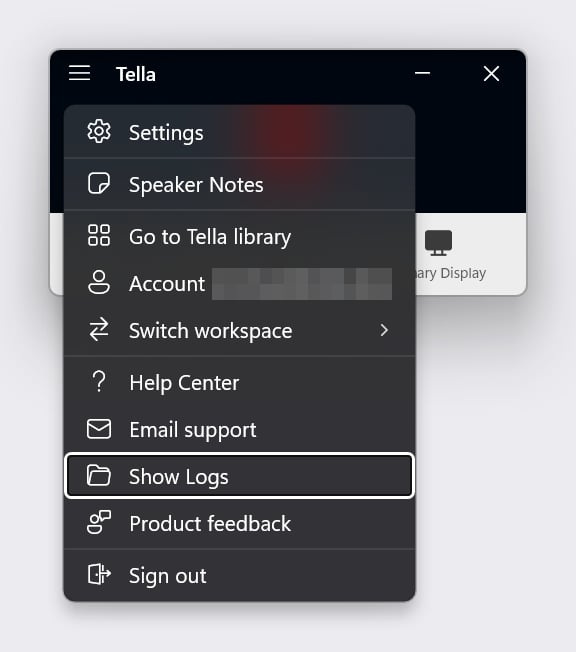
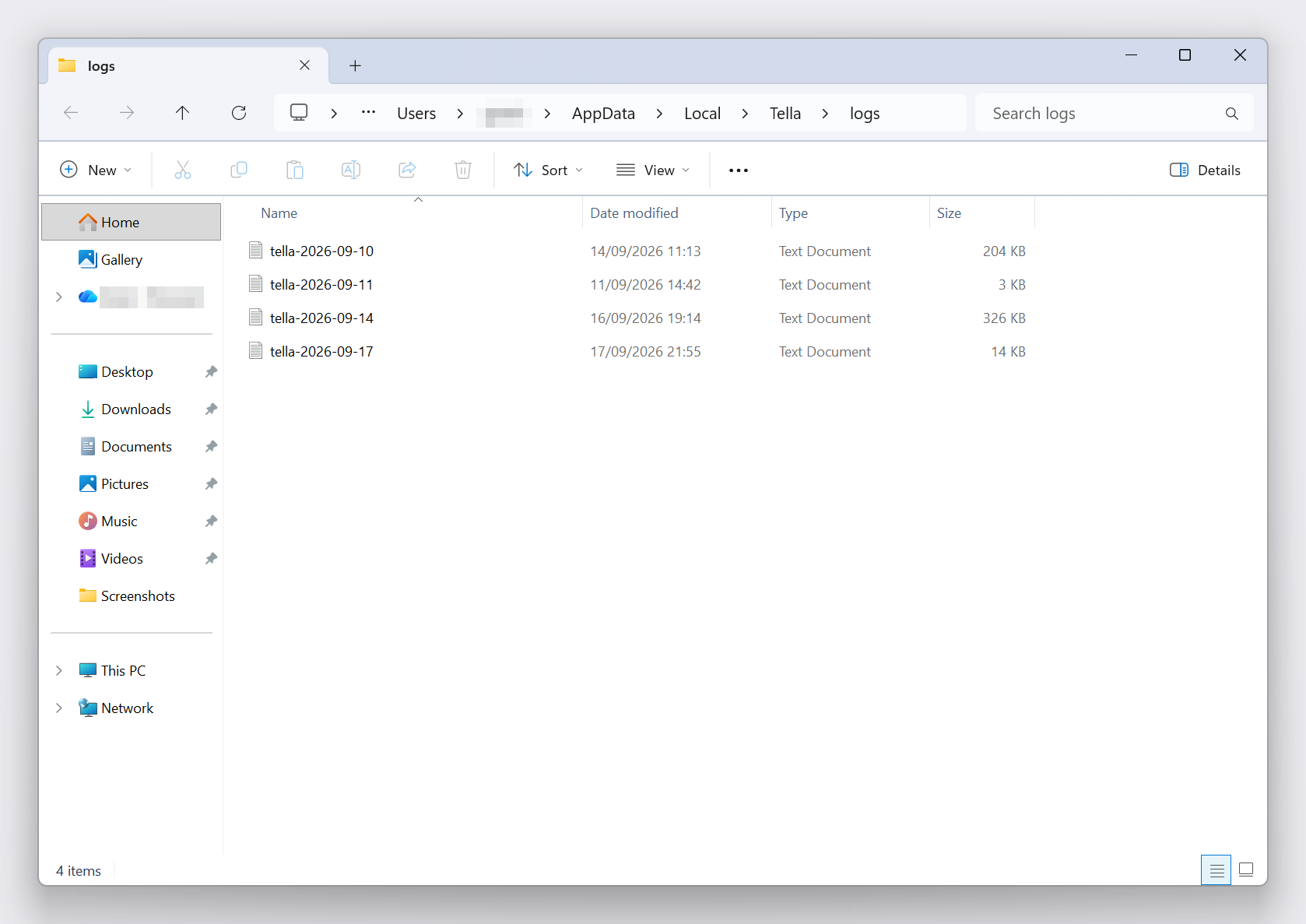
%LOCALAPPDATA%\Tella\logs. The full path is usually C:\Users\<your name>\AppData\Local\Tella\logs.
If the app window won’t open
You can still get to the logs without the main window:- From the system tray: right-click the Tella icon in the notification area at the bottom-right of the taskbar (you may need to click the ^ arrow to show hidden icons) and choose Show Logs.
- From File Explorer: open File Explorer, paste
%LOCALAPPDATA%\Tella\logsinto the address bar, and press Enter.
Zip the logs and send them to support
Tella writes one log file per day, namedtella-YYYY-MM-DD.log.
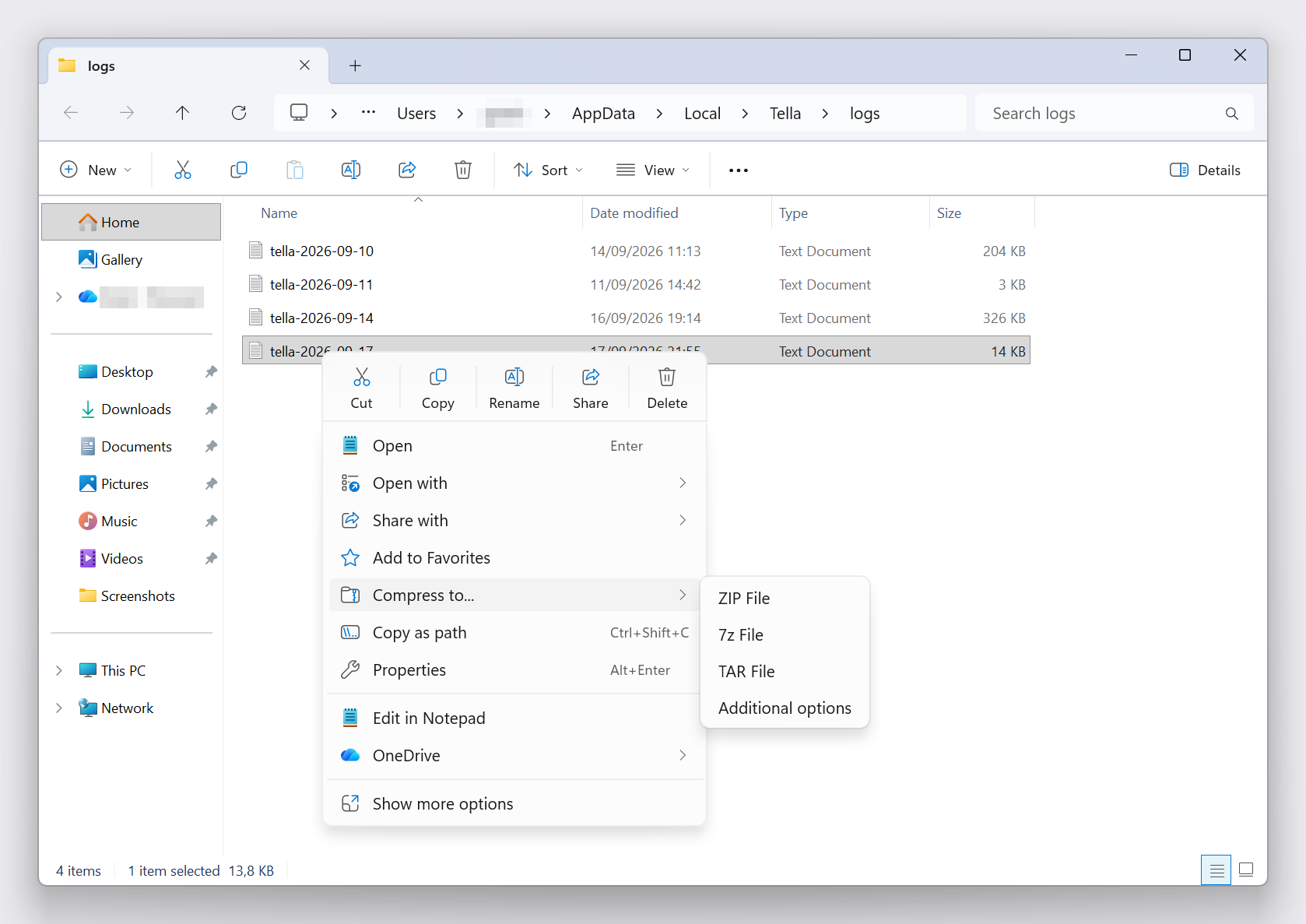
- In the logs folder, select the log file for the day the problem happened. If you’re not sure which day, press Ctrl + A to select all of them. Log files are small, so sending a few extra days is fine.
- Right-click the selection and choose Compress to… → ZIP File (Windows 11) or Send to → Compressed (zipped) folder (Windows 10).
- Attach the zip to your message to support. Reply on your existing support thread if you have one, otherwise use the in-app chat (the ? Help button in Tella on the web) or email support@tella.com.
- What happened and what you expected instead
- The approximate date and time it happened
- A share link to the video, if one exists
What the logs contain
The log files are plain text. They record the app’s activity (recording start and stop, uploads, sign-in, updates), the names of the camera, microphone, and displays you used, and a snapshot of your system such as the Windows edition and build, app version, memory, and free disk space. They never contain your video or audio.When a recording uploads successfully, Tella attaches a compressed copy of that session’s log to the upload automatically, so support can often look into a finished video without you sending anything. Show Logs matters most when a recording never uploaded, the app closed unexpectedly, or the problem isn’t tied to a specific video.