

Resize a window before recording
-
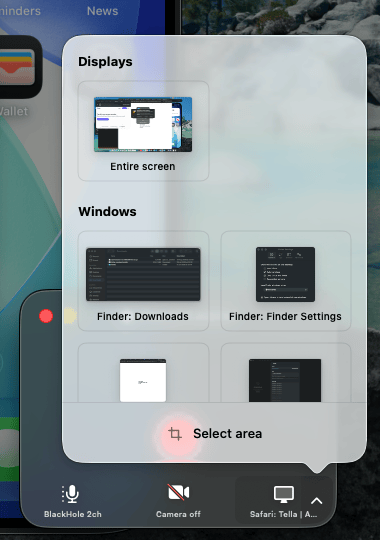
In the recorder, hover the screen button and click the chevron next to it. Under Windows, click the window you want to record. Tella brings it to the front and draws an outline around it.
-
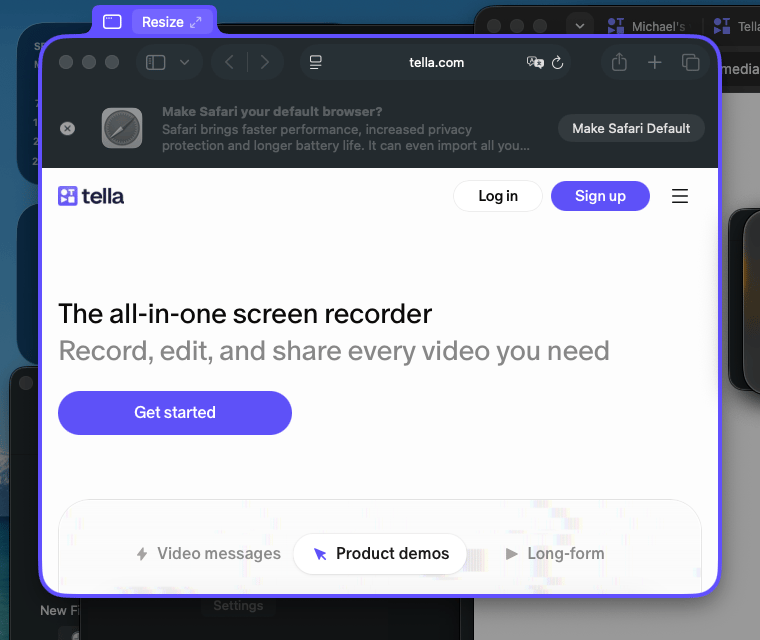
A small tab appears above the top-left corner of the outlined window. Click Resize on that tab.
-
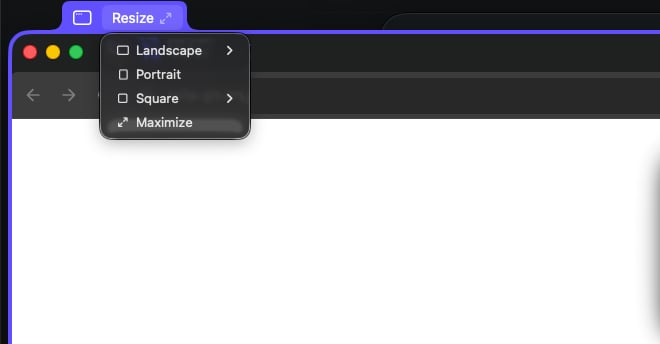
Pick a preset from the menu:
-
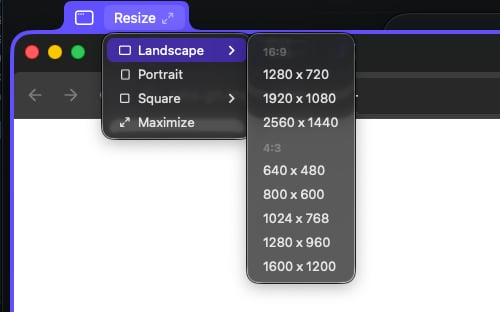
Landscape — 16:9 sizes (1280×720, 1920×1080, 2560×1440) and 4:3 sizes (640×480 up to 1600×1200)
- Portrait — makes the window 960 tall and as narrow as the app allows. Its exact shape depends on that app’s minimum width, so it isn’t a fixed 9:16 size.
- Square — 640×640 up to 1600×1600
- Maximize — fill the available screen space
-
Landscape — 16:9 sizes (1280×720, 1920×1080, 2560×1440) and 4:3 sizes (640×480 up to 1600×1200)
The first time you click Resize, macOS asks you to give Tella Accessibility permission. Tella uses it to resize and move other apps’ windows, and nothing else. Approve the prompt, or switch Tella on under System Settings → Privacy & Security → Accessibility, then click Resize again.
Why do my clips have different shapes?
Tella records a window at the shape it has on screen. If the window is 1400×900 in one take and 1100×1000 in the next, those clips have different aspect ratios. Layouts have to fit each one differently, zooms drift, and the edges of your screen recording move between clips. Snapping to the same preset every time removes that variable:- Clips match. Every clip in a multi-clip video has the same shape, so the same layout looks the same in all of them.
- Re-records line up. When you re-record a clip, the new take drops in at exactly the same size as the old one.
- Videos match each other. Record a series of demos over weeks, and they all have the same framing.
- No crop surprises. A 16:9 window fits a 16:9 canvas edge to edge with no letterboxing, and a square window fills a square canvas.
For vertical video (Shorts, Reels, TikTok), Portrait gets you a tall window but not an exact 9:16 one, so set a 9:16 canvas and expect to adjust the clip’s position or zoom to fill it. For a fixed vertical size, record the entire screen and crop in the editor instead.
Tips for a repeatable setup
- Resize before every recording. The resize applies to the window as it is right now. If you close and reopen the app, or it restores a saved size, click Resize again before you record.
- Resize, then move. Pick the preset first, then drag the tab to position the window. Moving doesn’t change the size.
- Record the window, not the display. Presets only work when a window is selected. If you record a whole display, the recording is the display’s shape. To capture a region instead, use Select area and drag out the same region each time.
- Hide the noise. A resized window still shows whatever is inside it. Close extra tabs, clear notifications, and tidy the content before you record. The window’s own title bar and edges are recorded as part of the window.
Window resize problems
- The Resize button doesn’t appear. It only shows when a window is selected in the screen popover, and it hides while you’re recording. Select the window again from the Windows list.
- “Couldn’t resize the window.” Tella’s Accessibility permission has gone stale, which can happen after an app update. Click Open Accessibility Settings in the alert, toggle Tella off and on again under Accessibility, and try again. This is the same fix as for screen, camera, and mic permissions.
- The window resized, but not to the size I picked. Some apps enforce a minimum or fixed window size and won’t go smaller (or larger) than that. Pick a preset the app can honor, or use a different window.
- Some presets are greyed out. They’re larger than the free space on the display the window is on. Move the window to a larger display or choose a smaller preset with the same aspect ratio.
- Chrome windows won’t resize. Update to Tella for Mac 2.31 or later, which fixes resizing Chrome windows.