Install the Chrome extension
Install the extension from the Chrome Store.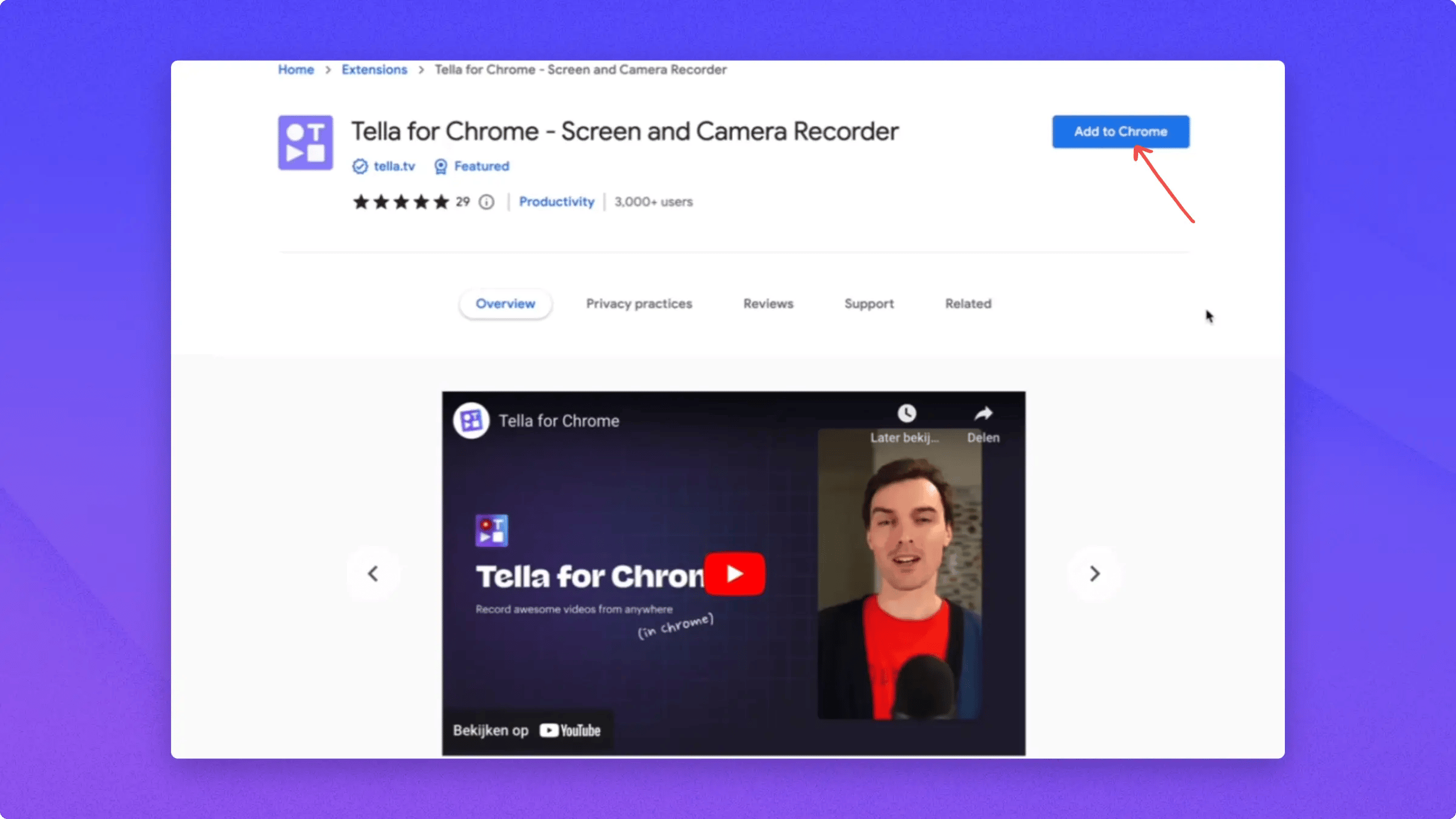
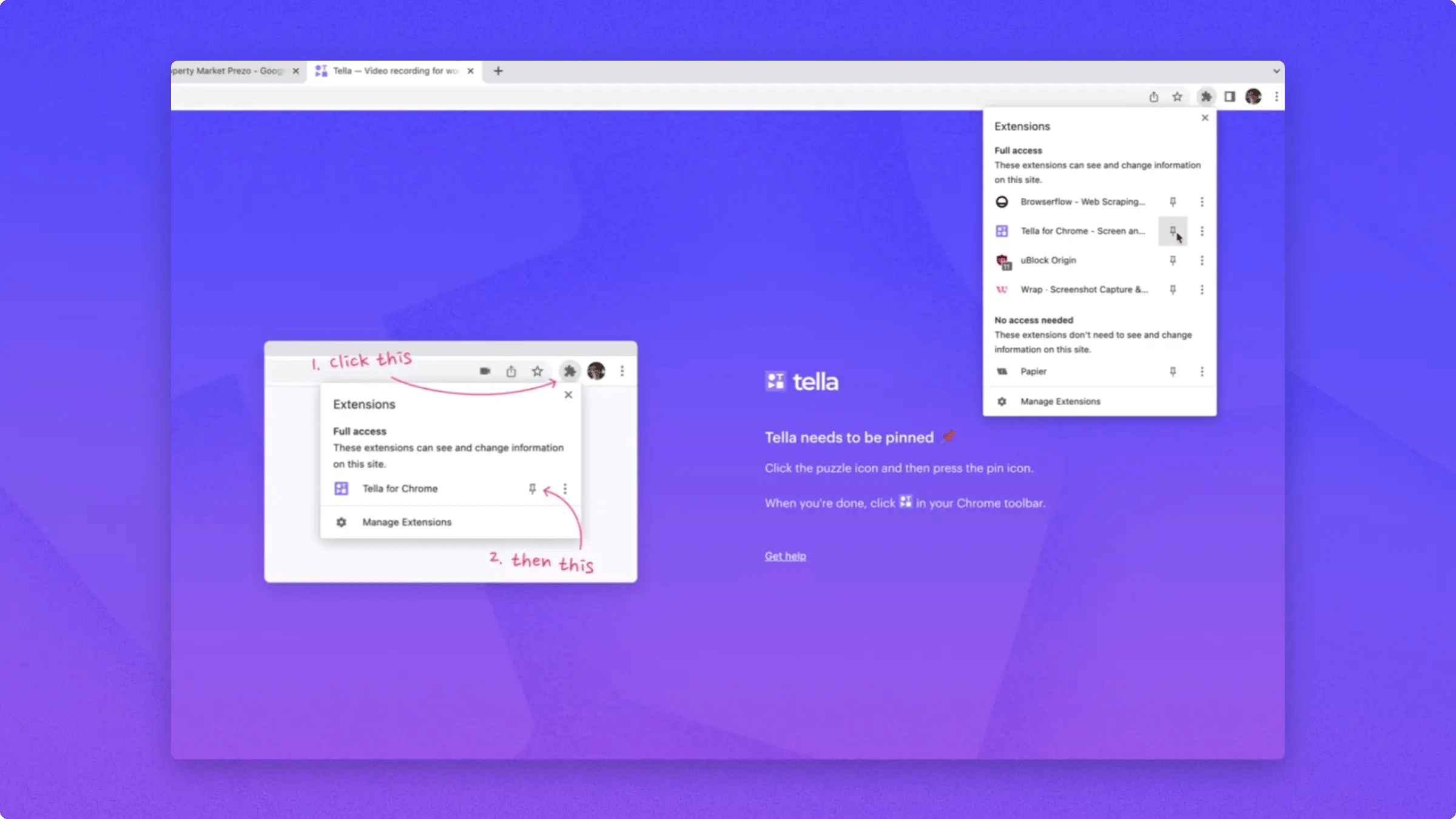
Record a video with the Chrome extension
To start recording, open the extension, then click the Screen off button to open Chrome’s screen picker. Pick a tab, a window, or your entire screen and click Share. The button then shows what you’re capturing (for example Browser or Entire screen).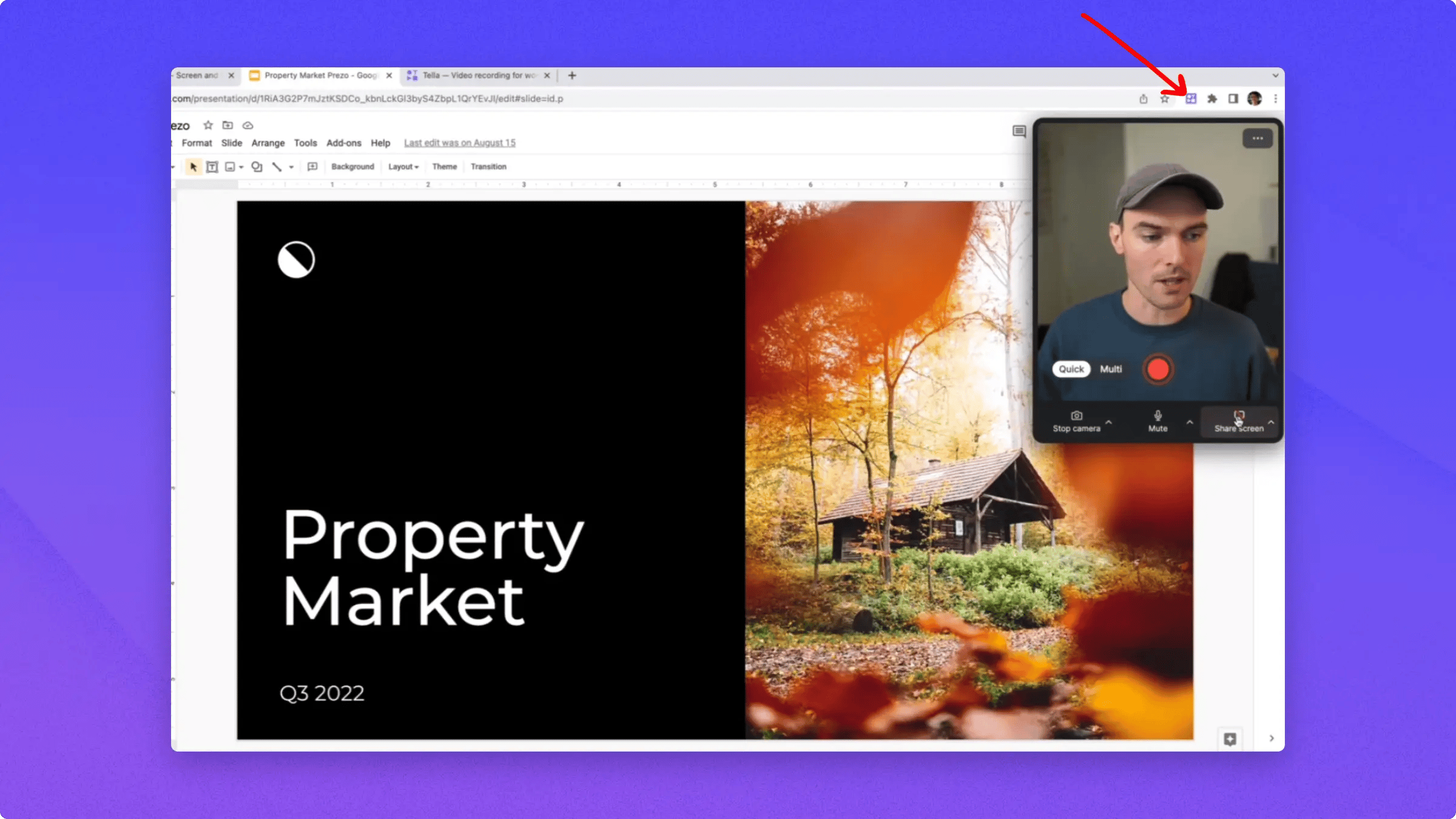
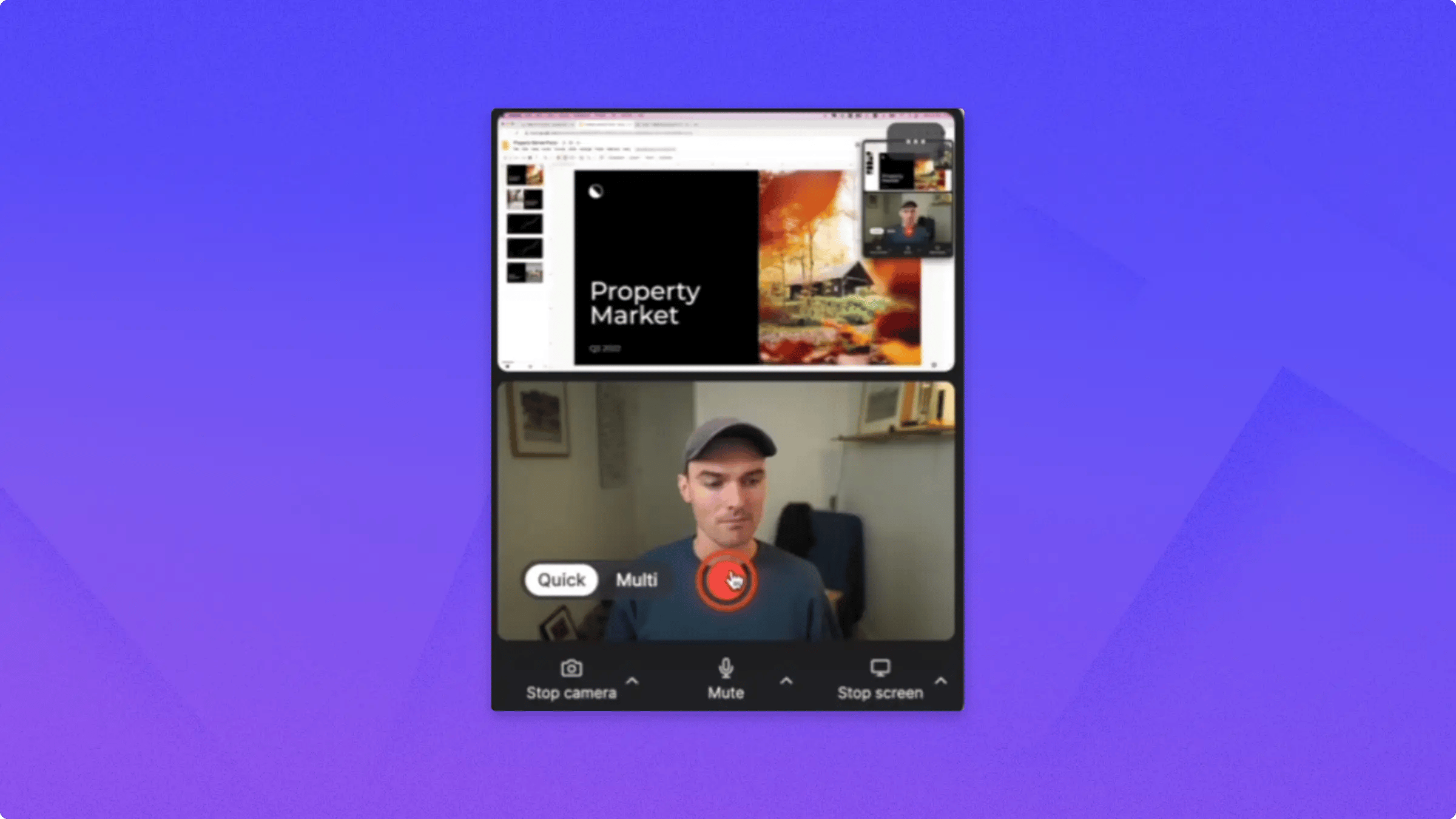
If your free trial has ended, the extension shows Free trial expired and opens the upgrade screen instead of starting a recording. Click Select a plan to open Plans & Billing. After you subscribe, reopen the extension to start recording.
chrome://extensions/shortcuts.
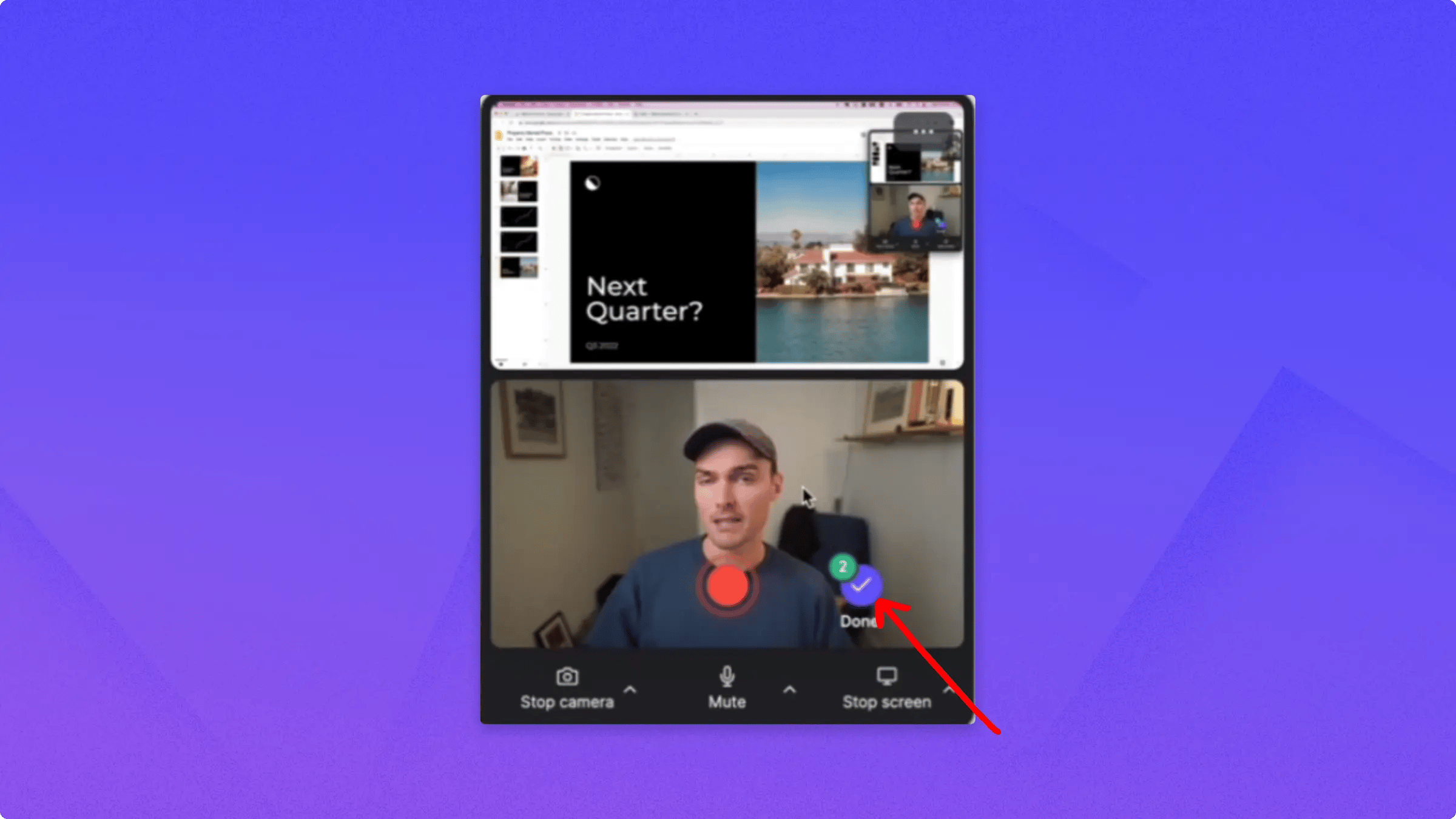
When you’re done, hover over the toolbar and click Stop.
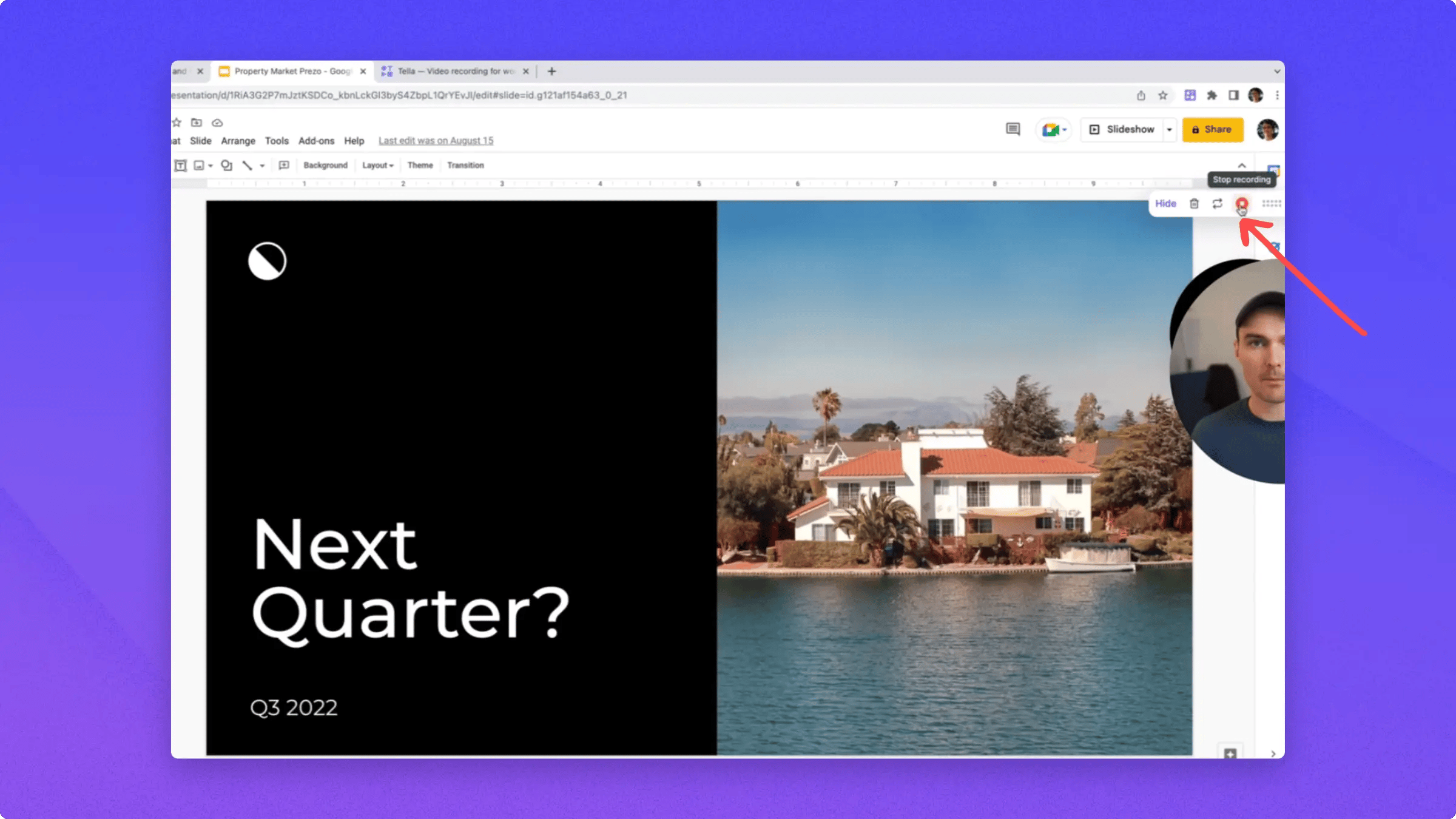
Use the floating recording controls
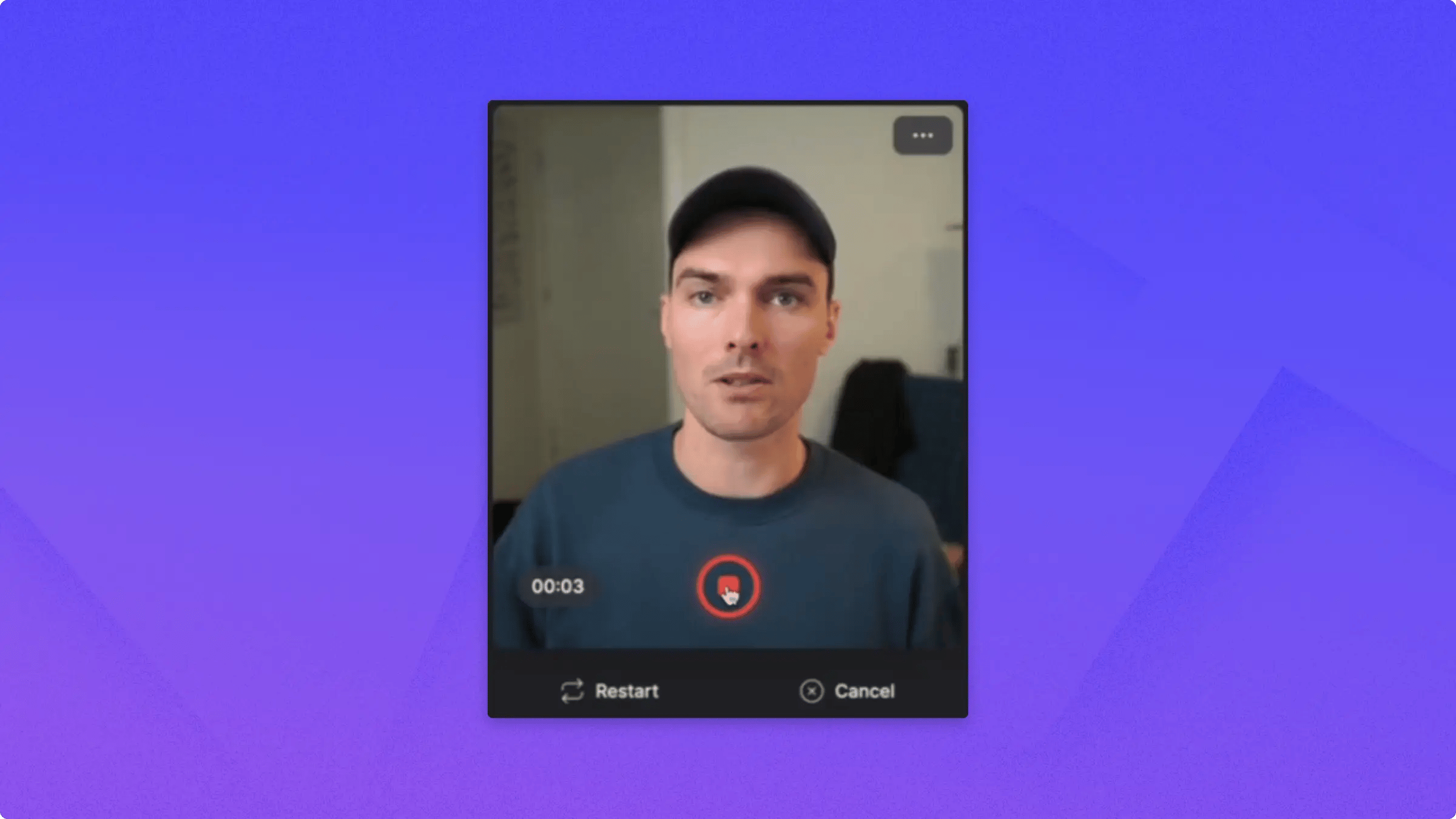
Open the … menu, choose Settings, and turn on Picture-in-picture to get a small always-on-top window with your camera preview, timer, and the record, Cancel, and Restart controls. It follows you across tabs and apps, and never shows up in the recording itself. See see yourself while recording with picture-in-picture.Picture-in-picture is in beta and only works in Google Chrome. While it’s on, Entire screen is removed from the screen picker. The floating window would otherwise be captured in a full-screen recording.
Use Auto Zoom with tab recordings
When you share a Chrome tab, Tella records your cursor movement and clicks. You can use this cursor data to generate zooms automatically or make a zoom follow your cursor in the editor.Cursor data is not available when you record a window or your entire screen.
Choose your recording resolution
The camera and screen previews each have a resolution pill in the corner. Click the pill to pick the resolution you want to capture at, up to 1080p for the camera and up to 4K for the screen.All camera resolutions remain available in the picker. If your webcam can’t capture at the exact resolution you choose, Chrome uses the nearest resolution the camera supports and the picker updates to show what’s being captured.
Switch between quick mode and multiple clips
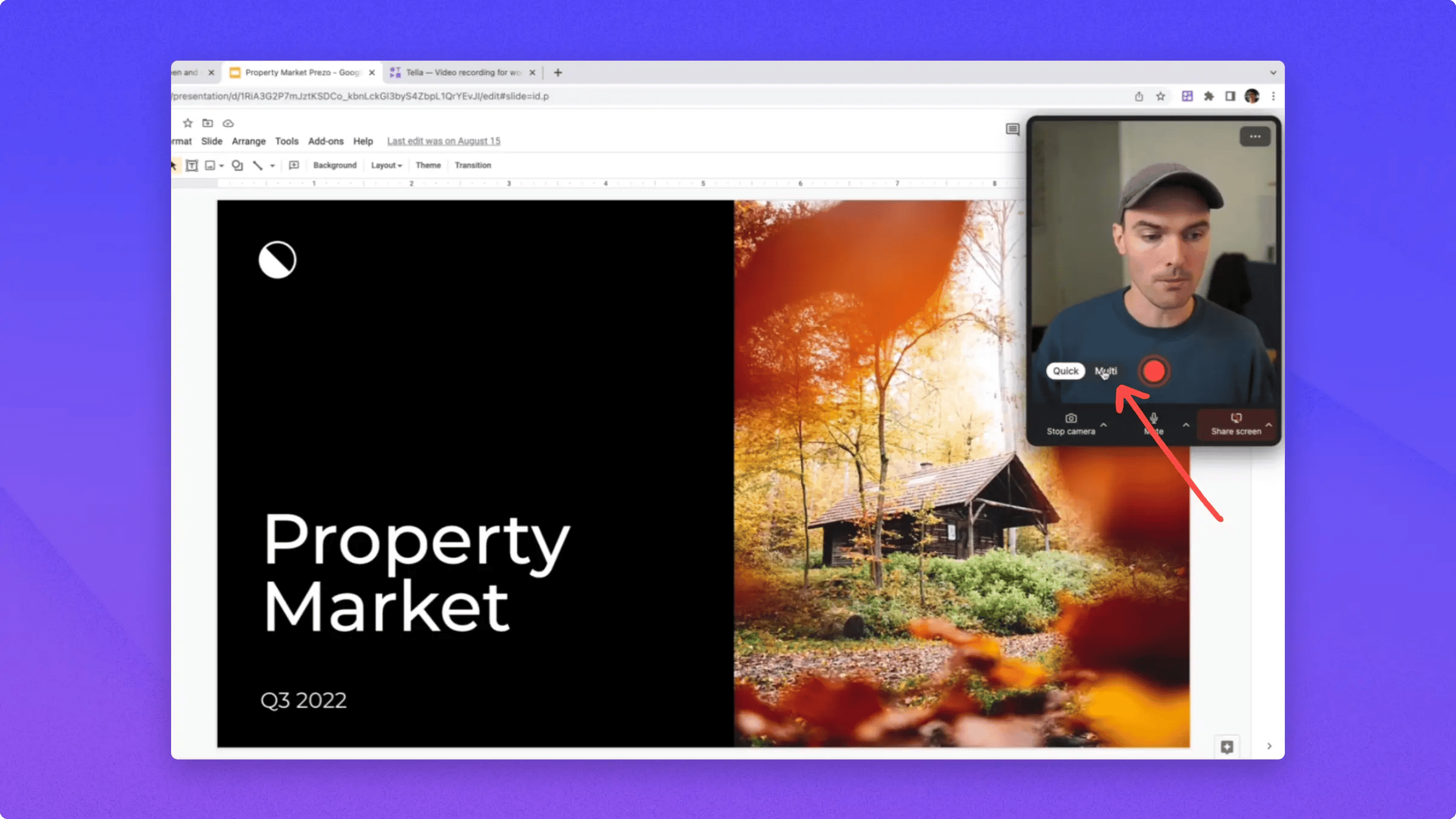
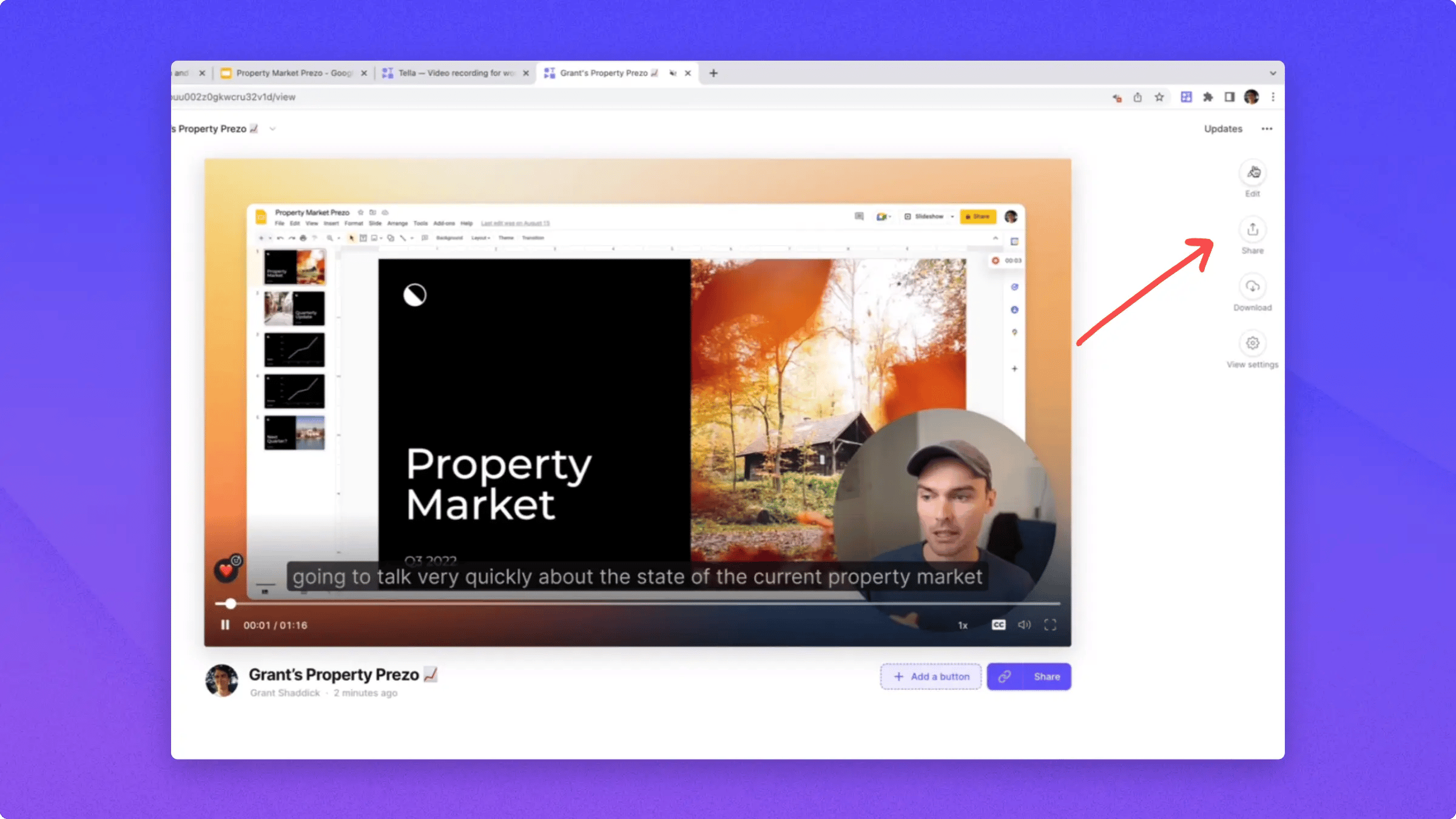
Recording settings live in the extension’s Settings panel. Click the … menu in the top-right corner of the popup and choose Settings, then under Recording mode pick:- Quick: stop recording and you’re taken straight to the view page with the share link already copied. Each recording becomes its own standalone video.
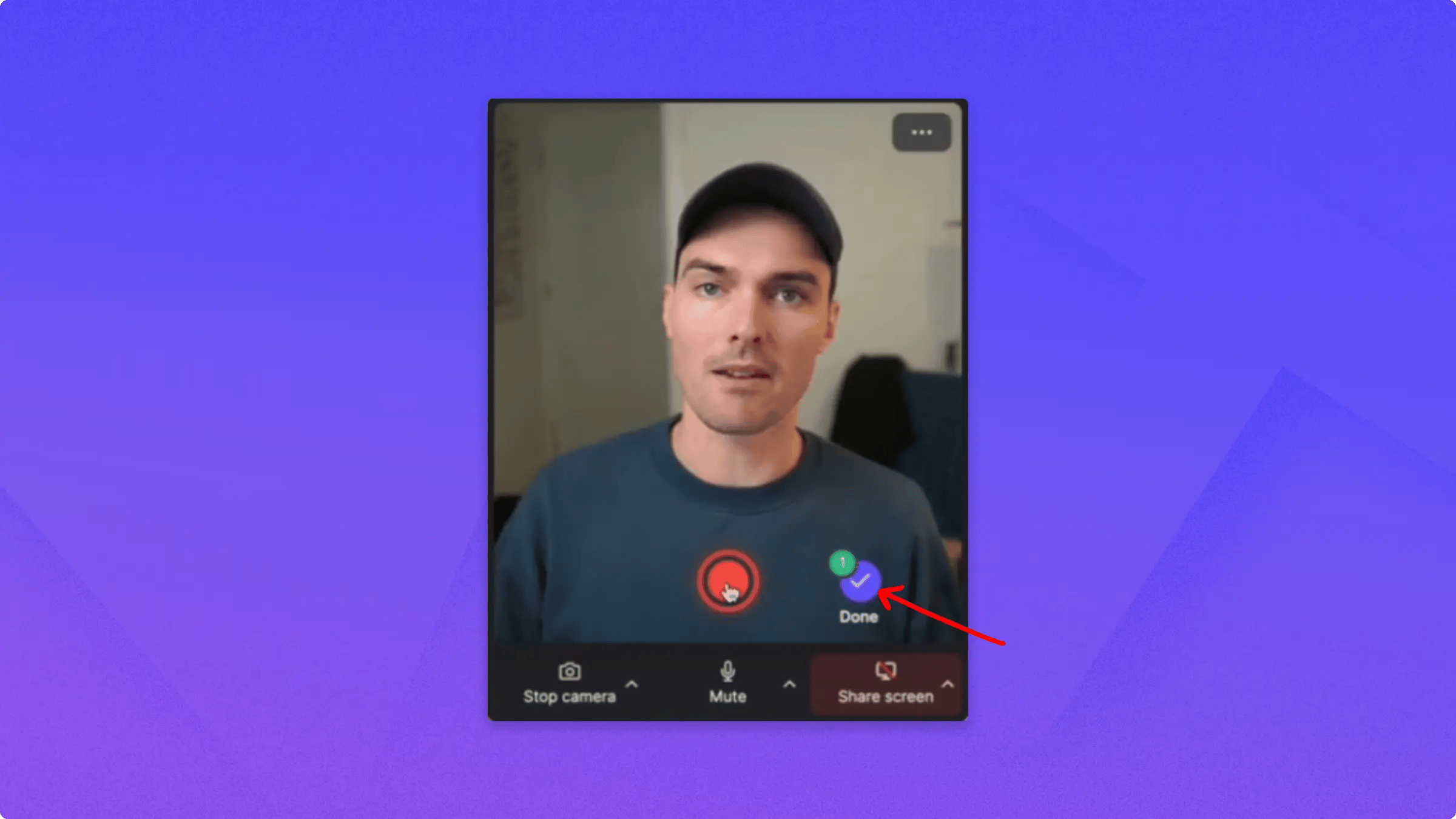
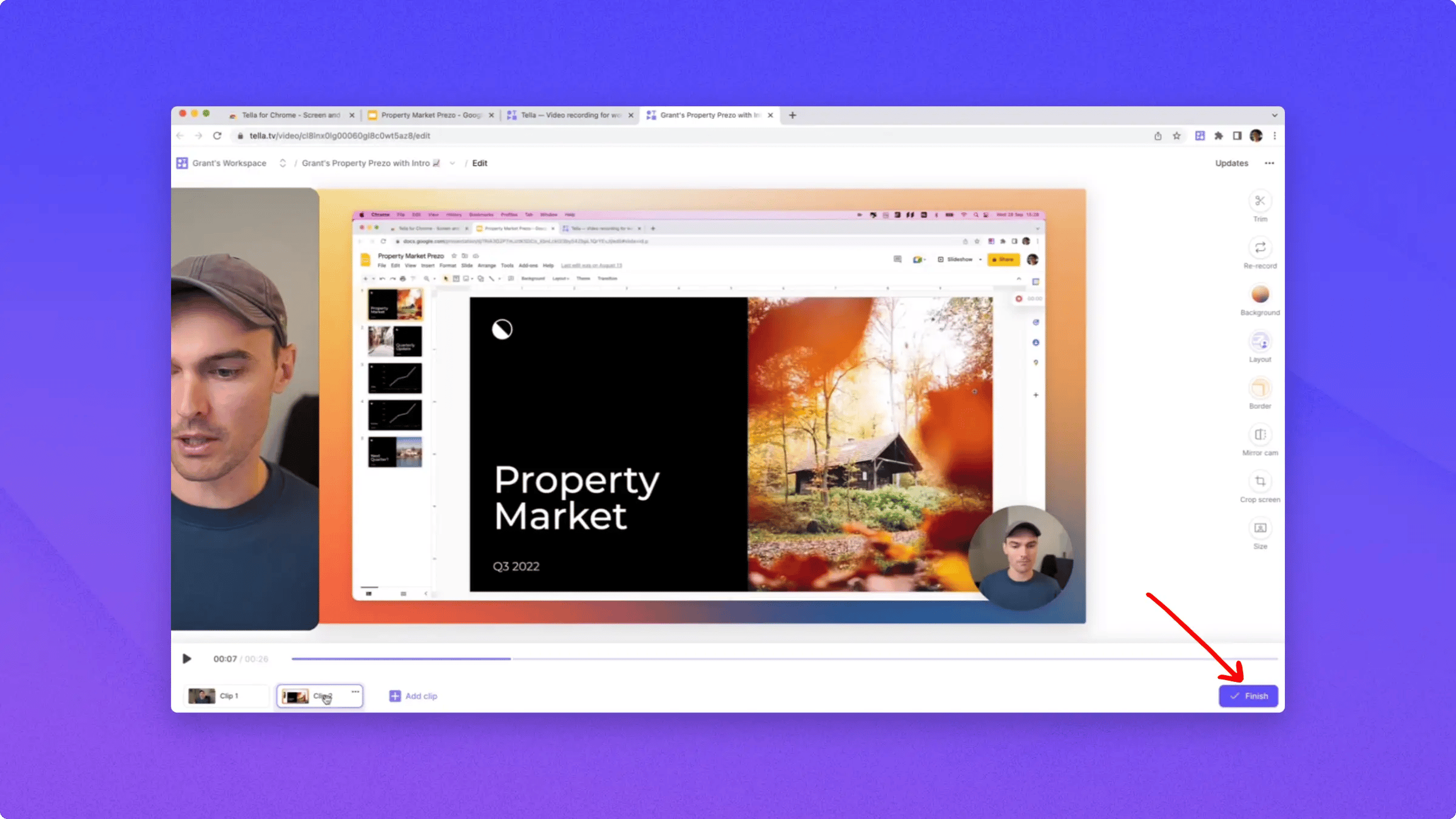
- Multi-clip: record several clips back-to-back and combine them into a single video before sharing.
Turn the countdown on or off
By default, Tella shows a three-second countdown before recording starts. To skip it, open the … menu, choose Settings, and turn off Countdown. Tella remembers your choice for future recordings.Record several clips into one video
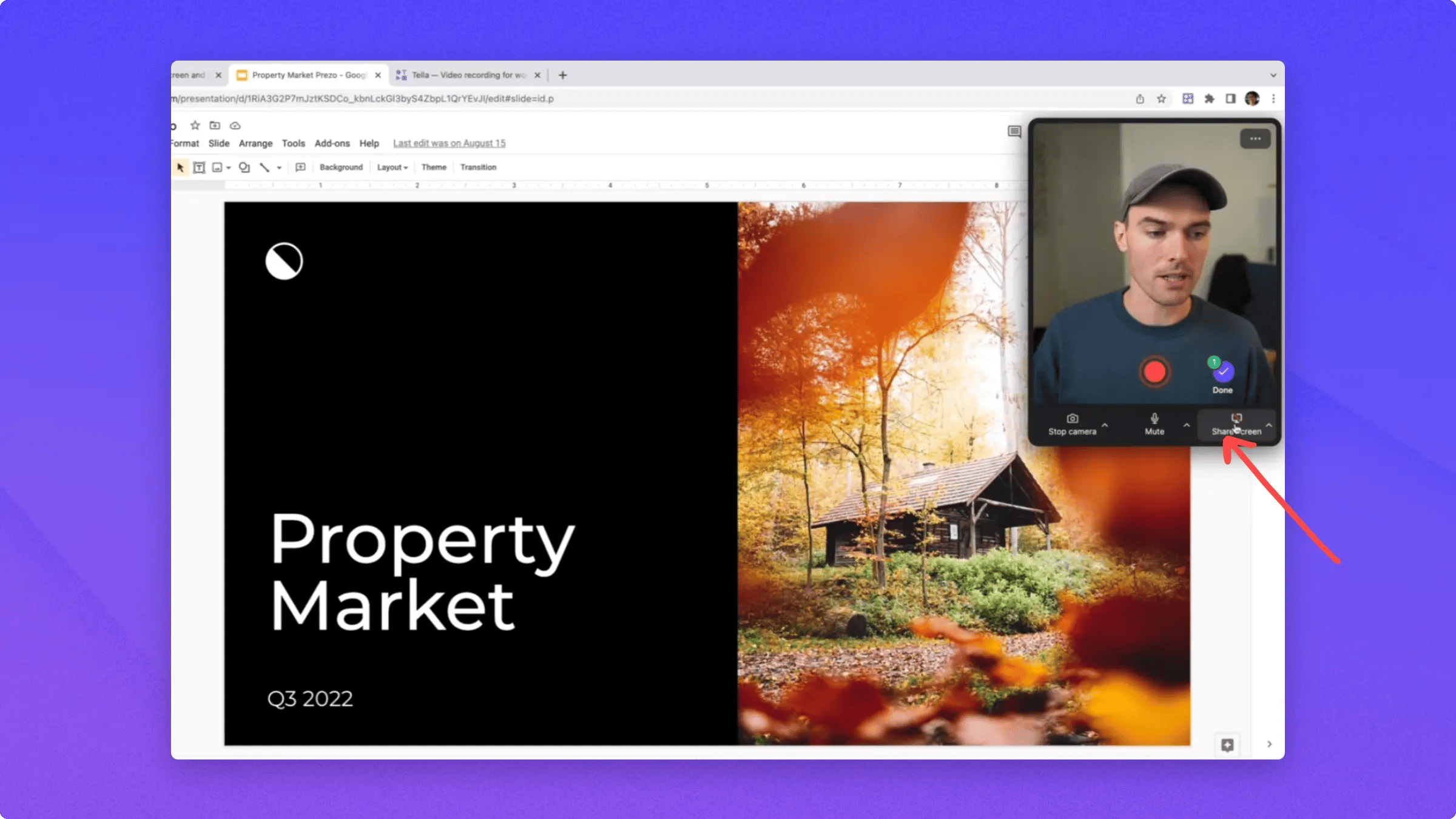
For example, record a camera-only introduction before a presentation. Switch Recording mode to Multi-clip in the extension’s Settings, then record an intro clip of just your camera.