Screen effects

Make every screen recording easy to follow

Zooms, an animated cursor, blurs and highlights — effects that guide viewers through what's on screen, all added after you record.

tella.tv/video/product-demo/edit

Four effects, one editor

Start with Auto Zoom for a first pass, then add zooms, restyle the cursor, and blur or highlight by hand.

Zoom effects

Zoom in on a detail by hand — follow the cursor or lock onto a target, up to 350%.
Zoom panel in the Tella editor with manual and auto modes and a scale slider, above the timeline

Auto Zoom

Tella tracks your clicks and generates a full set of zooms for you, ready to fine tune.
Generate zooms menu in the Tella editor with adaptive, subtle, moderate, and intense styles

Animated cursor

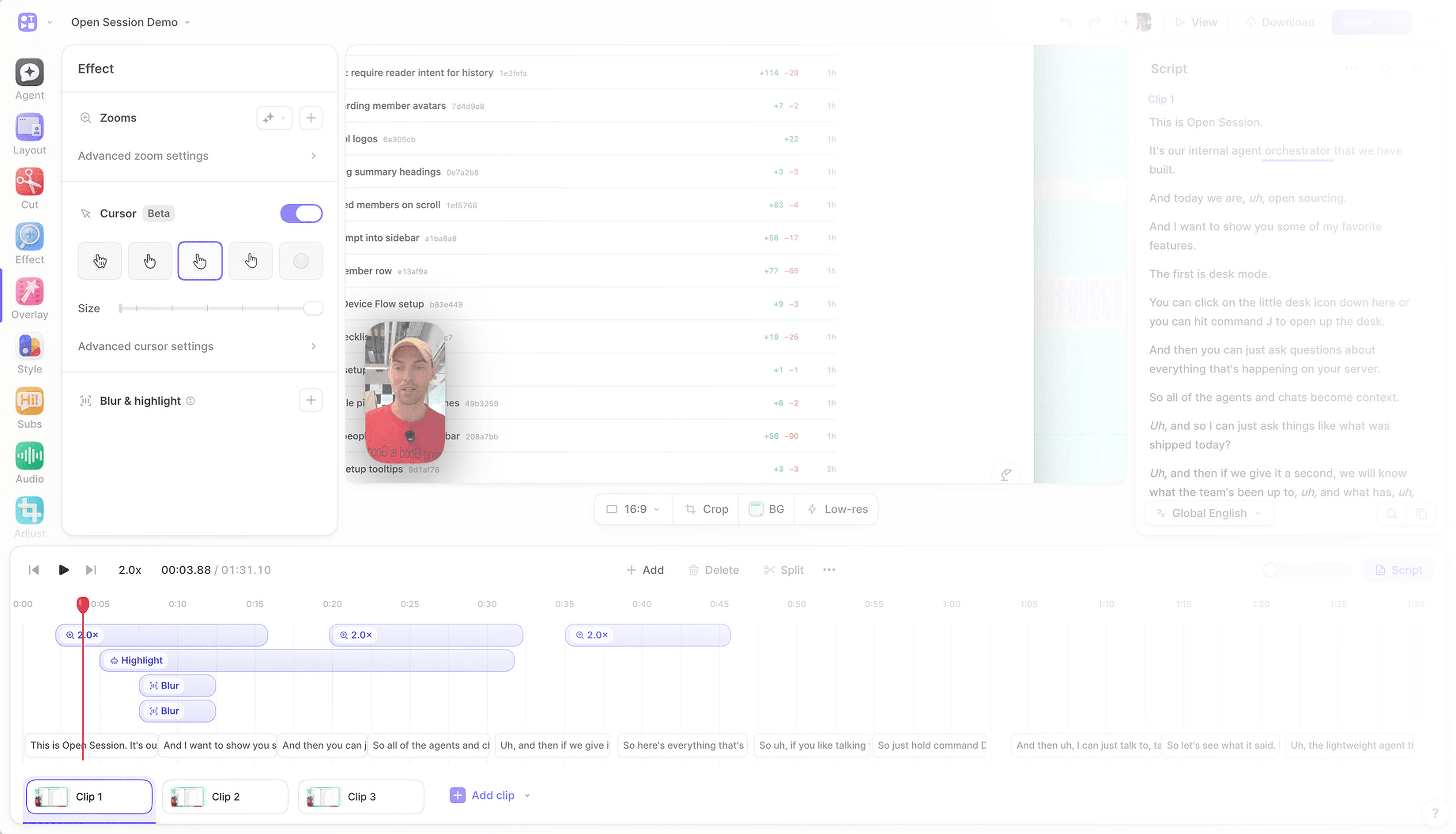
Redraw your cursor from recorded mouse data: pick a style, smooth its path, and make clicks pop.
Cursor settings in the Tella editor effect panel with cursor styles, size, and smooth movement

Blur & highlight

Hide passwords and private data, or dim everything except the part viewers should look at.
A blur effect covering a list in a screen recording, selected in the Tella editor

Recorded once, styled later

Tella captures where your cursor goes and what you click while you record. Nothing is baked into the pixels, so zooms can follow the action and the cursor can be redrawn in any style long after you hit stop.
Tella editor timeline with zoom, highlight, and blur cards on their own tracks above the transcript

Every effect on the timeline

Zooms, blurs, and highlights are cards on their own tracks above the transcript. Move them, resize them, split them, or select a few and change them together — and let Auto Zoom lay down the first draft.

Frequently asked questions

Anything Tella draws on top of your screen recording to guide the viewer: zooms (added by hand or generated by Auto Zoom), the animated cursor, and blur and highlight overlays. Each has its own page with the details.
No. Record as you normally would. Tella captures cursor and click data alongside the screen, and every effect is added, moved, or removed in the editor afterwards.
Zooms, blurs, and highlights work on screen recordings and uploaded videos. The animated cursor and Auto Zoom need cursor data, which the Mac and Windows apps record for any capture and the Chrome extension records for browser tabs.
Yes. Zooms, blurs, and highlights each sit on their own timeline, and overlapping effects of the same kind are placed on separate tracks automatically, so nothing hides anything else.
Every effect is timed to the edited video, so when you cut a section or trim a clip the effects around it stay in sync with what viewers actually see.

Try screen effects today

Get started