How to Make a Product Demo Video in 6 Steps (+ 7 Examples)
How to make a product demo video from a screen recording: pick one viewer and job, outline it, record your screen and voice, cut and zoom, and end with one next step. Plus 7 examples.
A product demo video shows a viewer how your product solves one problem: you record the product in use and talk them through it. Below are the six steps to make one from a screen recording, how long it should be, what to include, and seven examples worth copying.
How do you make a product demo video?
Pick one viewer and the one job they want done, outline the 3 to 5 screens that show it, and record your screen with your voice (and your camera if you want a face on screen). Then cut the pauses and retakes, zoom in where the detail matters, end with one next step, and share it as a link or an MP4.
- Pick one viewer and one outcome. A homepage demo for a prospect is a different video from a walkthrough for a new user. Write down who is watching and what they should be able to do or decide when it ends.
- Outline the path, not a script. List the screens or actions you'll show, in order, with the one sentence you want to say on each. Open with the problem, show the product solving it, and finish on the result.
- Prepare the product. Use a demo account with realistic data, turn off notifications, close other tabs, and make text big enough to read at the size people will watch.
- Record in short clips. Record one clip per section, with your screen, your voice and, if you like, your camera. A mistake then means redoing one clip, not the whole video.
- Edit for pace. Cut silences, filler words and false starts, add zooms where you click so small text is readable, and add captions for people who watch with the sound off.
- End with one next step and share it. Close with a single call to action (start a trial, book a call, read the docs), then send the link, embed it on your site, or download the file.
How long should a product demo video be?
Keep a marketing demo for a homepage, launch or ad to about a minute, and a feature walkthrough under five minutes. If the demo needs longer, split it into a short series with one video per task, the way the Notion example below does.
What should a product demo video include?
A good product demo video includes the viewer's problem in the first sentence, the real product solving it on screen, a human voice explaining what's happening, and one clear next step at the end.
- A hook: say what the viewer will be able to do, before you show any settings.
- The product doing the job: real screens and realistic data, not stock footage or slides about the product.
- A guide: a voiceover, and optionally your face on camera, so it feels like a person showing a colleague.
- Readable detail: zooms on the parts you click and captions for muted viewers.
- One call to action: one link or button, not a list of options.
Here are seven product demo videos that do this well.
Tella
Neat introduction that explains the purpose of the product? ✅ A friendly face for added human connection? ✅ Concise explanation of the steps involved in the process? ✅
We took years to learn how to make the best product videos and demos. Then, we used what we learned for our Chrome integration demo video.
We used our own tool, Tella, to show Tella. So it's a great example of how well Tella works when you want to show your product to people. It makes it easy to see all the features and benefits of the extension.
They say a picture is worth a thousand words, so a video must be worth even more. The video starts with a basic example, then shows a more advanced one for those who want to do more with their videos.
A team member walks you through the whole thing. It feels better than if a machine did it. We think you'll agree!
Akiflow
Akiflow is an app that combines productivity, task management, and a calendar. With so many features, it could seem a bit much for new users. But the product video of Akiflow really shows its worth.
There are several things that stand out. The color scheme is simple, using the brand colors (purple, black, and white). It's easy on the eyes and not too intense. The text is clear and easy to understand. The excellent visuals and notes show what the app looks like, what it can do, and where everything is.
The video is only a minute long, but it feels like more. It has a lot of useful information packed into a short time. This lets possible users quickly see if the app is right for them.
What else could you want from a product demo video?
Slack
Slack is a messaging tool often used by business teams for fast communication and teamwork.
In the Slack demo video, a clear voiceover and simple visuals focus on the platform's ease of use. It introduces users to the product and its user-friendly interface.
The video ends with a call to action guiding users to the help page. There, they can find detailed guides to maximize their use of Slack. So, the video not only introduces the platform, but also directs users to its website.
Notion
Notion is a tool used by businesses and groups to enhance their workflow and productivity. The demo video for Notion is great because it starts with a welcoming intro from a team member. They give examples of how the platform can be beneficial to its users.
Next, the video explains how to use one of Notion's new features with a straightforward example. This example is something you could easily use in your own work process.
The video is part of a series that explores different Notion features, making it a great choice if you prefer several shorter how-to videos over one long one.
Zoom
Zoom is an app made for connecting people. Its product demo starts with a warm greeting from a team member. Then it goes on to describe some of the main features of Zoom webinars. It also includes an example showing how a webinar can make your work process better.
The video is just a little over two minutes. It's short enough to keep your attention, but long enough to give you a good understanding of the webinar feature.
Canva
Canva is an app and web platform that makes graphic design easy for everyone. Its intro video is as visually pleasing as you'd expect.
The video gives both an intro to Canva and a demo that shows users how simple it is to use. A helpful voiceover guides viewers through the platform. The video is less than 2 minutes long, so even viewers who get distracted easily can stay focused.
The demo wraps up with a fun call to action saying, 'Now it's your turn!'. It encourages viewers to join in the fun by creating their own designs.
Freepik AI Tools
Freepik AI tools gives creators full control over image and video production directly from the browser. It replaces scattered tools with one cohesive workflow that covers everything from generation to final polish.
The demo opens with the AI Image Generator, where you can craft visuals using features like character customization and branded color palettes. It then moves into the Image Editor for quick adjustments and the Image Upscaler tool to instantly boost resolution and clarity.
Next, the focus shifts to motion. The AI Video Generator creates short clips from text or images. The Video Editor then helps you arrange scenes, add transitions, and control timing. The demo wraps with the AI Voice Generator, which adds natural-sounding voiceovers in multiple languages.
Each tool is shown in action, making it easy to understand how they work together. The voiceover keeps things clear and approachable, highlighting how the Freepik AI Suite supports every step of the creative process, from concept to final asset.
Top tips for product demos (and how to make them with Tella)
Wondering how to create a product demo video with the greatest chance of success? We got you.
We’ve also got an in-depth blog post you can check out with beginner-friendly tips for creating high-quality video content.
Use Quality Video to Build Authority
Video production, even on a small scale, is big business, and customers know this. When you’re putting video content out into the world, you’re showcasing to your potential users and customers that you’re investing in your product and you’re transparently showcasing what you have to offer.
That said, if your video content is low quality, with poor sound and visuals, you risk losing that trust.
Always make sure you work with a high-quality video creation and screen recording tool such as Tella, which allows you to produce professional video content with customizable features to bring it into your branding.
Keep it concise
Consumers aren’t exactly known for their long attention spans, so dragging out a demo video for 10+ minutes unnecessarily isn’t a recipe for engagement.
Keep your video as concise as possible while still including all of the key information. Avoid using overly long sentences or jargon - keeping it beginner-friendly and straight to the point is a must.
If you’re producing a feature demo, make it a maximum of 5 minutes long, and remove any fluff.
For a marketing demo, you need to be far more concise, and aim for a minute max. Just take a look at the Tella product demos, both the homepage marketing demo (one minute) and the Chrome demo (two minutes).
Different times call for different outcomes.
Make it human
Gone are the days of faceless corporations and businesses selling products to the public. These days, people want to connect with other human beings, which is why Grant here at Tella puts his face on all the videos we put out.
Grant’s human. You’re human. You’re speaking to a real person who’s putting their credibility and reputation on the line, rather than interacting with a faceless entity. People want to relate to organizations, so you need to follow suit and present your business, product, or service to the world in the same way.
Featuring the friendly face of one of your team (or even one of your users!) creates a connection between you and your users that can translate into a higher likelihood of purchase.
Show off the product
This might sound like an obvious one, but you’d be amazed how often companies create a video introducing a product that doesn’t feature the product at all. While stock videos or clips of users don’t hurt, giving your target audience an overview of your actual software is a must. The best product videos clearly demonstrate how the product works (often with real-life examples) and tend to feature an explanatory voiceover over the top.
The more your target audience sees your product in action, the more likely they’ll be to understand its full value. Plus, you get to show them just how easy it is to use and show off your swanky interface.
Use a straightforward structure
Think of your product demo video as an essay. It should have an introduction, a midsection showing how the product works, and a conclusion.
If your product is particularly complex and a video overview of the whole thing would be too long or complex, break it down into sub-sections, with each video demo covering a different aspect of the product.
How do you make a product demo video with Tella?
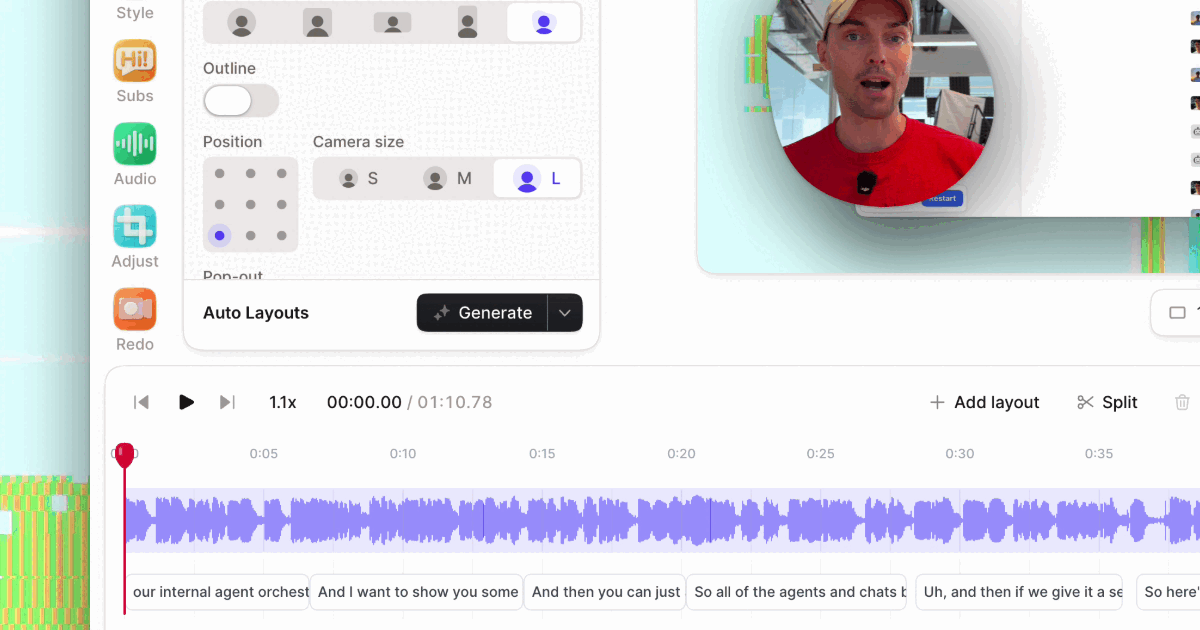
Record your screen and camera with the Tella Mac app, the Windows app (in beta), the Chrome extension or the web recorder. Then, in the editor, cut silences and filler words, generate zooms from your clicks, pick a layout, and share a link or download an MP4.
Step 1: Record in clips
In the recorder, turn on your camera, microphone and screen to record screen + camera, screen only or camera only (how to choose). Each source is saved as its own track, so you can change how screen and camera sit on the canvas after you record. Record one clip per section; if one goes wrong, re-record just that clip.
Step 2: Cut the pauses and retakes
Auto Cut in the editor's Cut panel removes silences (Natural, Fast or Faster), filler words and silent starts and ends without using AI credits. Its Mistakes option finds repeats, false starts and retakes with the Tella Agent, which uses AI credits, and you can review or restore each cut.
Step 3: Add zooms, a layout and captions
Open Effect (press E) and click Generate to add zooms from the clicks Tella recorded. That works on recordings from the Mac and Windows apps, and on a Chrome tab recorded with the extension. Then choose a layout for each clip, add a custom background, and turn on subtitles in the Subs panel.
To have Tella remove filler words and silences and add zooms on every new recording, turn on Automated editing in Settings → Preferences → Recording.
Step 4: Share it with one next step
Click Share to copy a link or get an embed code, or Download for an MP4 (details). You can add up to two call-to-action buttons to the video page, and analytics show who watched, how much of the video they saw, and whether they clicked your call to action.
If you’re looking for a way to create product demo videos that drive trust, sales, and even connection, give Tella a go. With a full suite of video editing features that go beyond a basic screen recording tool, Tella allows you to create product demo videos that are clean, professional, and effective.