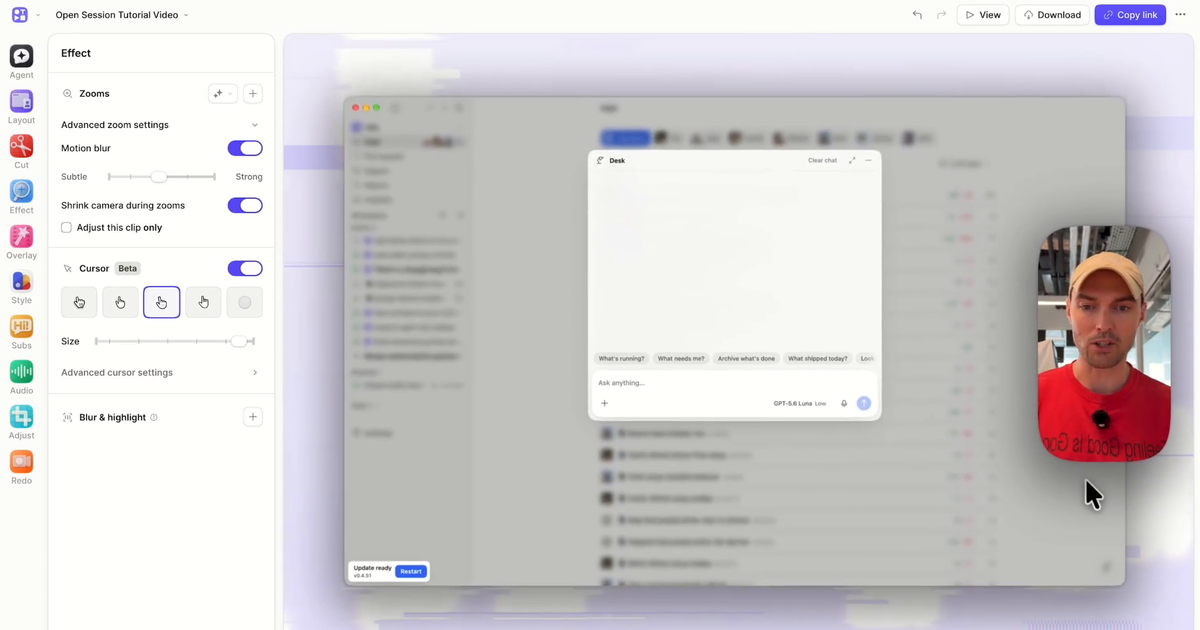
Add a Zoom Effect To Your Video
How to add a zoom effect to a video, place and time each zoom, and combine several zooms to create a panning effect.
Nowadays, you don’t need a complex app to add a zoom in effect when editing a video.
With the right tool, you can pinpoint in just a few clicks where you want to zoom in and fine-tune your zoom's speed and duration. You can also add multiple zooms to create a panning effect, adding depth and dimension to your videos.
Picture this: you have a product demo with features you need to highlight or an online course lacking engagement. Zoom effects offer an easy way to add that extra spark to your content.
View zoom effects in action
You can add zooms in video tutorials, how-to videos, and more. The possibilities are pretty much endless.
To start, let’s take a look at how creators are putting zoom effects in their videos.
As you can see, adding zooms to product demos and update videos is a great way to direct your audience's attention to specific features you want to highlight.
The effect is so popular in content creation that a dev even made it possible in OBS with a zoom effect and mouse follow. But for now, let's get into how you can add zoom effects to your Tella videos. It's easy, convenient, and takes just a few steps.
How to add zoom effects to your videos
Now, let’s get into how you can add a zoom effect to your videos.
Tella is an all-in-one screen recording and editing tool with everything you need to make great videos. You can upload your own video or record your webcam and presentations and conveniently edit your recordings afterward. Tella makes it easy to add custom layouts, backgrounds, automated subtitles AND zoom effects.
The beauty of using zoom effects in Tella lies in their simplicity. In a few easy steps, you can level up your videos. Let’s get started.
Record or upload your content
With Tella, you can record from the web, in Chrome, or on your Mac and share your video anywhere, including Slack. You can also upload your own content and edit it in Tella. Once the video is recorded/uploaded, you can add zoom effects to it in Tella in just a few clicks.
How to record content in Tella
Once you’ve logged in to Tella, simply hit ‘New Video’ in the top left-hand corner of your screen.
Once you’ve opened a new video, you can record your camera, share your screen, or present slides. Simply choose your option to get started.
How to upload content to Tella
If you’d like to upload content to Tella, follow the same instructions as above but click ‘Upload’ when you’ve opened your new video. Select the mp4 video file you’d like to upload from your device.
Head over to the editor
After you’ve finished recording or uploading your video, you’ll typically go straight into the editor.
From the dashboard, click on the three dots underneath your video, and select ‘Edit’.
Or, if you’re viewing your video, click ‘Edit’ in the top right-hand corner of your screen.
### 3. Apply the zooms
Now that you’re in the editor, it’s time to play around with Tella’s zoom effects. To get started, click ‘Zoom’ on the right-hand side.
Once you’re in the zoom mode, you can decide where to add some zooms. When you’ve settled on a spot, click ‘Add Zoom’ from the tool bar at the bottom or the mini-map in the right-hand corner.
Adjust the zooms duration
You can experiment with the duration of your zooms by dragging the ends of the handles. This will change how long the video is zoomed in for.
Choose the zooms focus point
To adjust your zooms focus point, grab hold of the target on the mini map and move it to your desired zoom location. This allows you to precisely control where you zoom in your video. For example, if you’d like to zoom into the navigation menu, place the target there on the mini map.
Adjust the zoom level and speed
To adjust the zoom level, use the slider bar below the mini map. This determines how much your video will be magnified. You can also speed up your zoom or slow it down by hitting ‘Slow, Medium or Fast’.
Add zoom transitions
Tella allows you to add as many zooms as you’d like. As I mentioned, you can connect multiple zooms to create a panning effect. Select one zoom, and press ‘Add Zoom’ to do this.
By connecting another zoom directly after the first one, you create a seamless transition between the two. This means that instead of zooming all the way out, the connected zooms will smoothly pan from the initial zoom position to the subsequent zoom position.
Add finishing touches
Once you’re happy with your zooms, click ‘Done’ on the top right-hand corner to exit zoom mode. You’ll be taken back to the editor, where you can explore Tella’s other editing features. You can add multiple clips, different clip styles, and more.
You can also adjust the layouts and canvas sizes; the zooms you added should fit neatly within them. In some cases, you may need to adjust the zoom levels slightly to work within a particular layout or canvas size.
Export or share as a link
There you have it. You’ve successfully added zooms to your video, and now you’re ready to share it with others. Press ‘Finish’ on the bottom right of the editor to head over to your videos view page. Then, name your video and click either ‘Copy Link’ or ‘Download.’
Elevate your videos with zoom effects
It doesn’t take much to start making better videos. Tella’s zoom effects are a no-fuss way to bring your videos to life and drive engagement. Adding zooms to videos in Tella is easy and convenient and takes just a few moments. There’s no need to be an editing wiz - Tella is all about making recording and editing more accessible for everyone.
Watch the video below for a quick walk-through of zoom effects in Tella. Learn more about Tella here.