How to Send a Video Through Email in 2026
How to send a video through email despite attachment size limits, using links, compression, or cloud storage.
Sharing a sales video or a project update? One of your first choices is probably email - it’s easy, convenient, and familiar.
However, video files can be tricky to send due to size limits and compatibility issues. No worries, though—there are some smart ways to share your videos via email.
Learn how to send videos via email:
- Attach Directly: For small videos.
- YouTube Link: Embed a YouTube link with a thumbnail.
- Compress: Zip the video or use compression tools.
- Cloud Storage: Upload to Google Drive, Dropbox, or OneDrive and share the link.
- Use Tella: Share videos with a Tella thumbnail link.
Email attachment size limits
Email providers cap the size of a message's attachments, not the length of the video. Check your video's file size against the limit for the account you're sending from:
| Email service | Attachment limit | What happens with a larger video |
|---|---|---|
| Gmail (personal) | 25 MB in total | Gmail removes the attachment and adds a Google Drive link instead |
| Gmail (Google Workspace) | Set by your admin | Send a Google Drive link |
| Outlook.com | 25 MB (20 MB in some Outlook apps) | Share the file from OneDrive (up to 2 GB) |
| Microsoft Exchange (work email) | 10 MB by default; admins can change it | Share a OneDrive or SharePoint link |
| Apple Mail and iCloud Mail | Mail Drop up to 5 GB | The recipient gets a download link that expires after 30 days |
The recipient's provider can have a smaller limit than yours, so a video that sends successfully may still bounce. A link avoids this.
How do I send videos in an email?
Here are some easy methods to send a video through email.
Send as an attachment
Attaching videos directly to emails is easy. You just need to pay attention to file size limits. To start, open Gmail or Outlook and start a new email. Click on the paperclip icon to attach your video.
Just make sure the file size stays within the 25 MB limit for Gmail and 20–25 MB for Outlook. You can see the video size beside the attached link. If the video is over 25 MB, Gmail uploads it to Google Drive and adds a Drive link to the email instead of attaching it.
Attaching videos is convenient for smaller files and allows recipients to download and view them offline. For larger files, you'll need to use other methods.
Share videos via a YouTube link
Did you know that emails with videos often get flagged as spam? To avoid this, best would be to use an email spam checker tool, but a good workaround is to simply use a YouTube thumbnail that links to the video. This makes the video less likely to be overlooked.
You might be thinking - YouTube automatically creates thumbnails for your videos. When you copy a YouTube link into an email, Gmail includes the video thumbnail at the bottom of the email.
However, you can also embed a YouTube video in an email with a clickable image, which makes it stand out a bit more. To get started, take a screenshot of the video you want to share or download its thumbnail.
Next, use an editing tool to create an eye-catching thumbnail. Canva has a page dedicated to this.
You can add a Play icon to the screenshot or thumbnail to make it look like a video player.
Next, open Gmail and start writing out a new email. Add a screenshot of your thumbnail, or upload it.
Open the YouTube video you want to share, click Share beneath the video, and copy the URL. Highlight the uploaded image in your email. Make sure it looks like this:
Press CMD + K (Mac) or CTRL + K (Windows) to add the link to the image. Hit Change.
Next, paste the YouTube URL in the link dialogue box and click OK.
When recipients click on the image, they'll be taken to the YouTube video.
Compress the video
Compressing a video reduces its file size so it fits under an attachment limit. Expect some loss of quality: the smaller the target size, the softer the picture.
Use a free email video compressor
Tella's free email video compressor shrinks a video to 10 MB, 20 MB, or 25 MB in your browser, without uploading it:
- Open the email video compressor.
- Choose 25 MB for personal Gmail, 20 MB for Outlook, or 10 MB for strict work email servers.
- Drag your video onto the page, or click Choose a video.
- Click Compress to under 25 MB (or the size you chose), download the smaller file, and attach it to your email.
If a long video can't reach the target and stay watchable, trim it first or send a link instead.
Zip it
Zipping bundles several files into one attachment, but it barely shrinks a video: MP4 and MOV files are already compressed, so a ZIP of a video is usually almost the same size. Zip videos when you want to send several clips as one file, and compress them first if they're over the limit. You can zip files on both Mac and Windows:
Mac
- Find the video file in Finder.
- Right-click on the file.
- Select Compress [filename] from the context menu.
- A ZIP file will be created in the same location as the original.
Windows
- Find the video file in File Explorer.
- Right-click on the file.
- Hover over Send to and select Compressed (zipped) folder from the submenu.
- A ZIP archive will be created in the same directory as the video.
Attach the ZIP file by clicking the paperclip icon in your email client and selecting the ZIP file from your computer.
Other ways to compress a video
- Convert the format: Use tools like Handbrake or iMovie to convert your video to MP4 with the H.265 (HEVC) codec for better compression.
- Trim the video: Cut out unnecessary bits with video editing tools like Tella to reduce file size.
- Reduce resolution: Lower the resolution, like reducing it to 720p for social media, using editing software.
- Adjust bitrate: Decrease the bitrate in your video settings; aim for 8 Mbps for 1080p and 5 Mbps for 720p.
- Use online compressors: Try tools like Cloud Convert to compress videos easily without additional software.
Compression is key for high-quality videos that are too big for email size limits. It helps ensure faster upload and download times. This is especially handy for videos you send often or to many people.
Use cloud storage services
Cloud storage services like Dropbox, Google Drive, and OneDrive are great for sharing large video files via email with secure private access.
Sign in to one of these services and upload your video file by dragging and dropping it or using the upload button. For example, in Google Drive, hit New and then File Upload.
Once uploaded, click Share to generate a shareable link.
Make sure the link’s settings allow your recipients to view the video. You can also access quick sharing options to copy the link as a whole or at a specific time in it.
Finally, open your email and insert the shareable link.
Cloud storage services make it easy to share large video files without attachment size limits and offer extra security features like password protection and expiration dates for links.
Send a video through email from your phone
You can attach a short video directly from your phone or share a link when the file is too large.
On iPhone or iPad
- Open Photos and select the video.
- Tap Share, then choose Mail.
- Add the recipient and send the message.
If Mail says the attachment is too large, upload the video to iCloud Drive, Google Drive, or Dropbox. Copy its share link, check that the recipient has permission to view it, and paste the link into your email.
On Android
- Open Gmail and tap Compose.
- Tap the paperclip, choose Attach file, and select the video.
- Add the recipient and send the message.
For a video that exceeds your email provider's attachment limit, upload it in the Google Drive app. Open the video's sharing settings, grant the recipient access, copy the link, and add that link to your email instead.
Use Tella to email videos
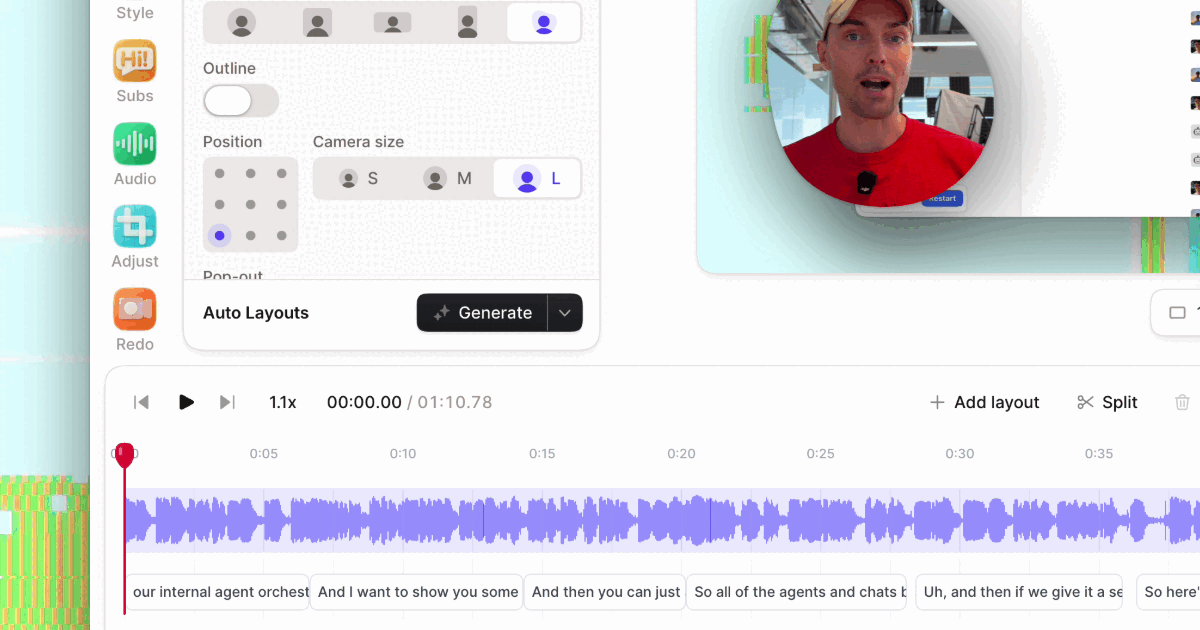
To keep it simple, use Tella to email your videos. With a few clicks, you can share your video as a thumbnail with a link via email, so there's no attachment and no size limit to worry about.
Just finish editing in Tella, then click the Share button and select the Email option.
You can choose a static image or an animated GIF thumbnail, which work in all email clients. There's also a Video option that plays inline in Apple Mail, iOS Mail, and Superhuman and shows a clickable thumbnail elsewhere. Once you’re ready, hit Copy content.
Paste the thumbnail into your email, and send your video off. Your recipients simply have to click it to watch your video.
With Tella, sharing videos is quick and hassle-free. Plus, the animated GIF thumbnail gives a sneak peek of the video, making it a bit more interesting and encouraging people to click and watch the whole thing.
FAQs
How do I email a video that is too large?
Upload the video to Google Drive, iCloud Drive, Dropbox, OneDrive, WeTransfer, or Box and email a share link. Check the link permissions before sending it. You can also trim the video or reduce its resolution and bitrate to make the file smaller.
What's the longest video you can send via email?
Email providers limit attachment file size, not video duration. A short high-resolution video can exceed the limit while a longer compressed video may fit. Check the video's file size against your provider's attachment limit; if it is too large, send a cloud-storage or video-page link instead.
Can I send a 3-minute video through email?
Often not as an attachment. A 3-minute 1080p phone video is usually well over 25 MB, so it won't fit within Gmail's or Outlook's limit. Compress it to under 25 MB, or upload it and email a link instead.
What is the easiest way to send a video to someone?
The easiest way to send a video is by using cloud storage services like Dropbox, Google Drive, or OneDrive. Upload your video to one of these platforms and create a shareable link.
For a simpler option, use Tella to record and share your video directly via email. This lets others view your video without worrying about email attachment limits.
How do I compress a video to send via email?
To compress a video for email, use a video compressor such as Tella's free email video compressor or HandBrake to lower the resolution and bitrate until the file fits your provider's limit. Trimming unnecessary parts helps too. Zipping a video won't make it much smaller, because video files are already compressed.
How do you send a video by email?
To send a video by email, click the paperclip icon to attach a file. Find and select your video. Gmail has a 25 MB limit and swaps larger files for a Google Drive link. In Outlook, click "Attach File" or the paperclip icon and choose your video.
Closing thoughts
Next time you need to send a video via email, try these methods out. Need to send a big company update? Try using a cloud storage service to create a shareable link.
Maybe you've got a short product demo to send out—consider using Tella to quickly record and share your video. Bottom line - you've got plenty of options at your disposal.