Apply LUTs via MCP: Let an AI Agent Color-Grade Your Product Videos
Connect Claude, ChatGPT, or any MCP client to Tella and have it color-grade screen recordings: apply presets and .cube LUTs per clip with set_clip_filters, upload your own LUT, and check the result with a rendered frame.
Tella's MCP server lets an AI agent color-grade your videos. Connect Claude, ChatGPT, Cursor, or any MCP client to https://api.tella.com/mcp, then ask for a look in plain language: "Apply the Portra LUT at 50% to the camera on every clip of my latest demo and leave the screen alone." The agent lists the clips, calls set_clip_filters on each one, and checks a rendered frame with get_clip_frame. It can use the built-in presets and LUTs or upload your own .cube file.
Below: the tools involved, prompts that work, the exact arguments, and how to share a brand LUT with a team.
Why hand color to an agent
Color is repetitive work. A team that publishes onboarding videos, release demos, and support walkthroughs wants every one of them to have the same camera look, the same LUT intensity, and the same untouched screen. That's a rule, and an agent can follow a rule across fifty videos without anyone opening an editor.
It also combines with other edits. The same agent that grades the clips can cut filler words, add zooms, set a title, and share the link in one conversation.
How do you connect an AI agent to Tella?
Add Tella's remote MCP server, https://api.tella.com/mcp, to your client and sign in with your Tella account.
- Claude: add Tella from Claude's connector directory, or add a custom connector with
https://api.tella.com/mcp. - ChatGPT: open Tella in ChatGPT's apps.
- Claude Code, Cursor, and other clients: add a remote MCP server at
https://api.tella.com/mcp. It uses OAuth, so you approve access with your Tella account.
The MCP server docs cover each client.
Which MCP tools color-grade a video?
set_clip_filters does the grading; the others read state, find clips, and upload LUTs.
| Tool | What it does |
|---|---|
list_clips | Lists a video's clips, so the agent can grade each one |
get_clip_filters | Reads a clip's current camera and screen filters: preset (or custom), sliders, and LUT |
set_clip_filters | Sets the camera filter, the screen filter, or both, on one clip |
get_clip_frame | Returns a rendered frame so the agent can look at the result |
list_library | With type: 'lut', lists LUTs saved to your library |
create_source + add_library_item | Uploads a .cube file and saves it as a LUT |
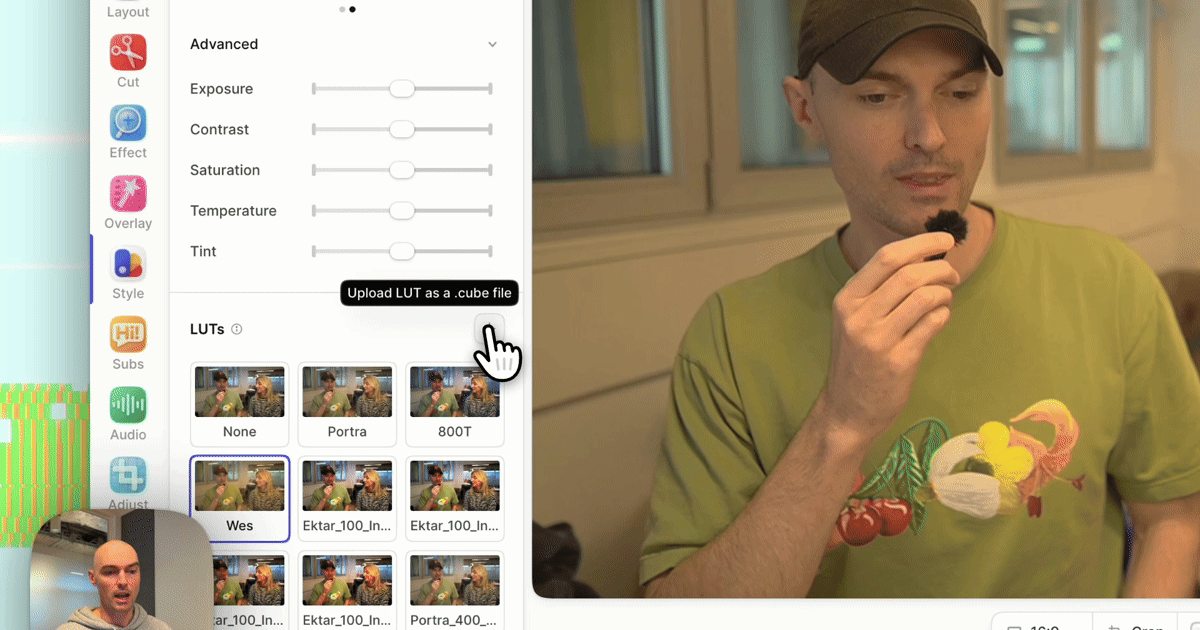
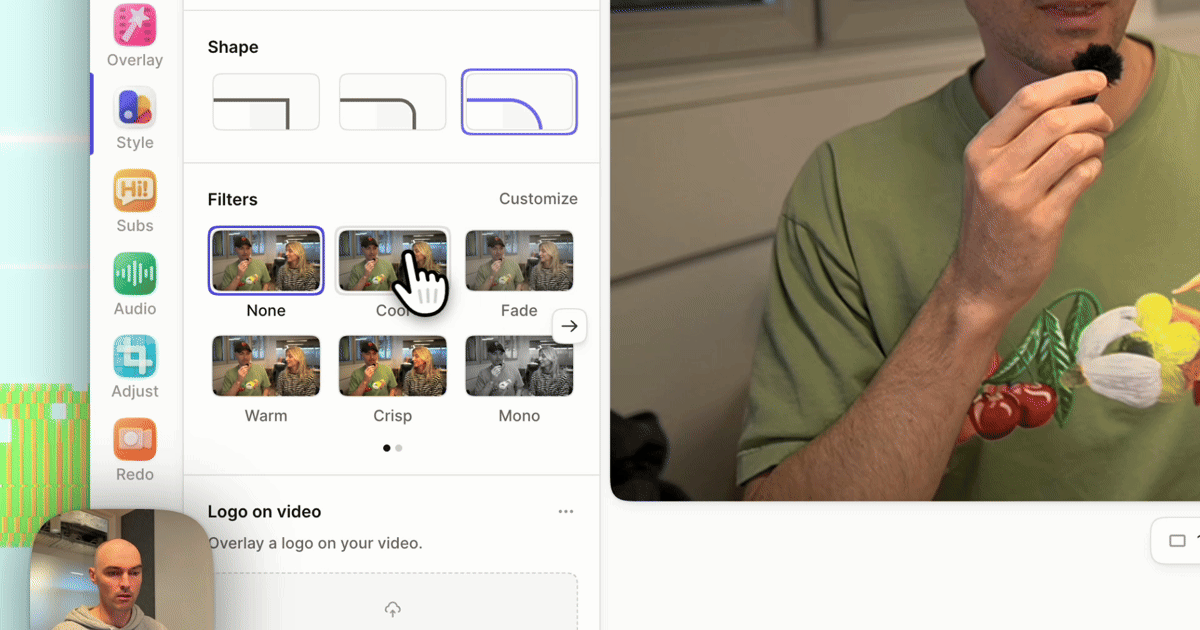
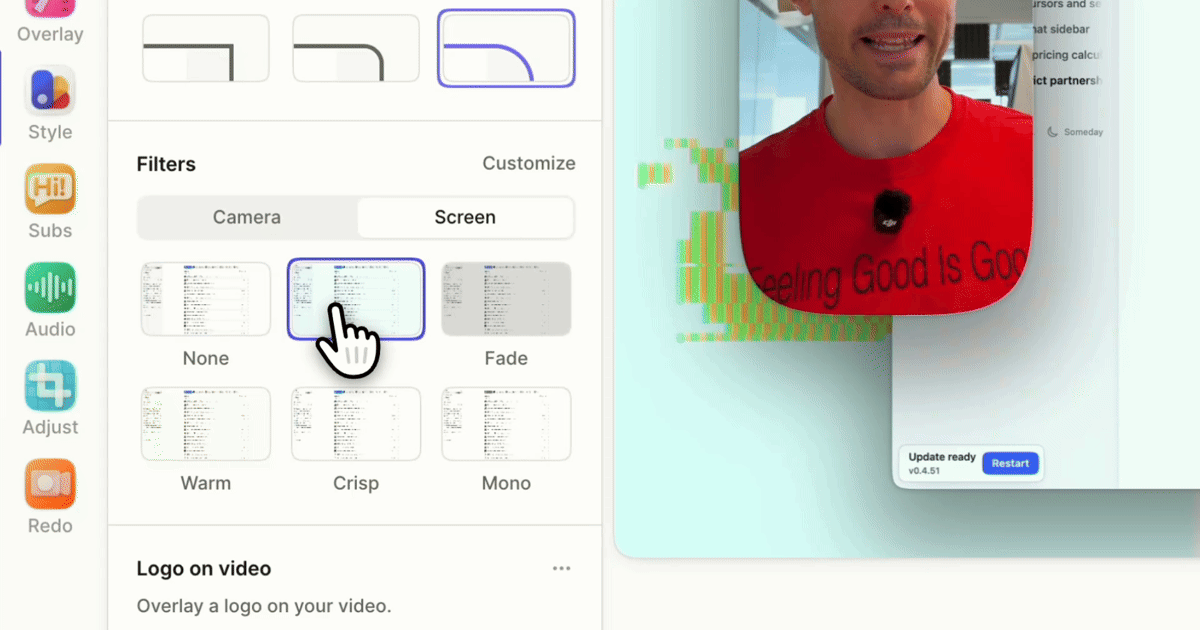
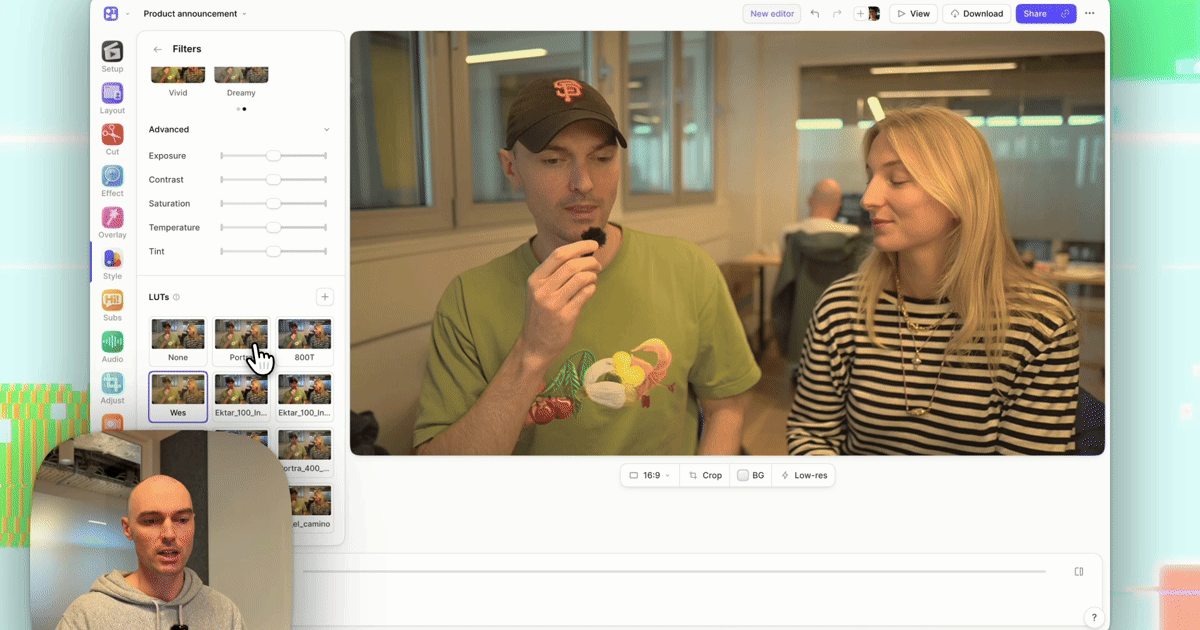
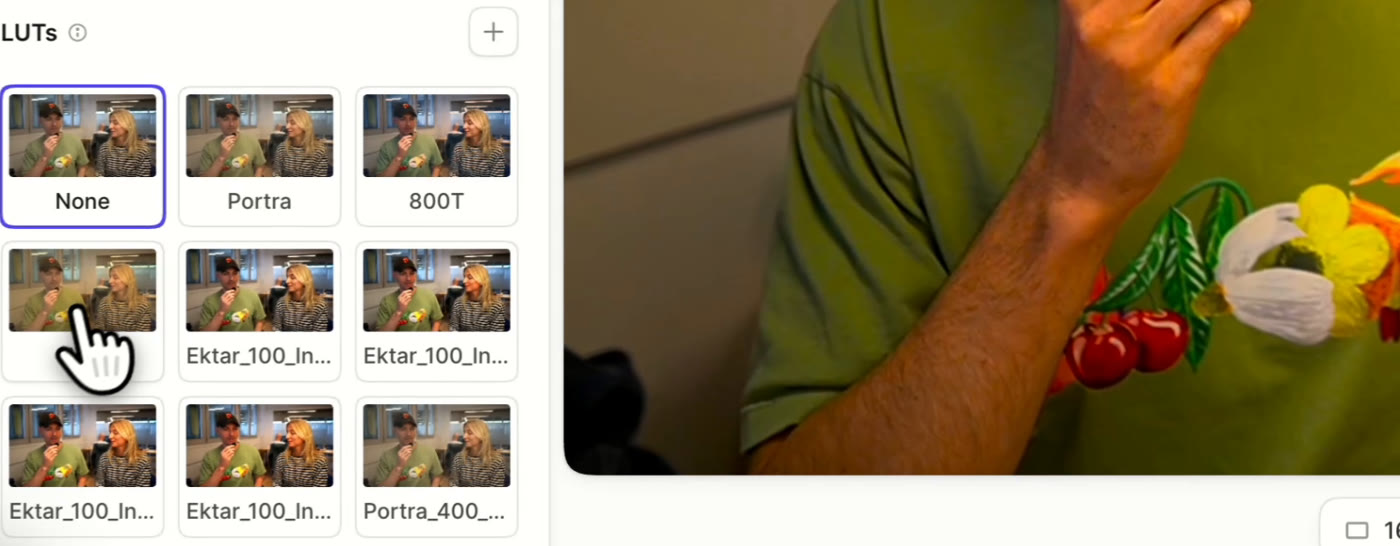
Filters set this way are the same ones in the editor's Style → Filters panel, so you can open the video afterwards and fine-tune by hand.
Prompts that work
Be specific about the target (camera or screen), the look, and the scope:
- "Warm up the camera on every clip of Q3 onboarding and leave the screen at none."
- "Apply the 800T LUT at 40% to the camera on the first clip only, then show me a frame."
- "Use Crisp on the screen for all clips in my last three videos."
- "The second clip was recorded by a window and looks blue. Match it to the others."
- "Upload this .cube file as our team LUT and apply it at 60% to the camera in Launch demo."
For the matching prompt, a capable agent reads the first clip's filter with get_clip_filters, compares frames, and adjusts temperature and exposure on the outlier until they line up.
What the agent sends
A set_clip_filters call takes the video, the clip, and a filter for camera, screen, or both:
{
  "videoId": "vid_…",
  "clipId": "clip_…",
  "camera": {
    "preset": "warm",
    "exposure": 0.1,
    "lut": { "id": "lut_portra", "intensity": 0.5 }
  },
  "screen": { "preset": "crisp" }
}
How the fields combine:
presetreplaces the whole filter, sliders and LUT included. Other fields then adjust from there, so{preset: 'warm', exposure: 0.2}means Warm, a bit brighter.- Without
preset, fields adjust the clip's current filter and leave everything else alone. - Sliders (
exposure,contrast,saturation,temperature,tint) run from -1 to 1, with 0 unchanged. Exposure at ±1 is two stops. lutapplies on top of the sliders.intensityis 0 to 1; a newly applied LUT starts at 1, and re-applying the current LUT keeps its intensity unless you pass one.nullremoves a filter ("camera": null) or just the LUT ("lut": null).
Presets for every recording are none, warm, cool, crisp, fade, and mono. Camera and uploaded footage also accept golden-hour, vivid, noir, dreamy, and night. Sending one of those to a screen recording returns an error rather than silently doing something else. The built-in LUT ids are lut_portra, lut_800t, and lut_wes.
Filters are per clip over MCP. To grade a whole video, the agent calls set_clip_filters once per clip from list_clips.
How do you upload a custom LUT through MCP?
- The agent calls
create_sourcewithkind: 'lut'and gets an upload URL. - It
PUTs the.cubefile unchanged to that URL. - It calls
add_library_itemwith the source. Tella checks the file (a 3D LUT withLUT_3D_SIZEup to 65; 1D LUTs are rejected) and saves it. - The returned item
idgoes inlut.idonset_clip_filters.
Pass scope: 'workspace' to add_library_item to share the LUT with everyone in the workspace. It then appears in every teammate's LUTs grid in the editor, and in list_library with type: 'lut' for their agents. That's the simplest way to give a team one brand look. Match brand colors across camera and screen covers what that look should be.
Let the agent check its work
After changing a filter, the agent should call get_clip_frame and look at the result. Vision-capable models catch the problems a person would: orange skin from a LUT at full strength, a blue cast on one clip, UI colors shifted by a filter on the screen. Ask for it explicitly if your client doesn't do it on its own: "After each change, show me a frame and fix anything that looks off."
Is there a REST API for color filters?
Yes: GET and PATCH /v1/videos/{videoId}/clips/{clipId}/filters on api.tella.com, for scripts and pipelines:
curl -X PATCH \
  -H "Authorization: Bearer $TELLA_API_KEY" \
  -H "Content-Type: application/json" \
  -d '{"camera": {"lut": {"id": "lut_portra", "intensity": 0.5}}}' \
  https://api.tella.com/v1/videos/VIDEO_ID/clips/CLIP_ID/filters
Set TELLA_API_KEY to an API key from your Tella settings first. GET on the same path returns the clip's current camera and screen filters.
Related reading
- Tella MCP server: setup for each client.
- How to apply a .cube LUT to a screen recording: the same workflow in the editor.
- Adjust your video's colors with filters: the help center reference.
Try Tella free for 7 days, connect your agent, and grade the next video by asking.