Blob Camera for Product Demos: An Organic Webcam Frame That Follows Your Gestures
What Tella's Blob camera style is, when it suits a product demo better than a circle bubble, and how to turn it on, add an outline, and switch back, step by step.
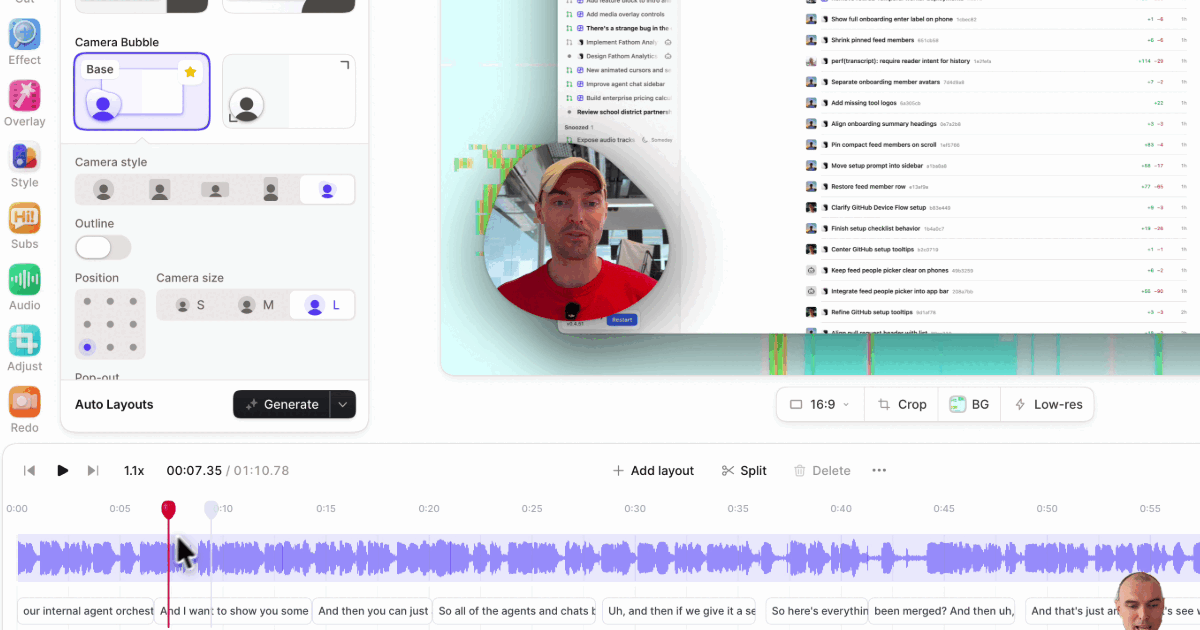
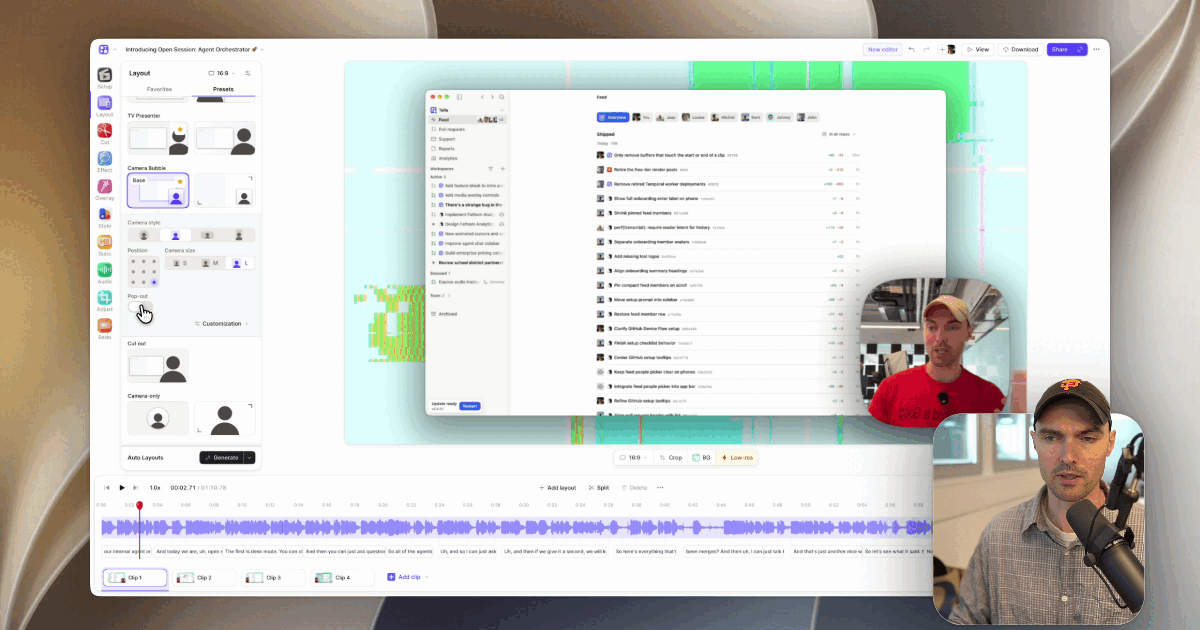
Blob is a camera style in Tella that swaps the usual circle bubble for a soft, organic frame. It slowly wobbles, and it swells toward whatever reaches out of it: a hand you raise to point at the screen, or your head when you lean in. Choose it in the Tella editor under Layout → Customize layout → Camera style.
Below: what makes Blob different from a circle, when it's the right frame for a product demo, and how to set it up.
What is the Blob camera style?
Blob is a camera frame that reacts to the presenter. Tella finds you in the camera recording (the same person detection used by Cut out) and measures how far you reach past the resting shape in every direction. When a hand or shoulder comes out, the blob grows toward it over about half a second, with a little overshoot, then settles back.
The result:
- Gestures stay in frame. In a small circle, a hand raised to point at the UI gets clipped at the edge. With Blob, the frame makes room for it.
- The bubble feels alive. A slow wobble keeps a small camera from looking like a static sticker in the corner.
- It stays out of the way. At rest, Blob sits about the size of a normal bubble, so your product UI keeps the space.
When should a product demo use a blob camera?
Use Blob when you're a visible part of the demo: you gesture, react, or talk to the viewer between clicks. It suits:
- Launch videos and feature announcements, where energy matters and the presenter is part of the story.
- Founder-led demos and sales videos, where a warm, human frame sets the tone.
- Social clips cut from a longer demo, where a moving frame catches attention in a feed.
- Walkthroughs with lots of pointing, where you'd otherwise lose your hand at the bubble's edge.
Stick with a Circle or Square bubble when the camera is secondary: long tutorials, support videos, internal updates, or anything where viewers should look at the screen and nothing else. For a presenter who stands on the canvas with no frame at all, use Cut out. Webcam frame styles compared goes through every option.
How do you turn on the Blob camera?
- Open a video that has a camera recording and select the clip.
- Click Layout and pick a layout with a camera bubble, such as Camera Bubble.
- Open Customize layout.
- Under Camera style, choose Blob. Hover over the shape buttons to see their names.
- Play the video. The frame wobbles and grows when you gesture.
Shortcut: right-click your camera on the canvas and choose Shape → Blob. Either way, the change applies to the current layout section, so you can use Blob in one part of the video (an intro, say) and a circle in the rest.
Add an outline
Turn on Outline beneath Camera style in Customize layout. The outline traces the blob's edge as it moves and helps the camera stand out on busy screen recordings or backgrounds close to your skin tone. Turn it off to go back to the plain blob.
Tips for a good blob demo
- Frame yourself with room to move. The blob grows toward what it can see. If your hands are below the camera's view, there's nothing to reach toward. Sit back a little, or use the camera frame focus point in Adjust to keep your face centered.
- Separate yourself from the background. Like Cut out, Blob relies on finding you in the camera. A plain, well-lit background gives it a cleaner edge.
- Pick a corner away from the action. Use Position in Customize layout so the blob, and the gestures that make it grow, don't cover the part of the UI you're demonstrating.
- Size it with gestures in mind. Camera size M or L gives the blob enough room that its swell is noticeable. At S, it reads as a small wobbling dot.
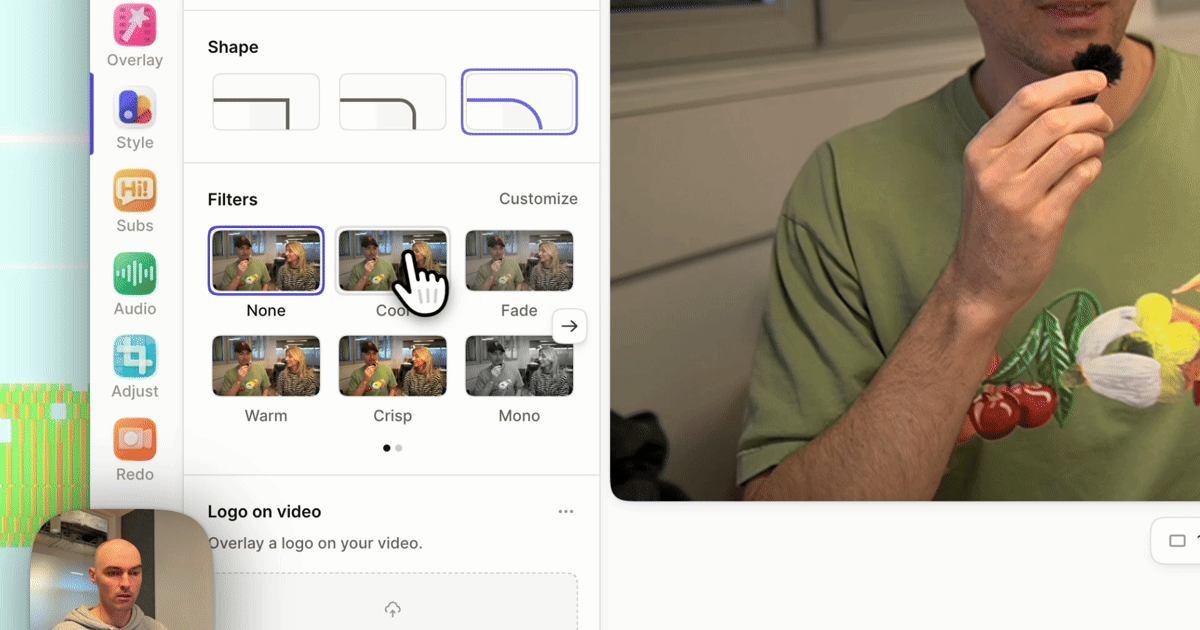
- Grade the camera. A warm filter on the camera and none on the screen keeps the presenter flattering without shifting your product's colors. See color filters for product demos.
What recordings does Blob work on?
Blob needs a separate camera layer. It works on:
- Screen and camera recordings made with Tella's Mac app, Windows app, Chrome extension, or web recorder.
- Camera-only recordings in a layout that frames the camera.
It doesn't work on a screen-only recording, or on an uploaded video with the camera already composited into the picture, because there's no camera layer to reshape.
Can you set Blob through the API or MCP?
Yes. In a custom layout, the camera slot accepts shape: "blob", or "blob-outline" for the outlined version. An agent connected to Tella's MCP server sets it with add_layout or update_layout and can check the result with get_clip_frame. Automate demo polish with MCP covers the full workflow.
Related reading
- Use the Blob camera style: the help center reference.
- Create a pop-out camera effect.
- How to create a killer product demo video.
Try Tella free for 7 days and put your next demo in a Blob.