Webcam Frame Styles for Screen Recordings: Blob vs Circle vs Cut-out (and Pop-out)
A picker for webcam frames in screen recordings and product demos: circle, square, landscape, portrait, Blob, Cut-out, and Pop-out compared, plus the borders and corner shapes that go with them, and which to use when.
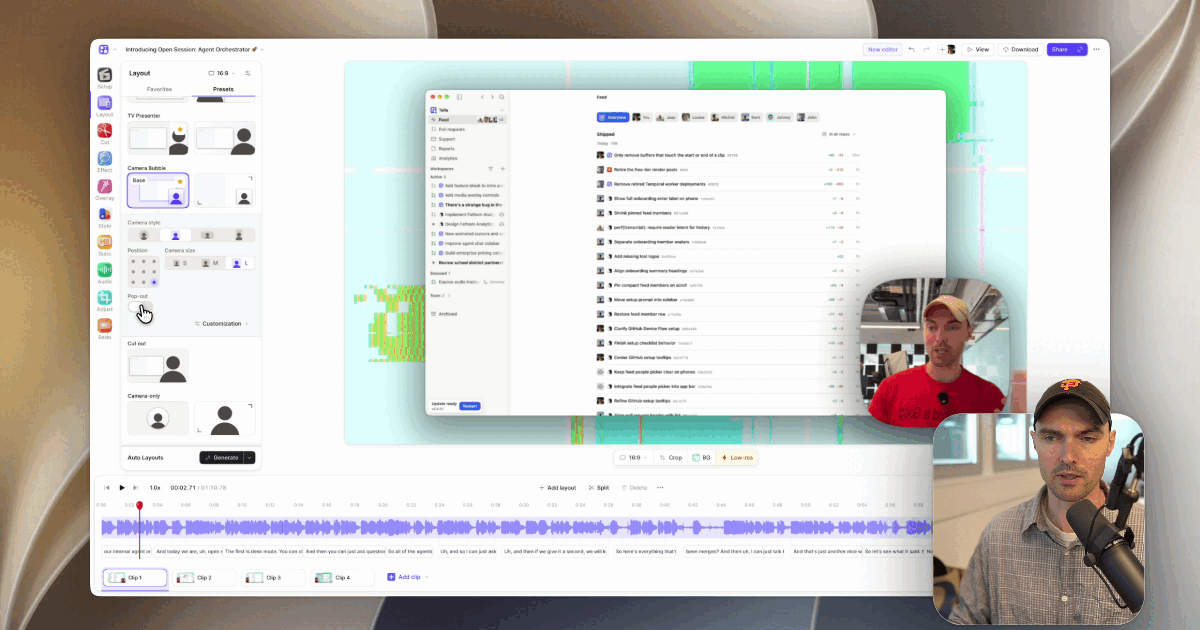
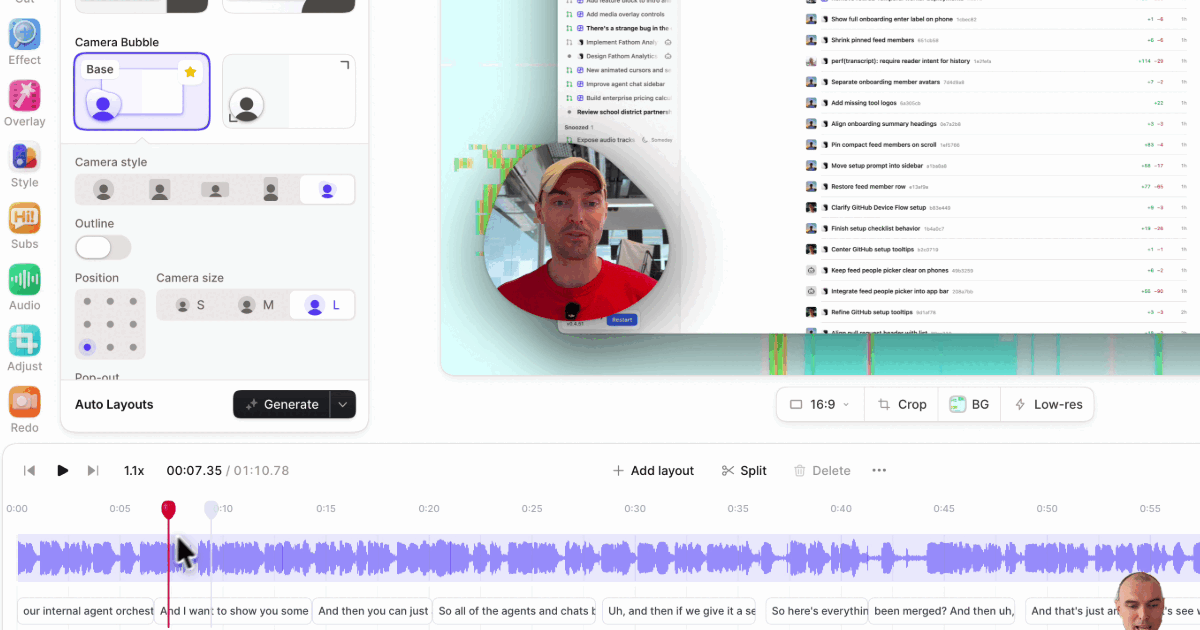
The webcam frame decides how much of your demo is about the product and how much is about you. A small circle keeps attention on the screen. Blob makes a small bubble feel alive and keeps your gestures in frame. Cut-out puts you on the canvas with no frame at all, and Pop-out has you rising out of a frame for depth. In Tella, all of them are under Layout → Customize layout → Camera style, and you can change them per section of a video.
This guide compares every option, then gives a quick picker.
At a glance
| Style | What it looks like | Best for | Needs AI cut-out |
|---|---|---|---|
| Circle | Classic round bubble | Tutorials, support videos, anything screen-first | No |
| Square | Rectangle with the corners you choose in Style | Clean, modern demos; matching a UI's card style | No |
| Landscape | Wide rectangle | Showing more of your room or a second person | No |
| Portrait | Tall rectangle | Showing more of your body; vertical-feeling layouts | No |
| Blob | Soft, wobbling frame that swells toward your gestures | Launches, founder demos, social clips, lots of pointing | Yes |
| Cut-out | You, no frame, no background | Keynote-style demos, standing next to the UI | Yes |
| Pop-out | A smaller frame with you rising out of it | Depth and personality while keeping a tidy frame | Yes |
"Needs AI cut-out" means Tella finds you in the camera recording to draw the effect. There's no green screen, but a plain, well-lit background gives a cleaner edge, and a recording with the camera baked into the screen can't use these styles.
Circle, Square, Landscape, and Portrait
These are the classic camera frames. Your camera is shown inside the shape, sized with Camera size (S, M, or L) and placed with Position.
- Circle is the default for good reason. It takes the least space, reads instantly as "the presenter," and never competes with the UI.
- Square looks more deliberate. Its corners follow the Shape setting in the Style panel: Square (sharp), Round, or Squircle (smooth, iOS-style). Match it to your product's corner radius and the camera looks like part of the design.
- Landscape and Portrait show more of the shot: a wider room, a whiteboard behind you, or your gestures below the shoulders.
Blob
Blob is a frame that reacts. It slowly wobbles and swells toward whatever reaches out of it, like a hand raised to point at the screen or a head leaning in, then settles back. At rest it's about the size of a circle bubble, so it doesn't take space from the product.
Use it when the presenter is part of the story: launch videos, founder-led demos, sales videos, social clips. Turn on Outline under Camera style to trace its edge in a line. Blob camera for product demos covers setup and tips.
Cut-out
Cut-out removes your background and the frame, so only you appear, standing over your screen recording or background. Choose the Cut out layout, or pick Cut-out under Camera style. In a screen-and-camera clip, you choose which side of the screen to stand on.
It's the most "stage presenter" look and pairs well with overlays behind the presenter: a title or product shot placed behind you. Tella prepares the cut-out once per recording, and you can keep editing while it works. See Remove your camera background with Cut out.
Pop-out
Pop-out is a switch on a framed camera (Circle, Square, Landscape, or Portrait). Tella cuts you out and places you in front of a smaller frame, so your head and shoulders rise out of it. You set the frame's Background (your original camera or a solid colour), Pop-out amount (how far the frame drops behind you), and an Outline.
It sits between a bubble and a cut-out: tidier than Cut-out, more depth than a plain frame. Choosing Cut-out turns Pop-out off, because there's no frame to pop out of. See Create a pop-out camera effect.
Borders and corner shapes
The frame's edge is set separately, under Border style in the Style panel (press O):
- Subtle shadow and Deep shadow lift the camera off the background.
- Transparent adds a soft, see-through border.
- Solid shadow draws a bold black border with an offset shadow.
- Snake sends an animated, glowing streak around the camera frame, with controls for color, thickness, glow, pulse length, and lap time.
Borders and shapes apply to every clip by default, or to one clip with Apply to this clip only. See Add a border or shadow.
Which webcam frame should you use?
- Screen is the star (tutorials, support, docs videos): Circle, size S or M, subtle shadow.
- Polished product demo: Square with Squircle corners to match your UI, or Circle.
- Launch or announcement video: Blob or Pop-out. For motion on a plain circle or square, add the Snake border.
- Founder update or sales video: Blob or Cut-out, where your presence carries the message.
- Keynote-style walkthrough: Cut-out, standing beside the UI, with a title behind you.
- Vertical social clip: Blob or Pop-out in a portrait canvas, which read well small on a phone.
You don't have to pick one for the whole video. Camera style is part of the layout, and layouts change by section, so a common pattern is Cut-out or Blob for the intro, a circle during the demo, and Cut-out again for the call to action. Auto Layouts can generate those changes for you.
Related reading
- Use the Blob camera style
- Use layouts
- Background removal in Tella
- How to record your screen and webcam at the same time
Try Tella free for 7 days and try every frame on your next recording.