How to Export a .cube LUT From DaVinci Resolve for Your Screen Recordings
Build a grade once in DaVinci Resolve, export it as a 33 or 65-point .cube LUT, and apply it to every webcam and screen recording in Tella, with the settings that make it look right on normal webcam footage.
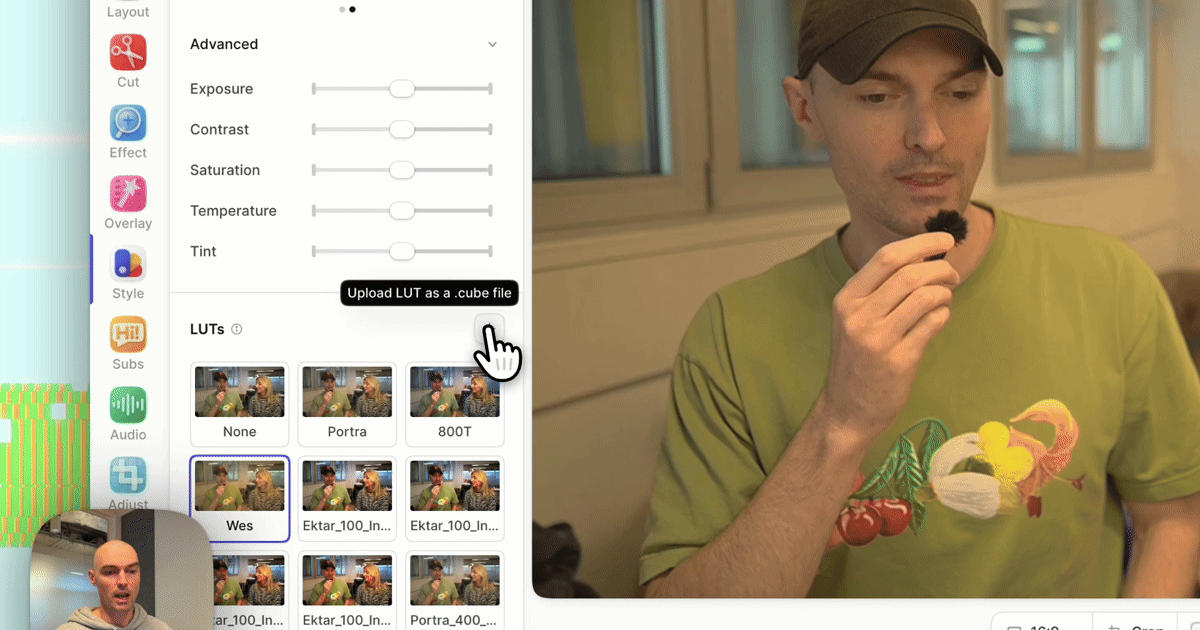
To use a DaVinci Resolve grade on your screen recordings, export it as a .cube LUT and apply it in Tella. In Resolve, grade a clip on the Color page, right-click its thumbnail in the clip strip, and choose Generate LUT → 33 Point Cube. Then, in the Tella editor, press B for Style, click Customize under Filters, and click Upload LUT as a .cube file. Set LUT intensity, and the grade applies to every matching clip, on the share link, and in exports.
Below: how to build a grade in Resolve that works on webcam footage, which export settings to use, and how to share the LUT with a team.
Why grade in Resolve and apply in Tella?
Resolve is where colorists work: scopes, curves, and precise control. Tella is where your demos, tutorials, and updates are recorded, edited, and shared. Exporting a LUT connects them:
- Grade once, reuse everywhere. The look you build for one clip applies to every recording, without importing each one into Resolve.
- No export and re-upload. You grade in the editor your share link plays from, so a tweak doesn't mean rendering and uploading a new file.
- Camera only, if you want. Tella records camera and screen separately, so the LUT can go on your face without touching the product UI.
Step 1: Start from footage like your webcam
A LUT maps input colors to output colors, so it only looks right on input like the footage it was built on. Most Resolve LUTs you'll find online are made for log footage from cinema cameras. A webcam or phone records normal Rec.709 video that's already contrasty and saturated, so a log LUT on it looks crushed and orange.
For a LUT meant for your recordings:
- Download a recent Tella recording made in your usual lighting as an MP4.
- In Resolve, create a project and leave Color science at DaVinci YRGB in Project Settings → Color Management. A color-managed project (DaVinci YRGB Color Managed or ACES) adds transforms that won't be in the LUT.
- Import the clip and open the Color page.
Step 2: Build the grade with global tools only
A LUT can only store global color changes: each input color maps to one output color, no matter where it is in the frame. Use tools that do that:
| Survives in a LUT | Doesn't survive |
|---|---|
| Lift, gamma, gain, and offset | Power windows and masks |
| Curves (custom, hue vs hue, hue vs sat, and similar) | Qualifiers and keys |
| Saturation, contrast, color balance | Tracking |
| Other LUTs inside the node tree | Blur, sharpening, noise reduction |
| Most ResolveFX, like glow and film grain |
Keep the grade gentle. Webcam footage has less latitude than cinema footage, so a strong grade shows noise and banding. A light warm shift, a slightly lifted black point, and a little less saturation in the orange range is a flattering, filmic starting point.
Check the result on a few frames: bright and dark moments, and your face close up.
Step 3: Generate the .cube LUT
- In the clip strip at the top of the Color page, right-click the graded clip's thumbnail.
- Choose Generate LUT, then 33 Point Cube.
- Name the file and save it. Resolve saves to its LUT folder by default; Project Settings → Color Management → Open LUT Folder opens it.
Which size to choose:
- 33 Point Cube: the default. Accurate for gentle grades and a small file.
- 65 Point Cube: for strong curves or hue shifts where 33 points show banding. Larger file, still accepted by Tella.
- 17 Point Cube: smallest and least precise. Fine for very subtle looks.
Don't choose Panasonic VLUT. Tella accepts 3D .cube files with LUT_3D_SIZE up to 65, and rejects 1D LUTs.
Step 4: Upload the LUT to Tella
- Open a video in the Tella editor and select a clip.
- Press
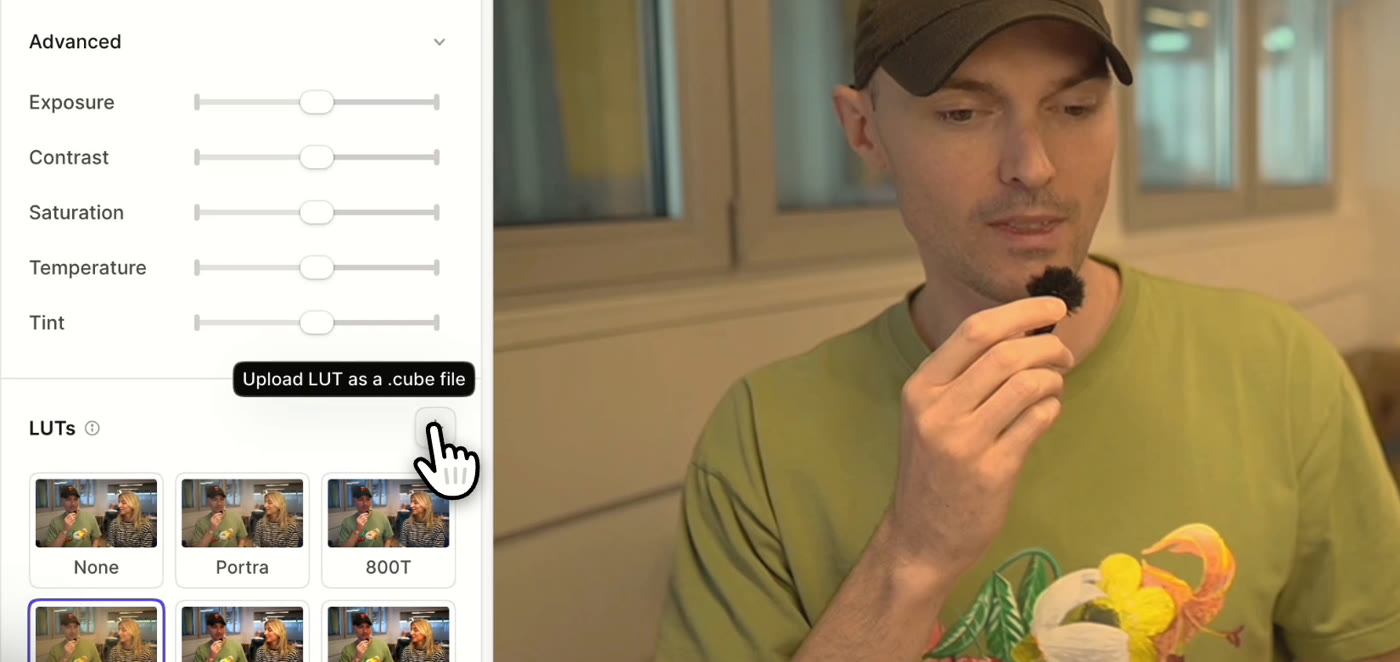
Bfor Style, choose the Camera tab under Filters, and click Customize. - In LUTs, click Upload LUT as a .cube file and choose the file from Resolve.
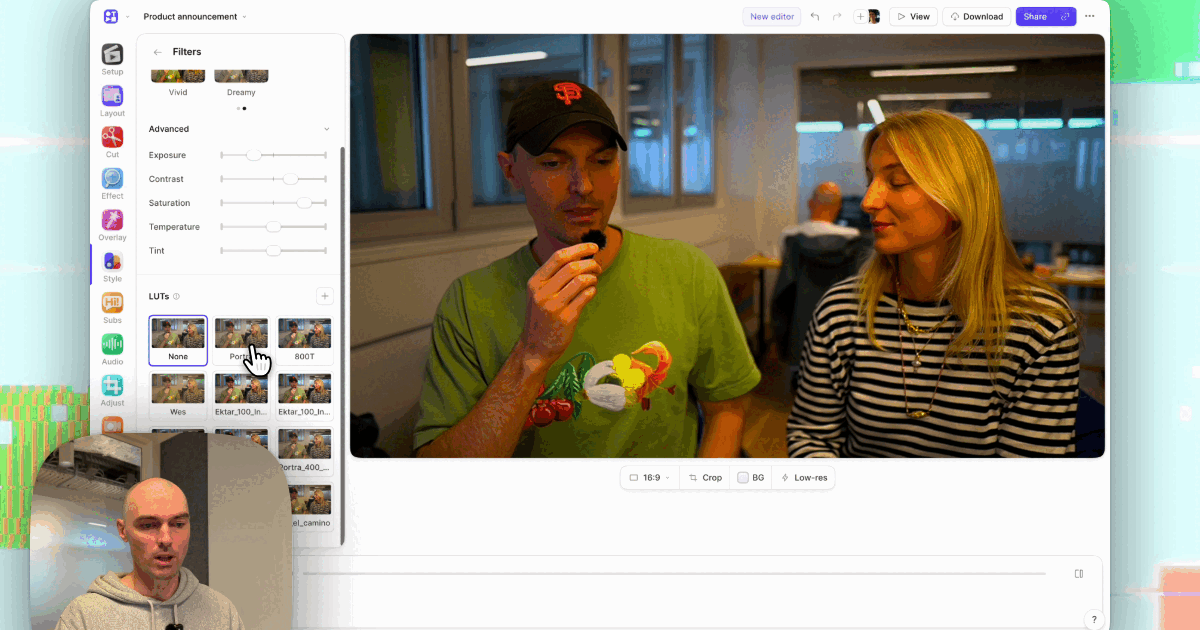
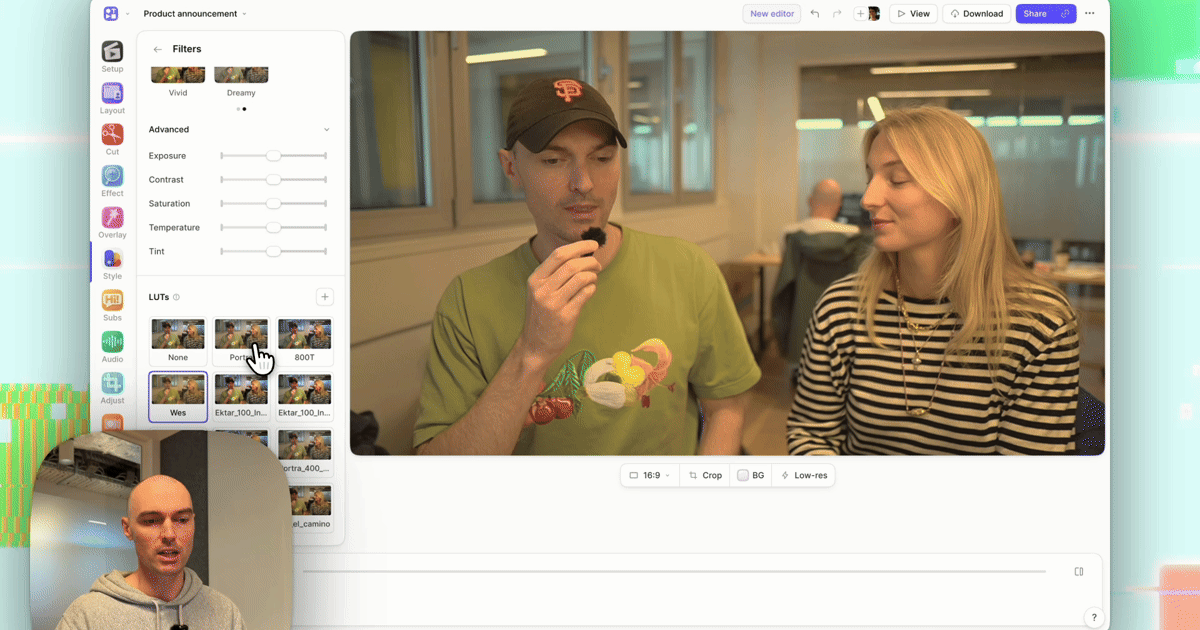
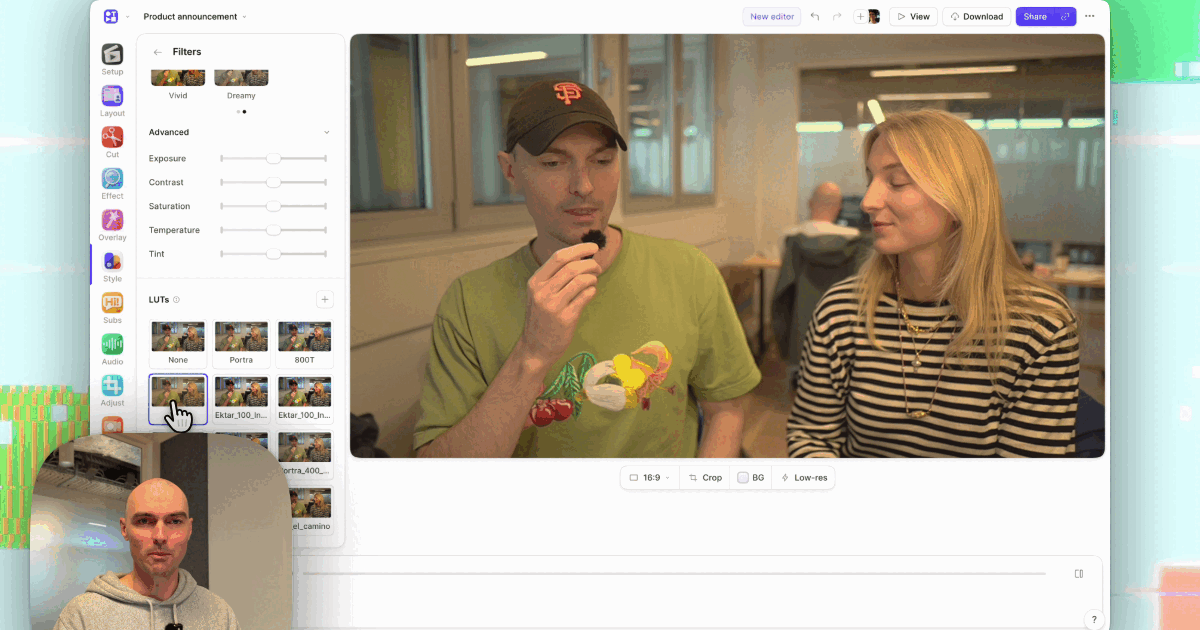
Tella checks the file, saves it to your library, and applies it at full strength. Next time, it's in the LUT grid on every video, next to the built-in Portra, 800T, and Wes.
Step 5: Set intensity and scope
- LUT intensity: drag it down if the look is too strong. 50% to 80% is common for a LUT built on your own footage; lower for a LUT made for log.
- Camera vs screen: leave the Screen tab at None, or Crisp, so your product's colors stay accurate.
- Which clips: the LUT applies to every camera clip in the video by default. For a clip recorded in different light, check Apply to this clip and give it its own look.
In the editor, a LUT and the Advanced sliders don't stack: choosing a LUT resets the sliders, and moving a slider removes the LUT. Put small corrections in the Resolve grade before exporting, or use the API or MCP, which can set a LUT and slider values together.
Share the LUT with your team
An upload in the editor goes to your personal library. To give every teammate the same look, upload it to the workspace through Tella's API or MCP server: the agent calls create_source with kind: 'lut', uploads the file, and calls add_library_item with scope: 'workspace'. The LUT then appears in everyone's LUT grid. Match brand colors across camera and screen covers what a team look should be.
Troubleshooting
| Problem | Likely cause | Fix |
|---|---|---|
| Upload is rejected | 1D LUT, VLUT, or LUT_3D_SIZE above 65 | Regenerate as a 17, 33, or 65 Point Cube |
| Skin looks orange, shadows crushed | LUT built for log footage | Rebuild on webcam footage, or lower intensity |
| Look differs from Resolve's viewer | Color-managed project | Rebuild in a DaVinci YRGB project |
| Mask or vignette is missing | Spatial tools don't go into LUTs | Use global tools only |
| Banding in gradients | Strong curve at 17 or 33 points | Export a 65 Point Cube |
Related reading
- How to apply a .cube LUT to a screen recording.
- How to color grade your webcam without CapCut or Premiere.
- Adjust your video's colors with filters: the help center reference.
Try Tella free for 7 days and bring your Resolve look to every recording.