How I created self-updating help docs (with videos)
In one week, an agent recorded 96 help center videos for Tella with Auto Capture, took us from 76 to 136 articles with a video, and caught docs that were wrong. Now every PR updates the docs, and the videos too.
We ship a lot at Tella. Like, a lot a lot. In the last two weeks we merged 637 pull requests. That's about 60 every working day.
That’s great for our customers because they’re getting so many new features in Tella, but it’s not great for our help docs.
Every time the editor changes, a help video somewhere goes out of date. A button moves, a menu gets renamed, a flow gets redesigned. And nobody goes back to re-record a 90 second video for something that shipped three months ago.
For some context, we’re a team of 7 at Tella, and one of my many responsibilities is to ensure that our help docs remain accurate, so when customers, AI Agents, and our own AI Support field questions, they’re able to answer accurately. When we’re shipping over 60 PRs a day, this is an impossible task.
Last week, I finally solved this very problem.
The quiet problem
We had 263 help articles. Only 76 had a video (29%).
Then I watched those 76. 32 of them were out of date. That’s 42%.
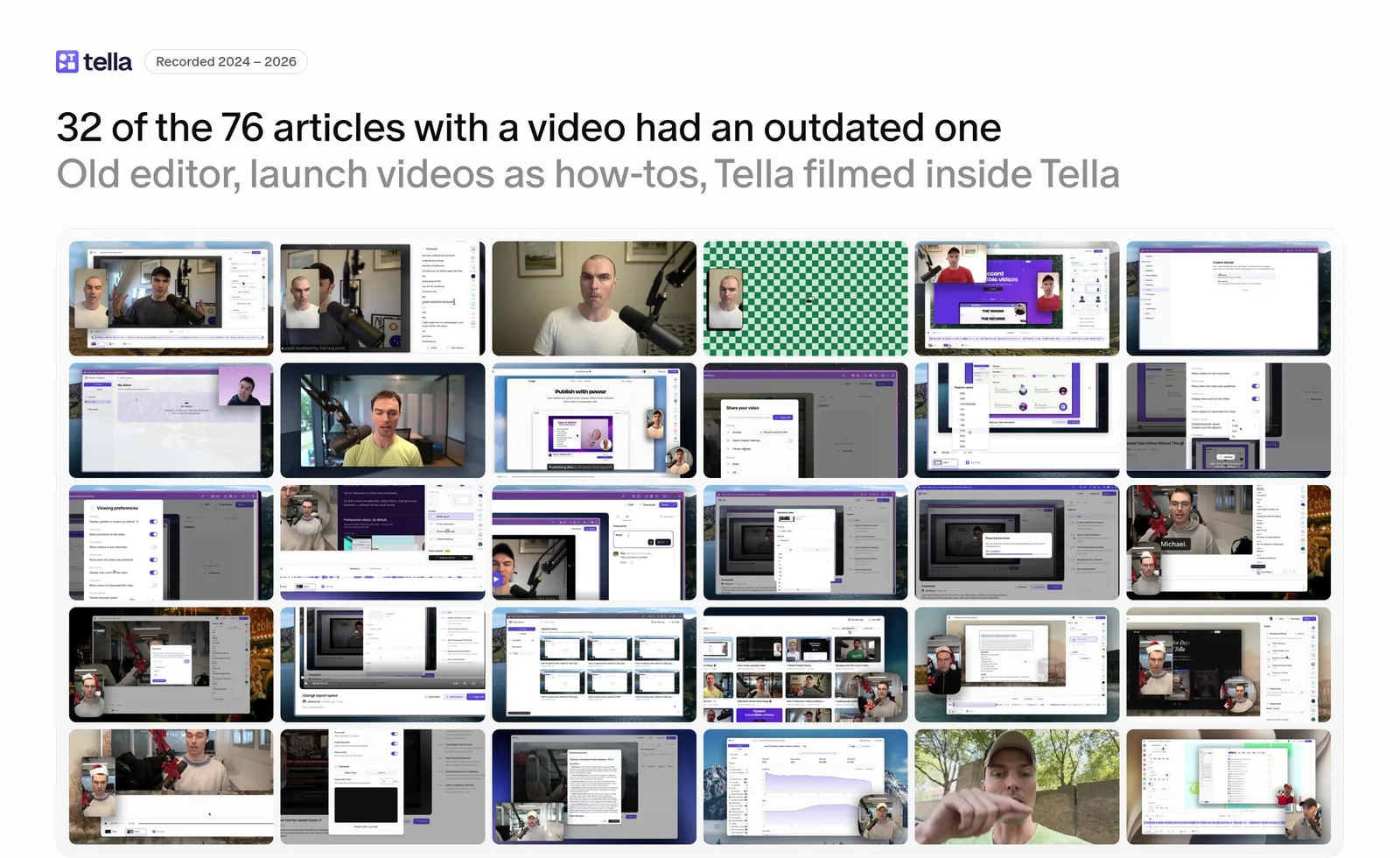
Some showed our old editor. Some were launch videos that I had converted into a how-to video. Some were Tella recorded inside Tella, which is very meta and very hard to follow.
This wasn’t because we were careless. Not because we didn’t care about docs. But because video and help docs are the first thing to go stale when you ship every day.
What I did
I’ve been dogfooding a feature we built called Auto Capture. It lets an agent record your screen for you.
Help docs was the immediate use case that came to mind and turns out that others also resonated. We had customers reaching out eager to give it a try.
Here’s what I did:
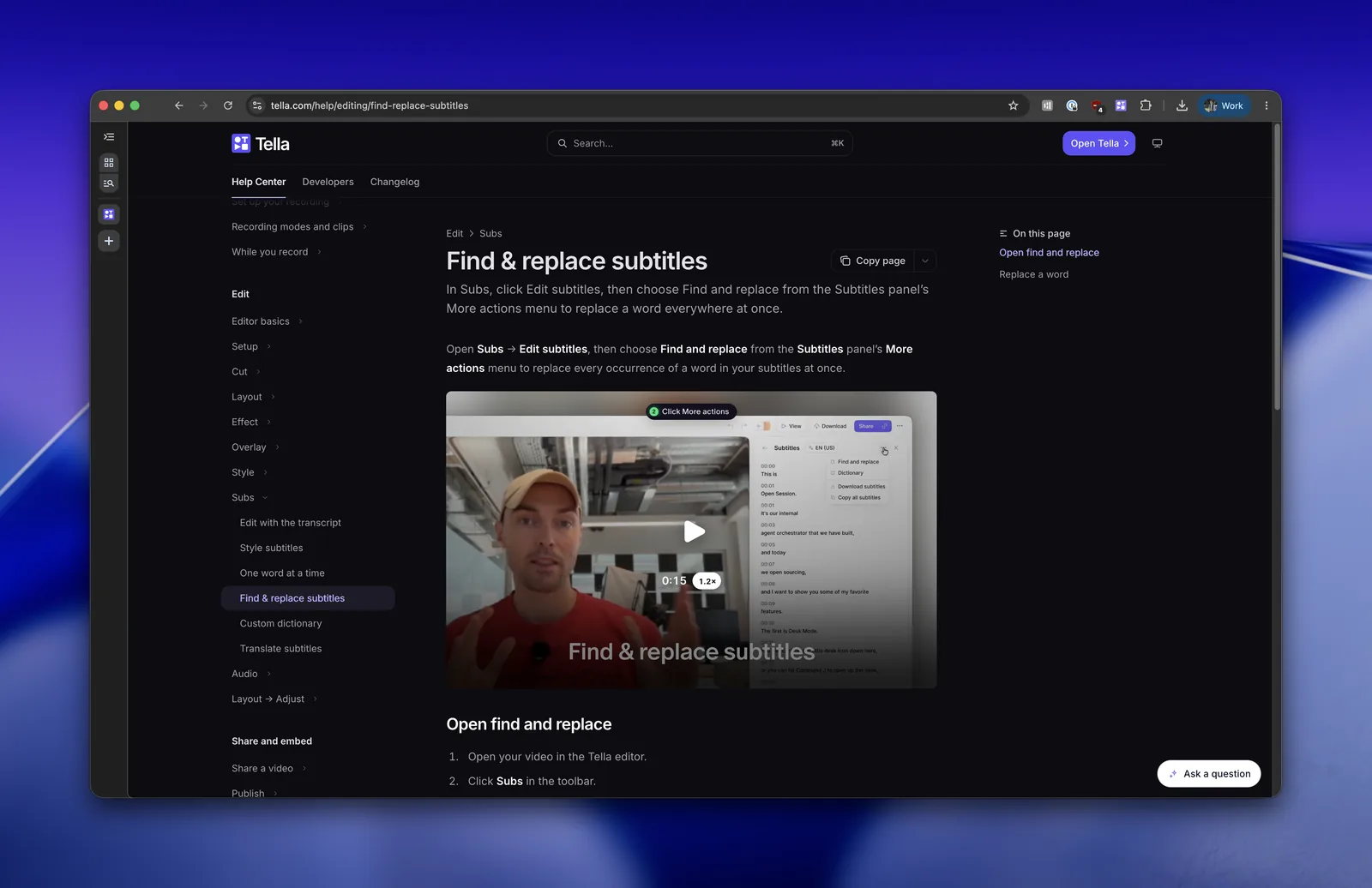
For each article, the agent followed the written steps one take at a time, on a copy of a demo video so no real content changed. Then Tella Agent styled every video the same way: step labels, zooms, 1.2x playback and a “Read the guide” button that links back to the article.
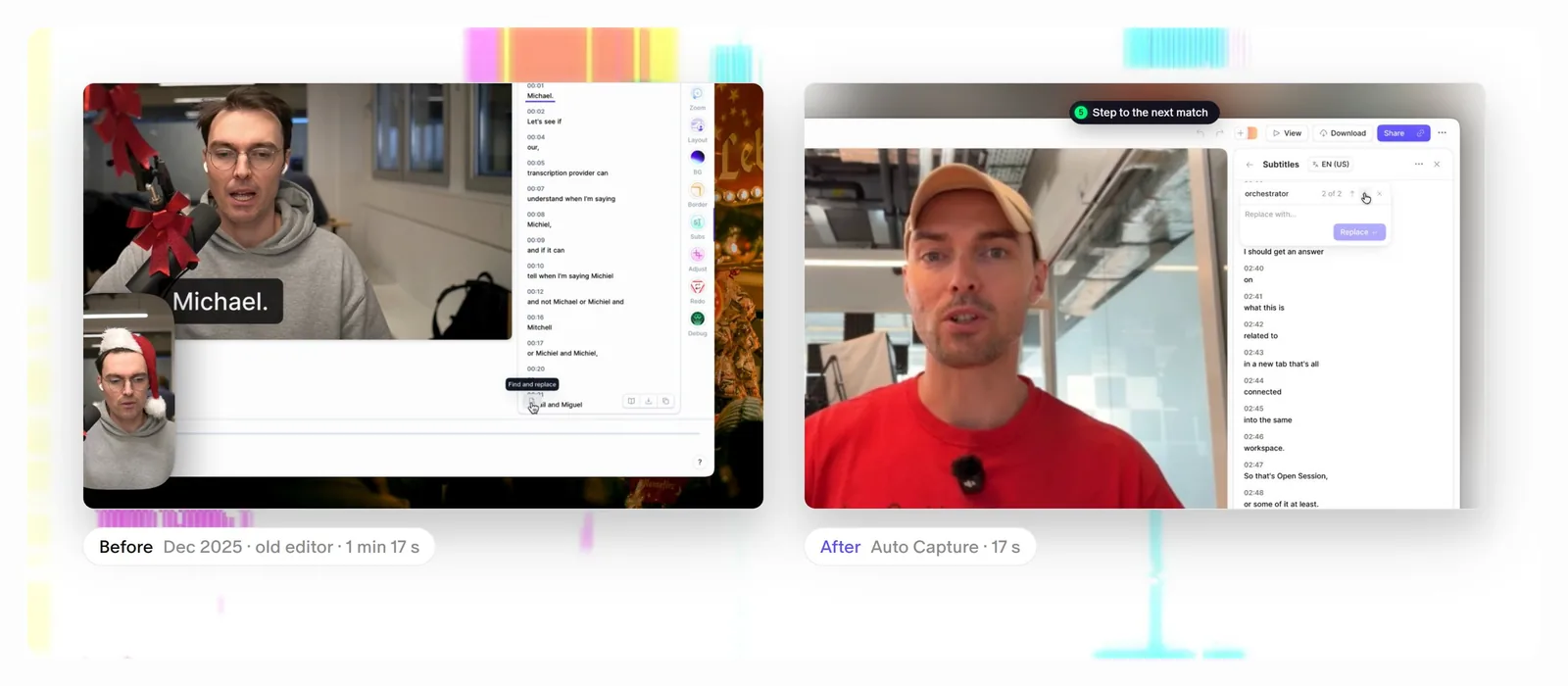
Here’s one of them, from Find & replace subtitles:
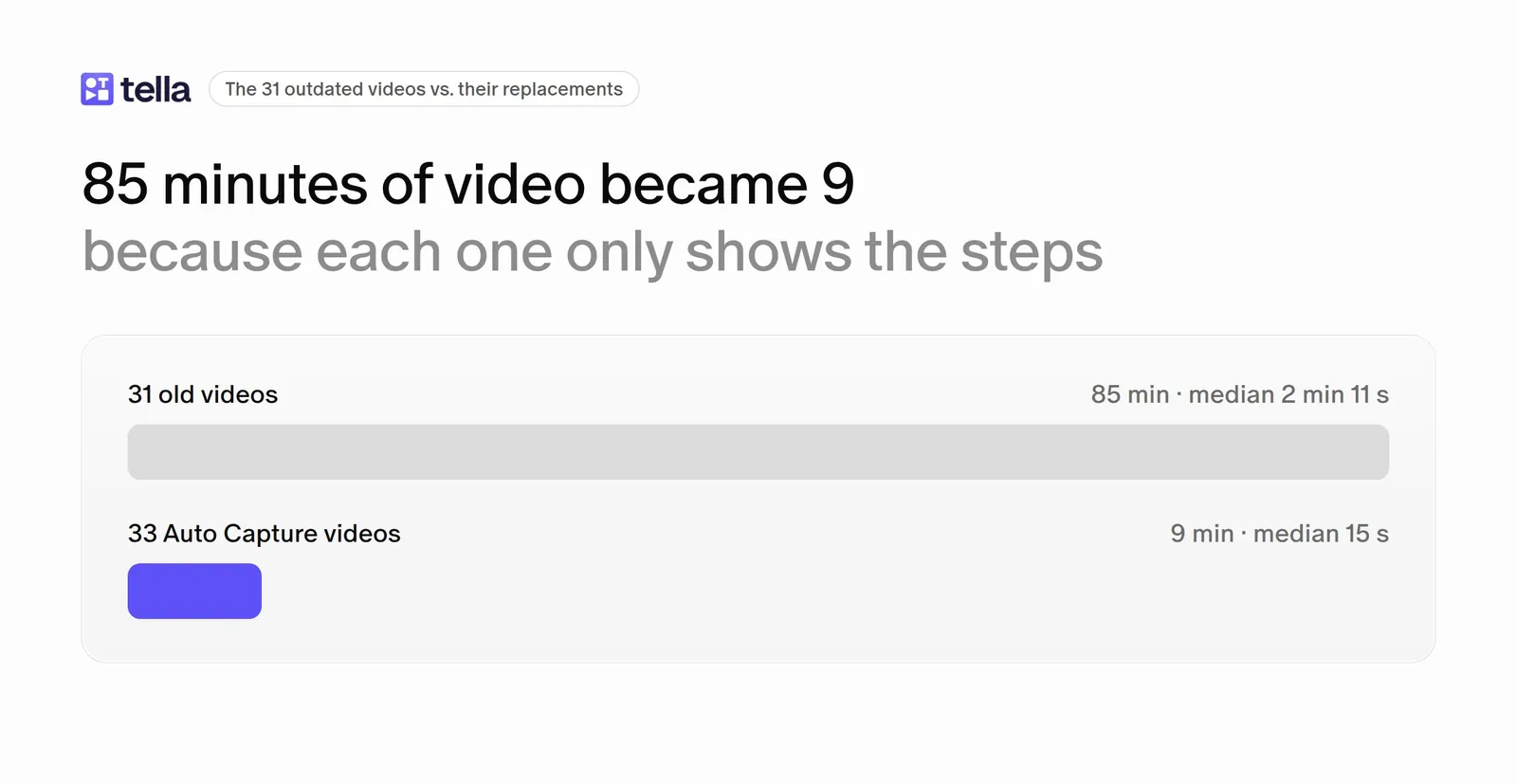
Because each video only shows the steps, they got a lot shorter. The 31 old videos ran 85 minutes in total. The 33 that replaced them run 9.
Auto Capture audited the docs
When the agent followed the written steps and the app did something different, we caught it.
The filming turned up docs that were wrong:
- the CTA button prefill
- embed domains that save when you click out of the field
- where the toast actually shows up
- Resend steps that don’t exist anymore
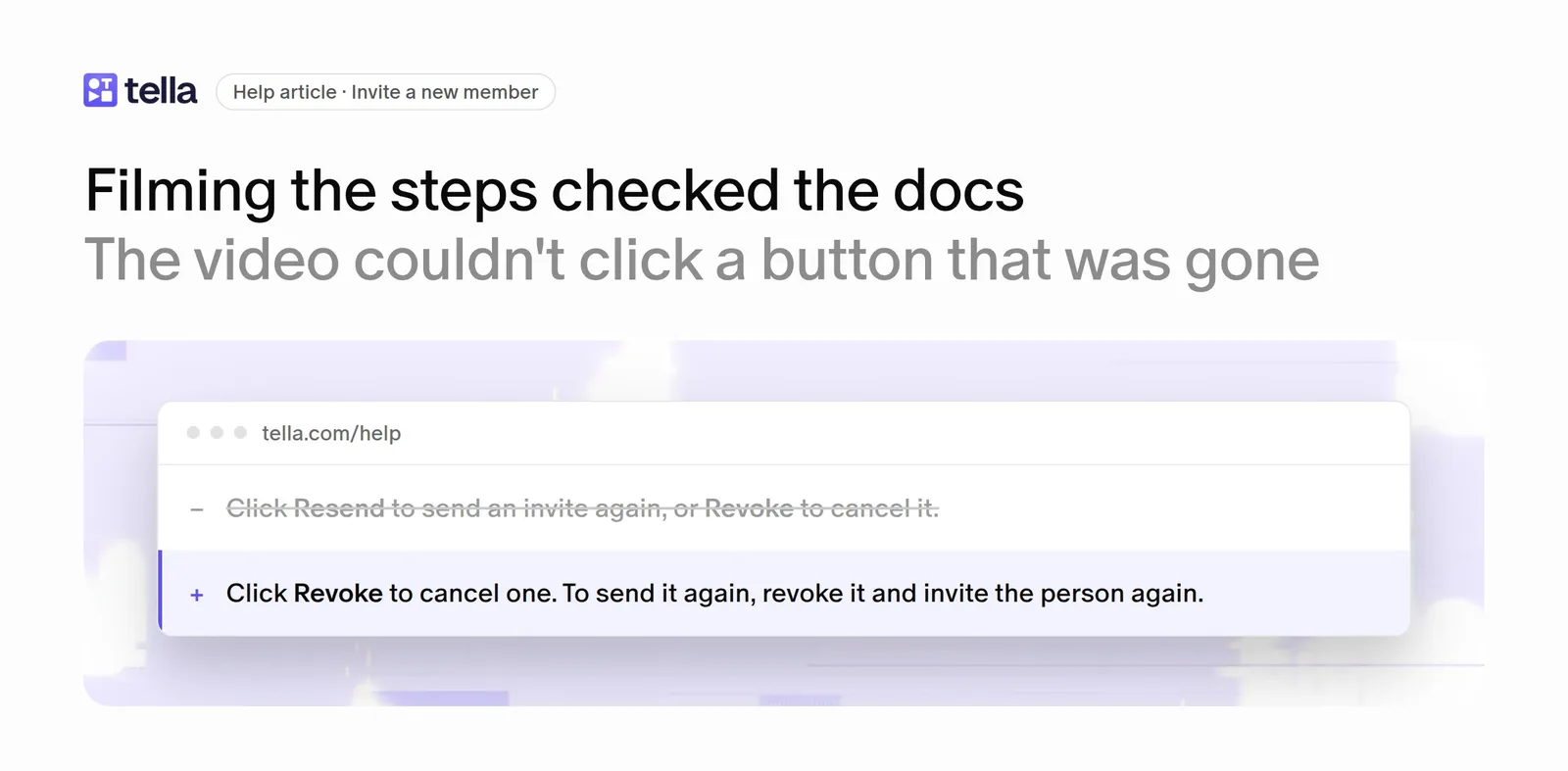
We fixed the written text alongside the videos.
The results
You might be wondering. What were the actual results from using Auto Capture on our help docs?
76 articles had videos. With Auto Capture, we brought that number up to 136. That’s 52% coverage.
- Of those 136, 62 articles got their first video.
- And 32 outdated ones got updated.
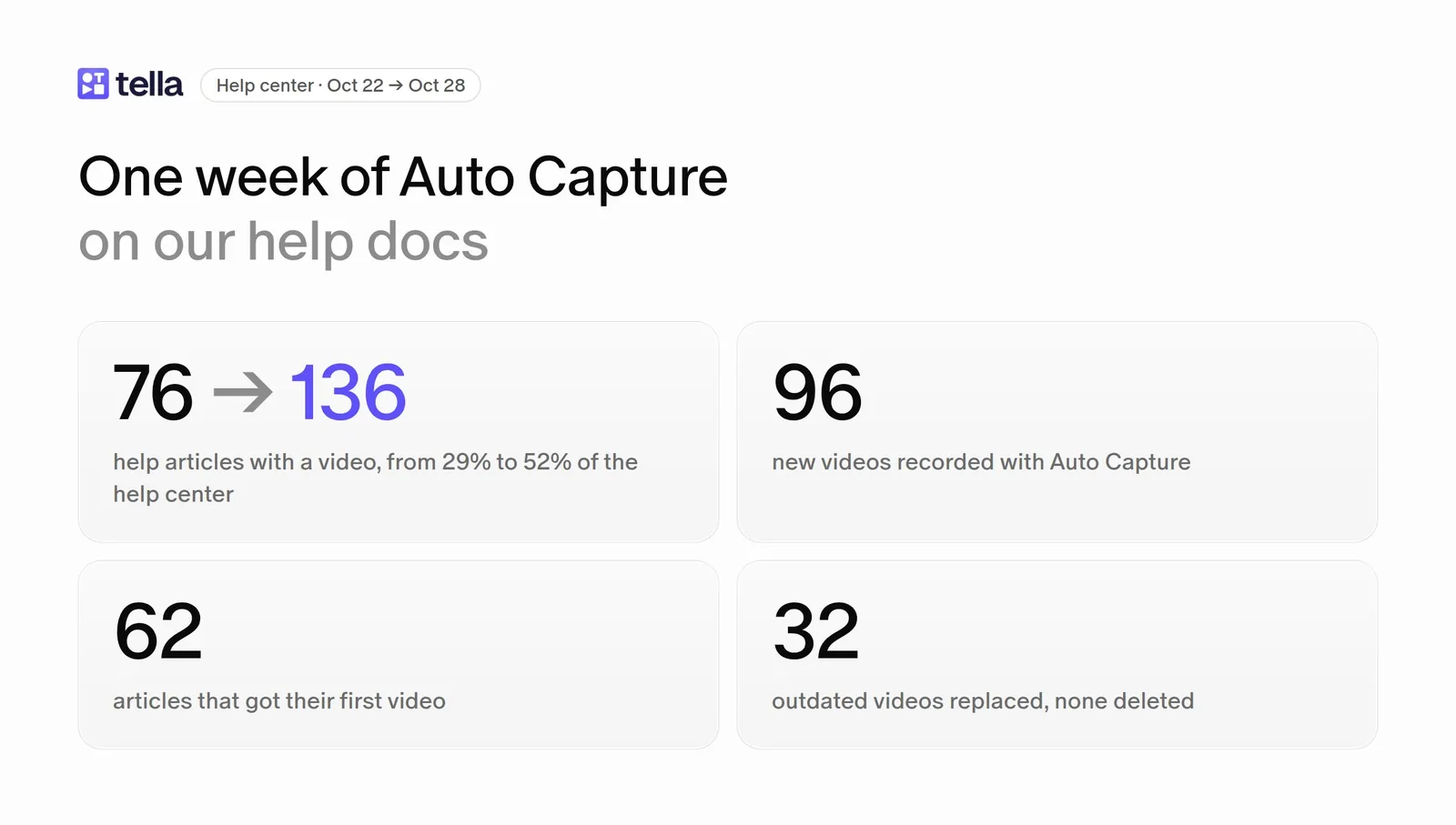
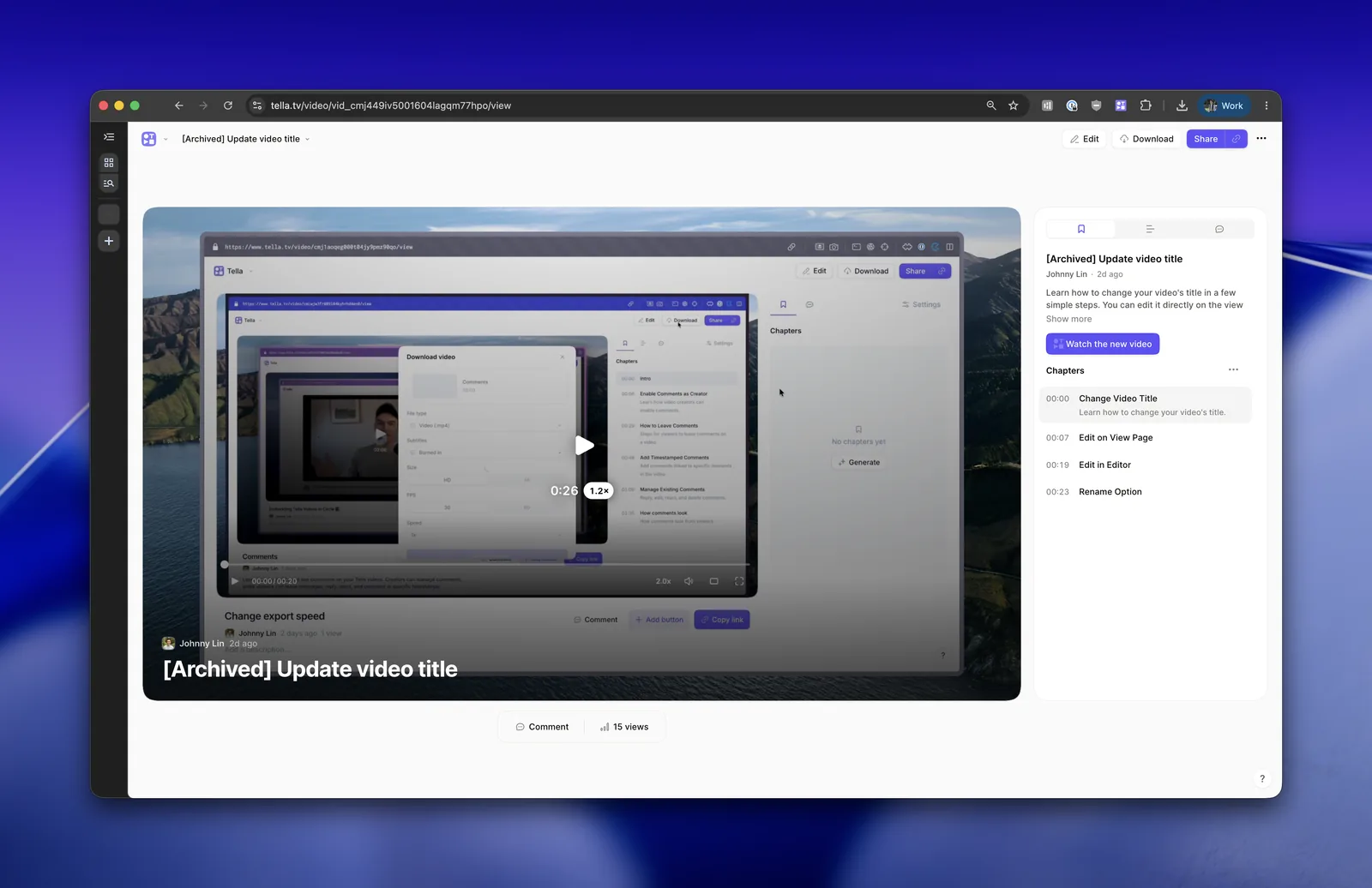
We didn’t delete anything. Every old video is archived with a button pointing to its replacement.
Everything I described above was a one time audit. The goal is to keep it current. Here’s what keeps it current.
Everything above was a one time audit. And a one time audit starts going stale the day after you finish it.
So we built it into how we ship. Every time a PR is updated or merged, an agent runs a docs sync. It updates the written article, then checks whether the change touched the UI or added a new feature.
If it did, it uses Auto Capture to film a new video for that article, styled like all the others.
If it didn’t, the written update goes out on its own.
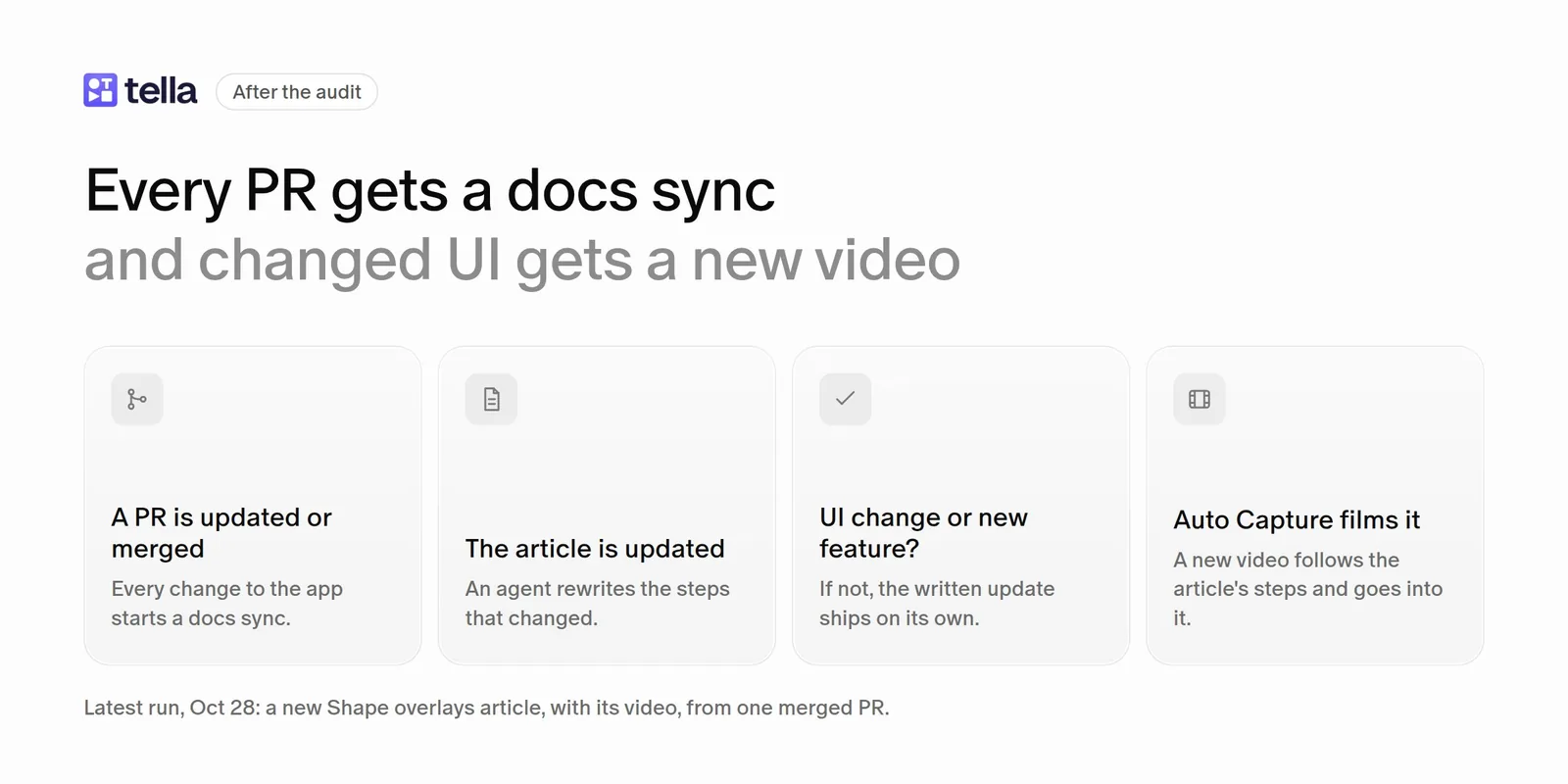
Help docs used to be a never ending project. Now they ship with every PR.
What’s left
126 articles still have no video. Many are FAQ, billing or account pages where a video probably wouldn’t help anyway. We plan to add videos intentionally where they’d actually help.
Try it yourself
You don't need to build any of this. You can do it today with the Tella MCP in Claude or ChatGPT. Each prompt below links to a page with more detail on that use case, and there are more in our AI use case library.
1. Find the gaps and fill them (Make help center videos)
Audit the help docs at [your help center URL] and list the articles that don't have an embedded video. Show me the list and ask me which ones matter most before you start.
Then, one article at a time, use Tella Auto Capture to record a video that follows the article's written steps on [your app URL], signed in with my "Demo account" credential. When each take is delivered, watch it and check it matches the article step by step. Tell me anywhere the app and the article disagree.
Put each take in a new Tella video named after the article, add zooms on the clicks, add a "Read the guide" button linking back to the article, and add it to my "Help Docs" playlist (create it if it doesn't exist).
2. Refresh a video that's gone stale (Update videos after a UI change)
This help article has an old video: [article URL]. Watch the video and compare it with the app as it is today at [your app URL]. If the UI has changed, record a new take with Tella Auto Capture that follows the article's current steps, signed in with my "Demo account" credential. Don't delete the old video. Rename it with "[Archived]" at the front and add a button on it that links to the new one.
3. Catch docs that are wrong (Test help article steps)
Follow the steps in [article URL] on [your app URL] with Tella Auto Capture, signed in with my "Demo account" credential. Don't fix anything yet. Just tell me every step where the button, label or result in the app doesn't match what the article says.
A tip from doing 96 of these: use a demo account and a copy of a demo project. Auto Capture actually clicks through your app, so anything a take saves is really saved. More on that in Record a demo without changing account data, and on saving the demo account's sign-in in Record a demo behind a login.
My takeaway
I never thought I’d see help docs, both the written articles and the videos, keep up with how fast we ship.
Now they do.
If your help center has the same problem, Auto Capture is live in Tella. Give it a try and tell me what you think.
-Johnny
Questions people ask
How do you keep help center videos up to date when your product changes every week?
Have an agent record them instead of a person. Auto Capture follows an article's written steps in your app and films the video, so re-recording after a UI change is one request, not an afternoon. At Tella, a docs sync runs on every PR, updates the written article, and records a new video when the change touches the UI or adds a feature. See Keep help article videos up to date.
What is Tella Auto Capture?
Auto Capture records a screen walkthrough of a web page with no one at the keyboard. An AI agent opens the page in its own browser, explores it, writes a script, checks the script runs, then films it with an animated cursor. You start it from the Tella Agent in the editor, or from Claude, ChatGPT or another AI app connected to the Tella MCP server. See Auto Capture.
Can AI make help center videos from my existing help articles?
Yes. Connect Claude, ChatGPT, Claude Code or Cursor to Tella's MCP server, give it your help center's address, and ask it to list the articles with no video and record one for each with Auto Capture. It passes each article's steps to Auto Capture, then checks the finished video against the article. The full prompt is in Make help center videos with Auto Capture.
Do I need to write a script or list every click?
No. Describe who the video is for, the journey and where it should end. Auto Capture finds the buttons itself. Add "Film the whole journey on camera, page to page" if viewers need to see how to get there, or it may reach the feature off camera and start filming on the final screen. Auto Capture example prompts has prompts and the videos they produced.
Can Auto Capture record pages behind a login?
Yes. Save a demo login under Settings → Credentials, typed in or picked from 1Password, and name it in your request. The agent signs in off camera, so the video starts signed in. The password is encrypted, never shown to the AI, and masked in recordings. With a one-time password saved in 1Password, it fills in two-factor codes too. See Let Auto Capture sign in to your product.
What can't Auto Capture record?
Pages on your own computer or private network (localhost, IP addresses, intranet hosts), URLs with a username or password in them, and anything outside a web browser, such as desktop or mobile apps. Sites that block automated browsers can let captures through with a firewall rule on the X-Tella-Auto-Capture header. See Let Auto Capture past your firewall or bot protection.
Will Auto Capture change data in my app?
It can. Auto Capture uses the signed-in account for real, so anything the demo saves is really saved. It puts back changes it can undo before each run, and stops to ask before a change it can't undo, like sending an email. Use a demo account and a copy of a demo project, as we did for all 96 videos.
How long does a help video take to record with Auto Capture?
A take usually runs for several minutes, with no one watching it. The videos themselves came out much shorter than our hand-recorded ones: a median of 15 seconds, against 2 minutes 11 seconds for the videos they replaced.
Can Auto Capture find mistakes in help docs?
Yes. If the agent can't follow an article's steps, a reader probably can't either. When a take stops with a question, or the video and the article disagree, a step is usually missing, out of order, or names a button that has changed. That's how we found the Resend step that no longer exists.
How do I add the videos to my help center?
Each take lands in a Tella video. Trim it or add narration if you like, then paste its embed code into the article. See Customize embed settings, or Embed Tella videos in Mintlify if your help center runs on Mintlify.
What should I do with the old help videos?
We kept ours. Each old video was archived: added to an archive playlist, renamed with "[Archived]" at the front, given a "Watch the new video" button linking to its replacement, and swapped out of every article that embedded it. Old links still work and send viewers to the current video.
How much does Auto Capture cost?
Auto Capture is included with paid Tella plans and uses your workspace's AI credits, the same balance the Tella Agent spends. A free trial can't start a take.